Accruals - AP Unapproved to JC CostAdj
Getting Started
Do you want to accrue job expense related to your outstanding unapproved invoices at month-end? This template will create one JC Cost Adjustment record per Job/Invoice and is reversible the following month.
Template Info
-
Required Source Data
- You must have outstanding AP Unapproved Invoices with Job values entered.
-
Additional Tips
- Excluded Invoices
- Invoices entered in an unapproved month greater than the BatchMth parameter.
- Invoices marked Not Ready.
- Invoice lines without a Job value.
- This can handle intercompany entries if your AP Invoices are coded across companies.
- This can handle multiple companies in the same download. Each action below will be unique to the Company on the record.
- Excluded Invoices
-
Basic Steps
- Download the Data
- Get Batch #
- Import the Records
Start Import Process
Click the Templates button on the left side of the ribbon.
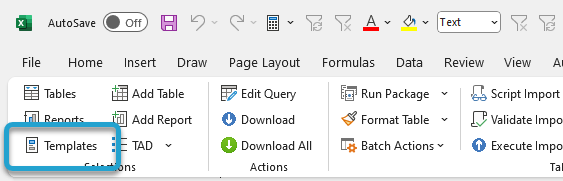
If you've signed into TAD before, then you should receive the message below. Click Yes.
If you have not signed into TAD before, follow the Get Connected instructions.

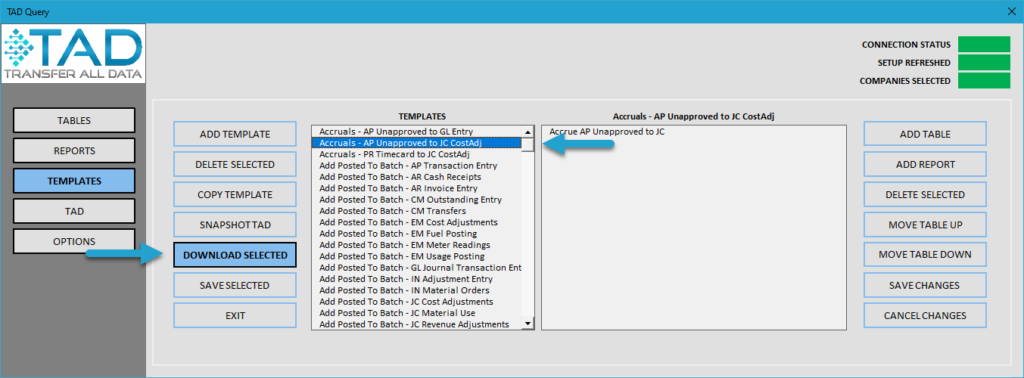
Select the Accruals – AP Unapproved to JC CostAdj template.
Click the Download Selected button.
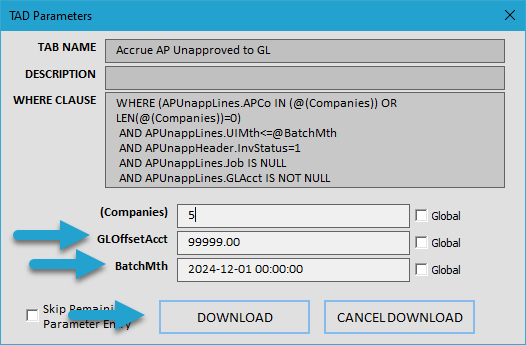
Press F4 in the GLOffsetAcct parameter or type in the GL Account you want to use to offset the expense from the AP Invoices.
Press F4 in the BatchMth parameter or type in the month you want to accrue the expense.
Click the Download button.
You will now see one record per Job/Invoice.
Click the Format Table button.
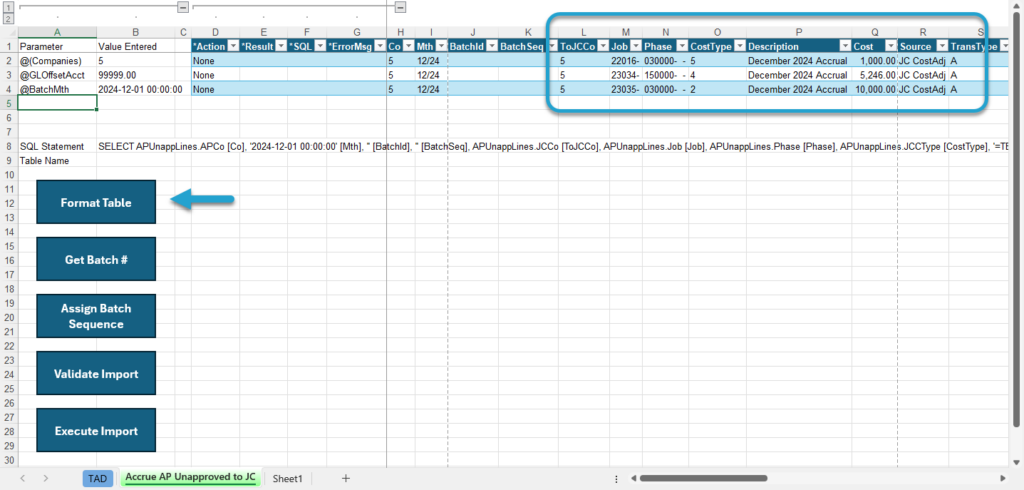
The Result column will show Formatted for every record.
Click the Get Batch # button to have a new batch number assigned per Co/Mth column combinations.
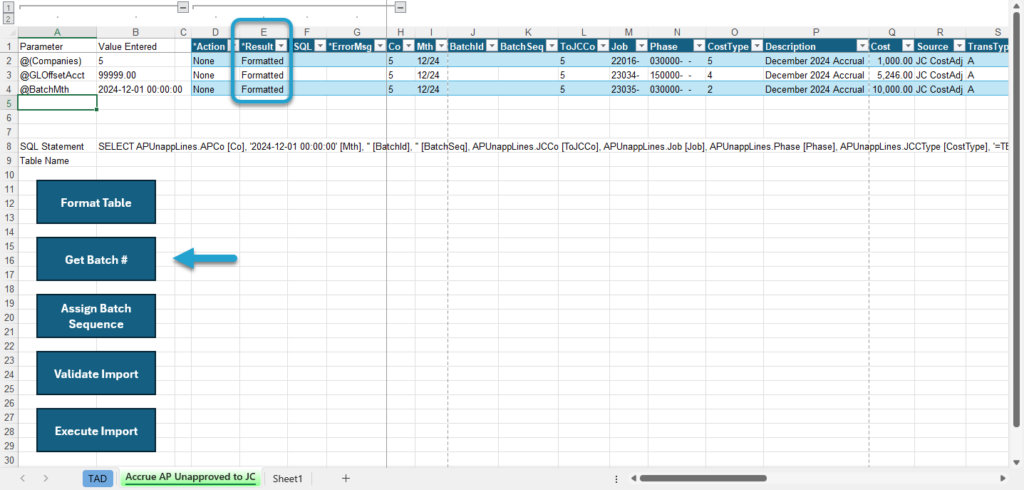
The Result column will show Batch #XX Assigned for every record.
Click the Assign Batch Sequence button to assign the BatchSeq column a value per Co/Mth column combination.
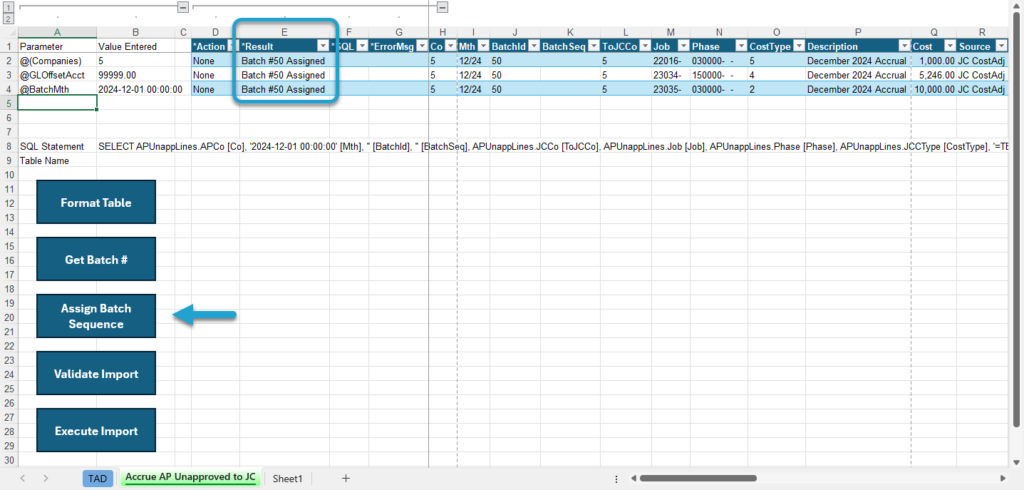
The Result column will show Batch Sequence Assigned for every record.
Click the Validate Import button to see if there are any errors with the records.
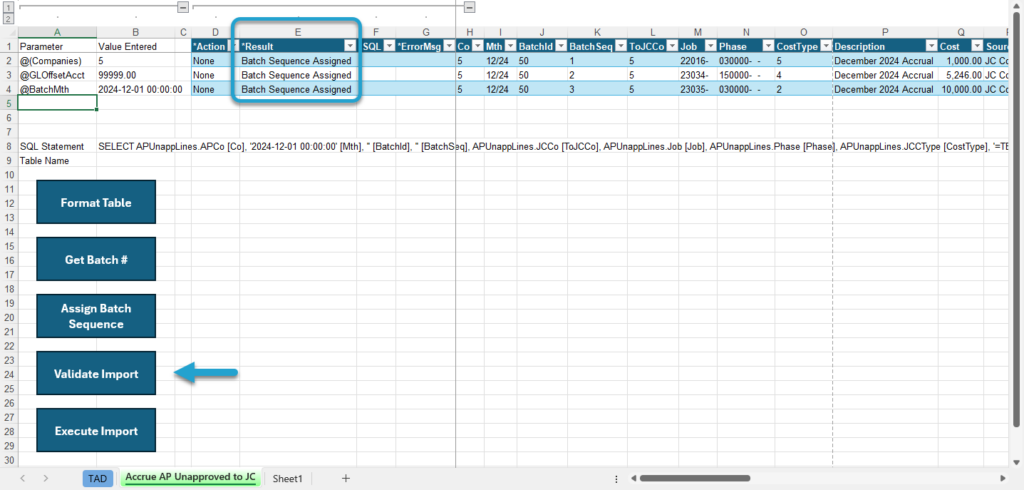
The Result column will show Validated for every record. If this says Failure, then the ErrorMsg column will provide the error.
Click the Execute Import button to import the records into Vista.
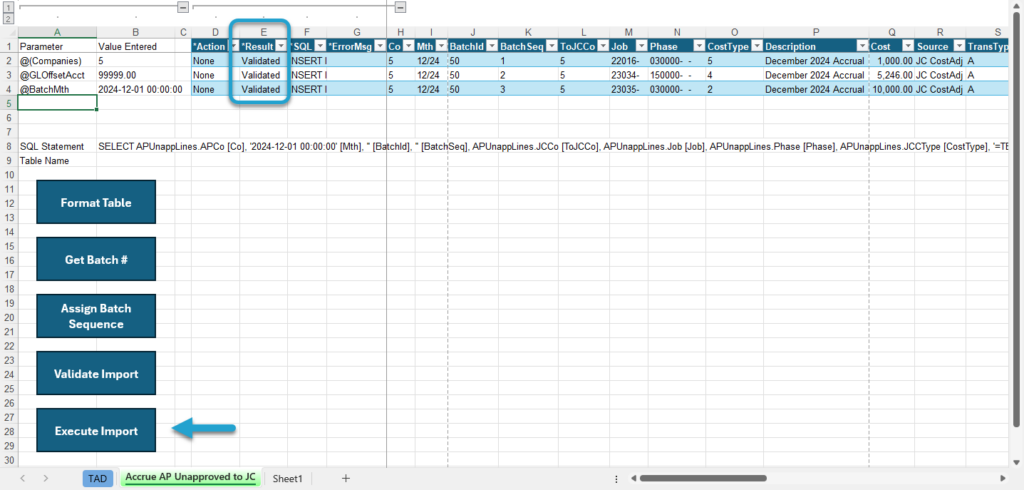
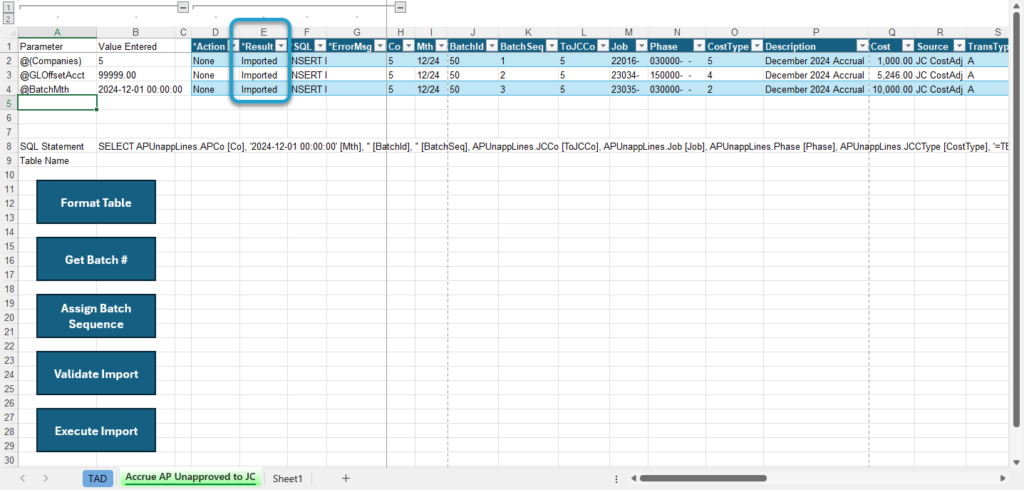
The Result column will show Imported for every record. The batch is now available in Vista to open and post!
Run Package
As you get more comfortable with the process, you can utilize the Run Package button on the ribbon. Instead of clicking through each blue action button, the Run Package button runs each action consecutively. The process will stop if any of the actions fail.