Add a Company Report to Vista
Getting Started
You've modified a standard report or created one from scratch but how do you share it with others in your organization? Company Reports allow you to share customized reports across your organization by adding the configuration into Vista.
Add Report to Vista
The Company Report setups reside inside Vista in the User Database → Programs → TAD Setups - Reports form.

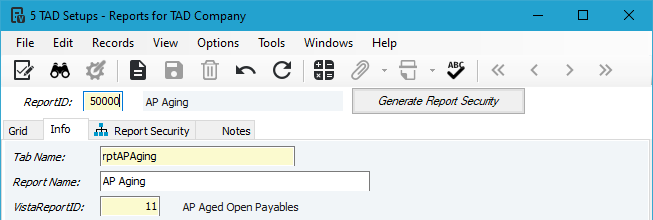
If this is the first Company Report you are uploading, then enter 50000 into the ReportID field and tab out.
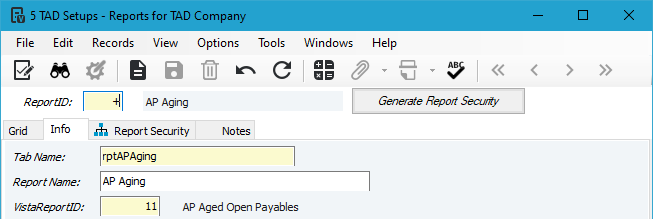
If you already have existing Company Reports, then enter the "+" sign into the ReportID field and tab out to get the next sequential number.
Core Configuration
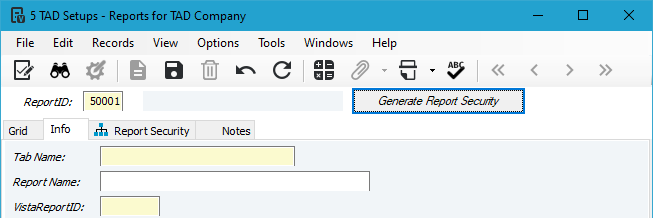
Enter the following information for your new record:
- Tab Name – This will be the name of the worksheet.
- Avoid these characters as Excel doesn't allow them: /?*[].
- Report Name (optional) – You can use this to provide additional information about the report. This shows on the Reports form in TAD.
- VistaReportID – Press F4 or click the binoculars to choose from a list of Vista reports. This assignment will drive security access for the TAD report.
- If your report started from a standard TAD report, then find what that report has as the value.
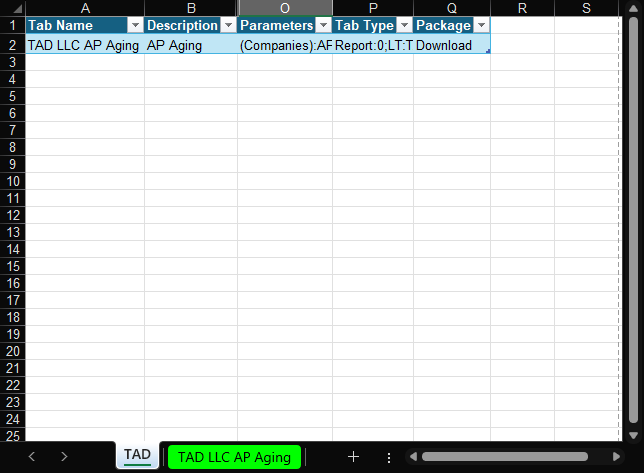
The values for the next three fields come from the TAD worksheet in your Excel workbook. You will be using the following columns:
- Tab Name (A)
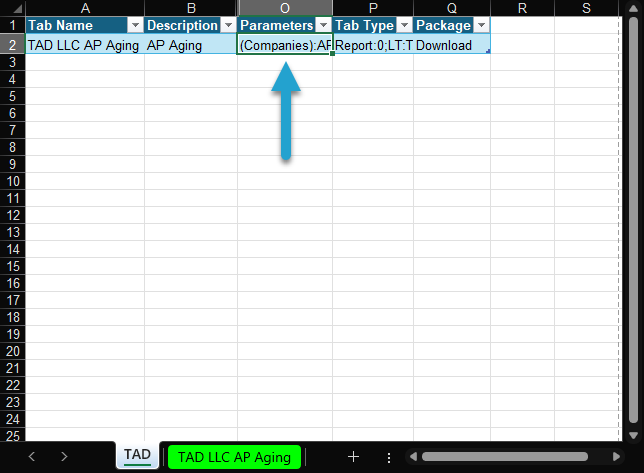
- Parameters (O)
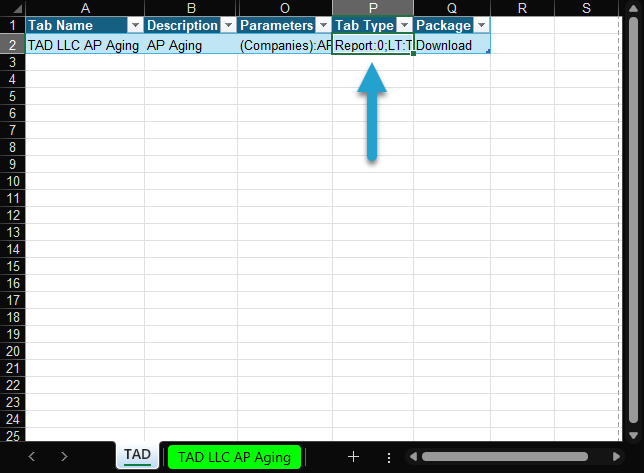
- Tab Type (P)
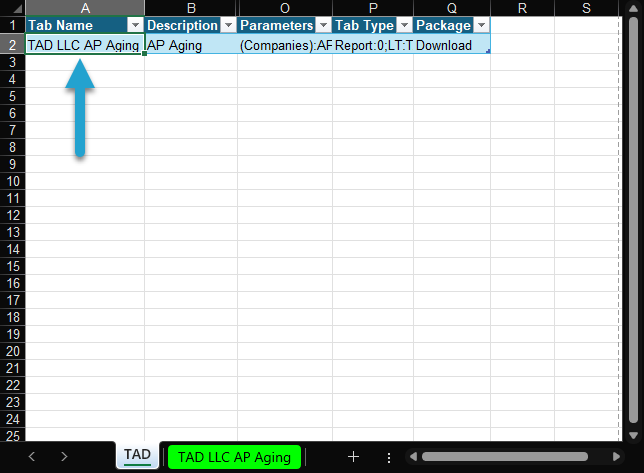
Select the Column A cell and press your F4 key to open the TAD Query Editor.
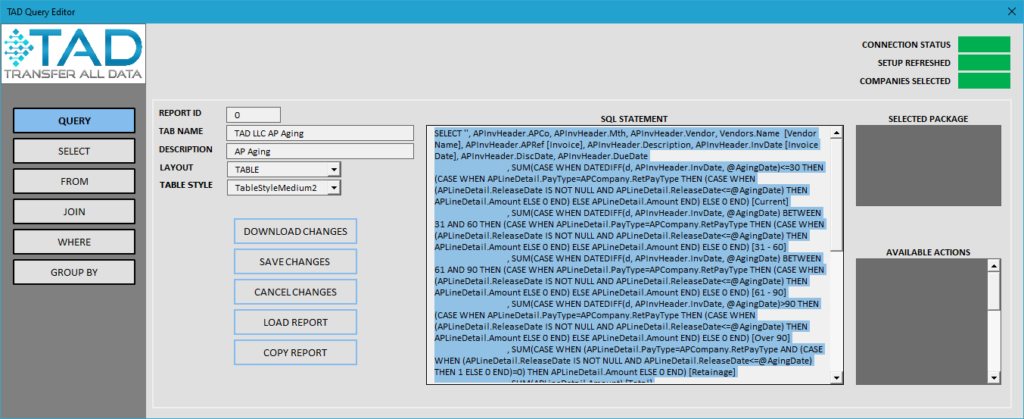
Highlight everything in the SQL Statement box (Ctrl + A), copy it (Ctrl + C), and then close the form.
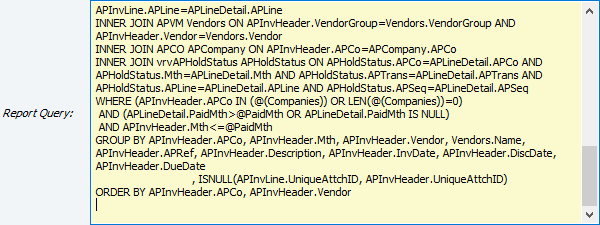
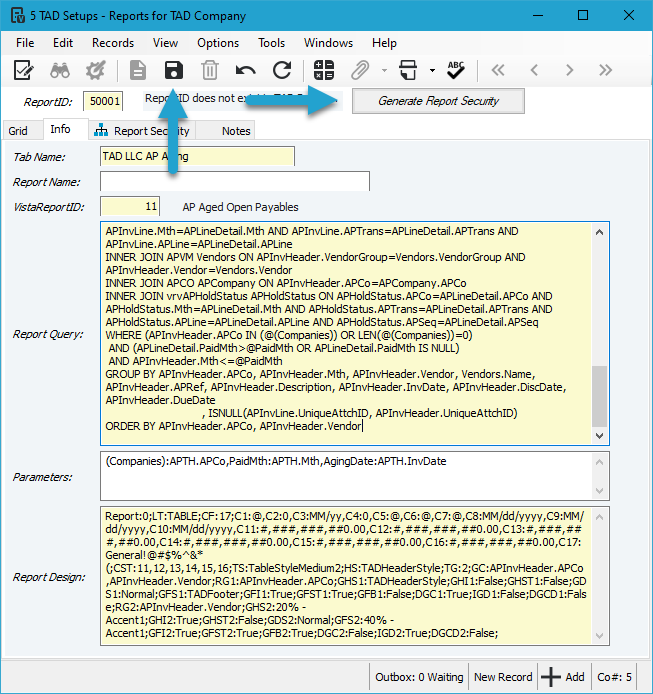
Go to the Vista form and paste into the Report Query field.
Copy the contents of Column O into the Parameters field on the Vista form.

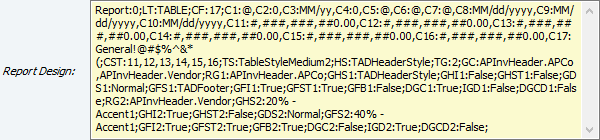
Copy the contents of Column P into the Report Design field on the Vista form.
Click the Save button and then click the Generate Report Security button.
You should receive a similar message indicating that security has been generated for the report.

You can review the security that was generated on the Report Security tab.
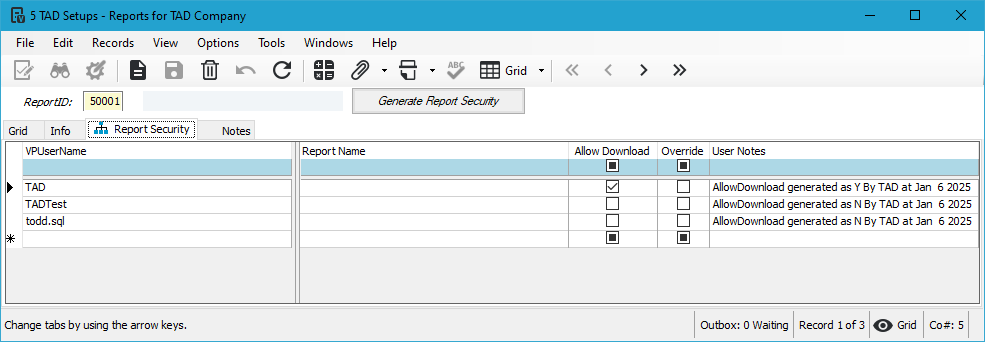
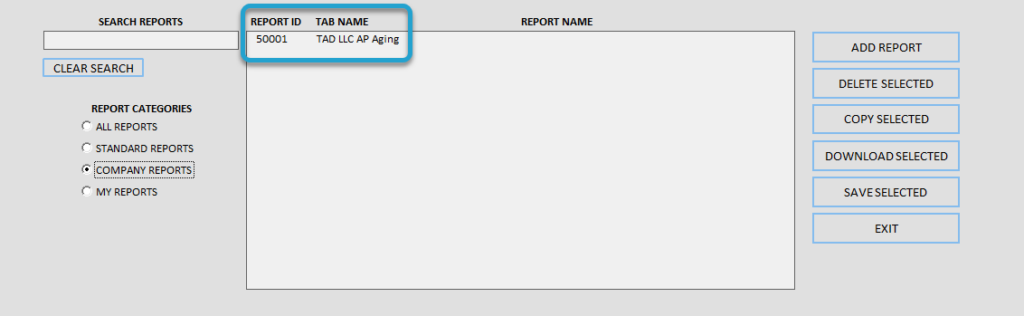
The report is now added. Any blank workbook that you connect to going forward will show the report as a Company Report.
If you have an open workbook, click the Refresh Setup button on the ribbon, and the report should be visible under the Reports button.