Add Additional Views or Custom Views to TAD Setups
If there are Standard Views or Custom Views that you need to report on in TAD then follow the steps below to make those available.
In Vista, navigate to: User Database → Programs → TAD Setups – Tables
In the example below, we are adding the PREHFullName View which contains employee name and non-sensitive information which can be useful for reporting.
Add a new record with the following information:
- Table Name: PREHFullName
- Description: PR Employee List (Non-Sensitive)
- Co Column: PRCo
- Vista Form: PREmpl (Used for security purposes to determine who has access to this view by default)
- Object Type: Views
- Record Type: Custom
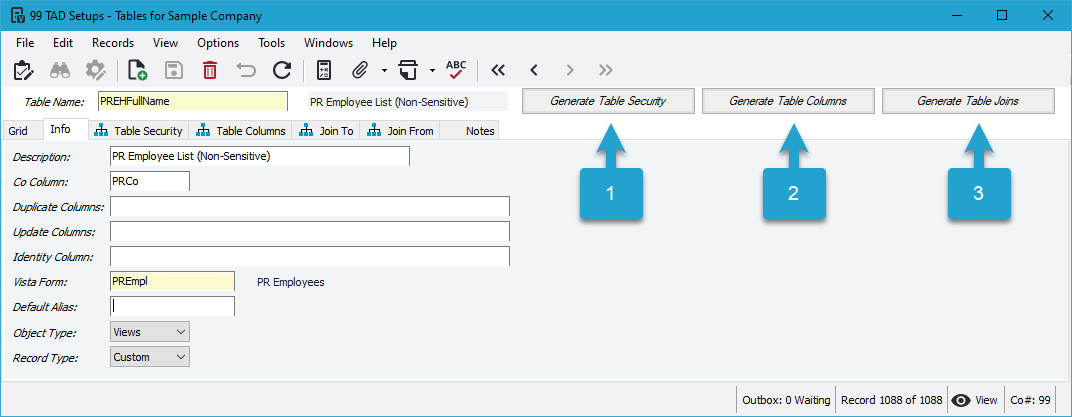
After saving the record, click the following buttons:
- Generate Table Security
- Generate Table Columns
- Generate Table Joins
Review the Table Security tab when complete to verify that Allow Download is checked for your account.
If an Excel workbook is open, click the Refresh Setup button on the TAD ribbon to download the new view.