Add Advanced Joins
Getting Started
Although TAD provides thousands of joins between tables it does not include every possible join (yet!). It wouldn't know the joins for subqueries and custom tables that you created either.
If you know the full join statement, you can manually add that directly to the SQL Statement field.
Manually Add a Join
The steps below assume you have a Table/Report downloaded or are editing a query.
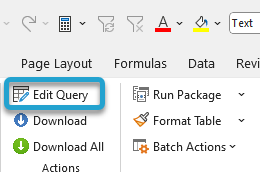
Click the Edit Query button on the ribbon.
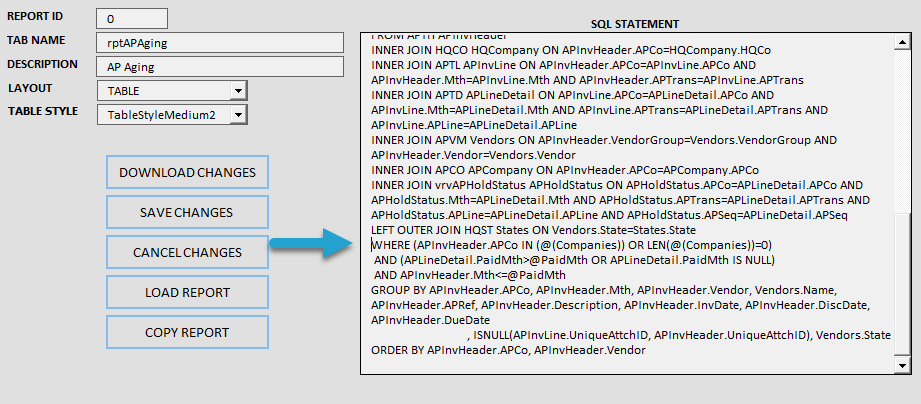
Find the WHERE section in the SQL Statement field.
Place your cursor before the WHERE and press the Enter key to create a new line.
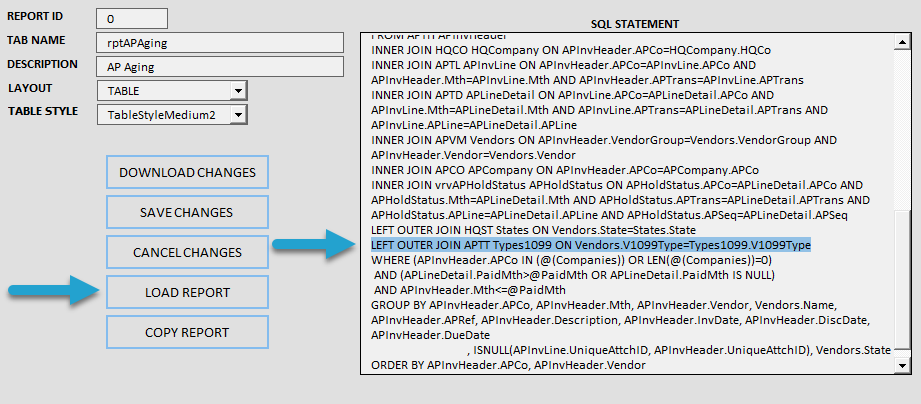
Paste or type in the custom join statement.
This example adds the join statement below to pull the 1099 Type Description:
LEFT OUTER JOIN APTT Types1099 ON Vendors.V1099Type=Types1099.V1099Type
If you are editing a Table, then click the Load SQL button.
If you are editing a Report, then click the Load Report button.
You will receive the message below after the changes are loaded.

Go to the Join section on the left, and you will see the new join.
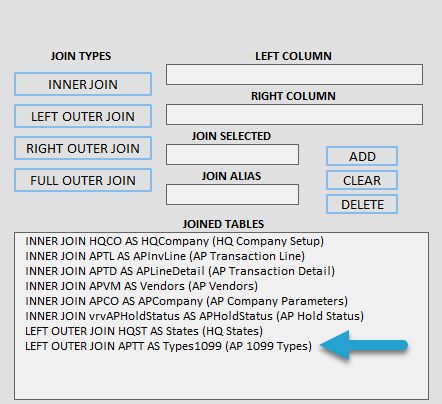
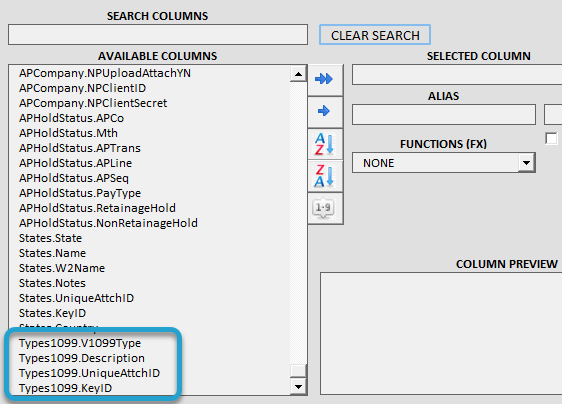
Go to the Select section on the left, and you will see the new table and available columns.