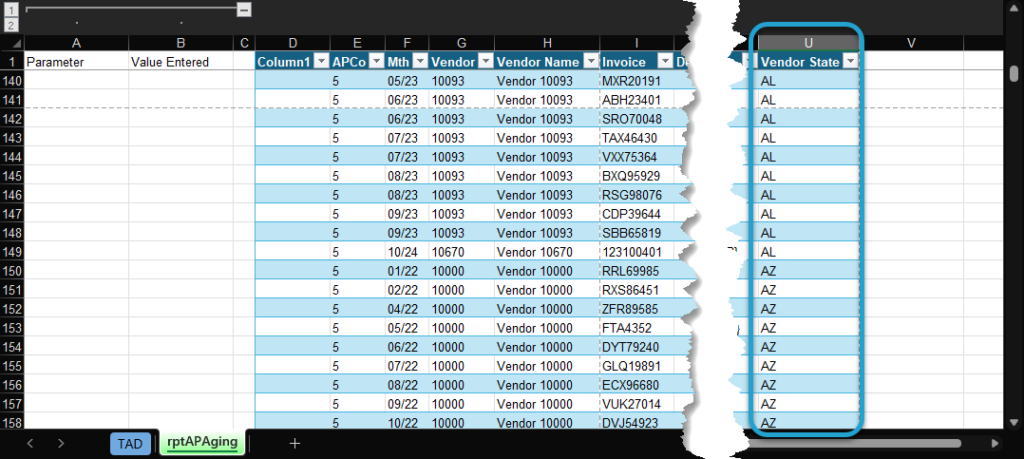
Add Sort Order to Download
Getting Started
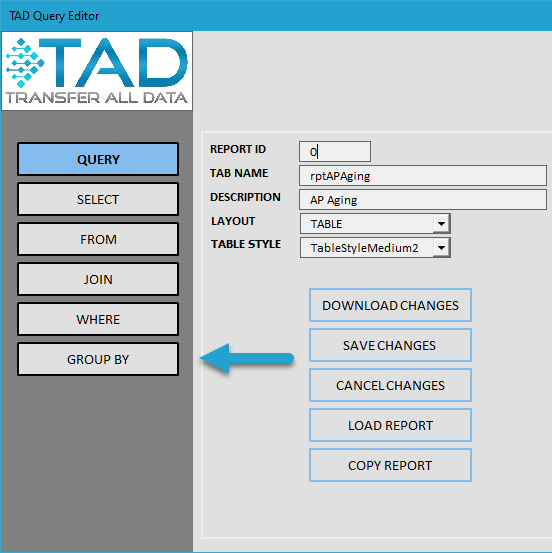
You define how the data is sorted using the Group By section on the Query Editor.
You can select one or more Available Columns to determine the tiered sort order.
Add Sort Order
The steps below assume you have a Table/Report downloaded or are editing a query.
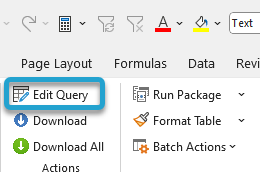
Click the Edit Query button on the ribbon.
Go to the Group By section on the left.
The Available Columns list shows what columns can be used to determine the sort order. This list is driven by the Selected Columns in the Select section.
The Selected Groups list shows the columns that are currently determining the sort order.
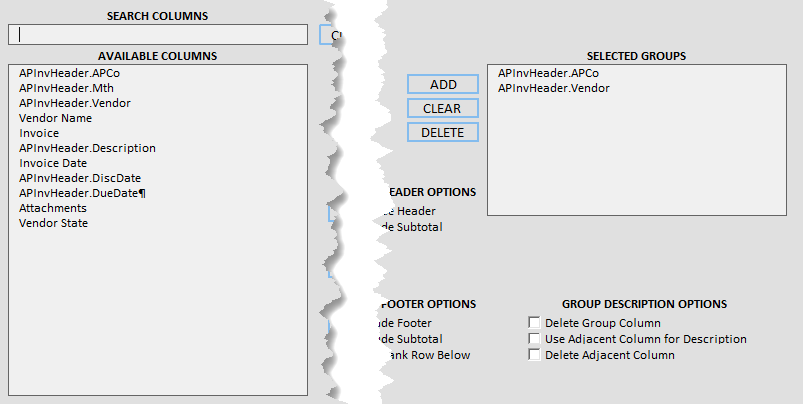
In the example below, we want to sort by the vendor's State and then the Vendor.
Use the Search Columns box to filter the Available Columns.
Select the column you want to sort by and click the little Add button.
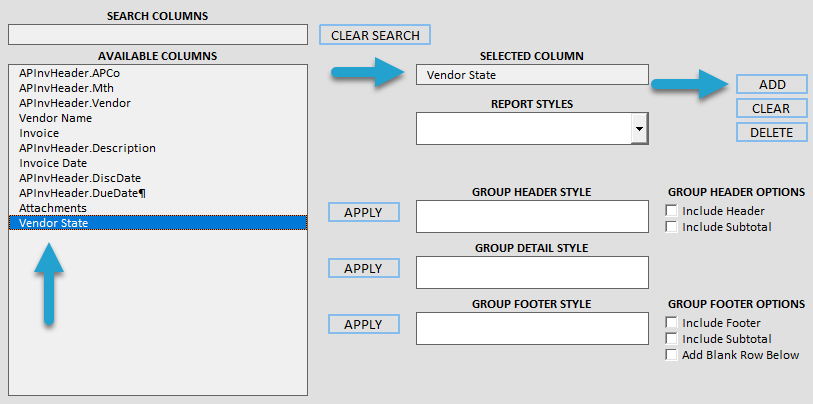
The column will now appear in the Selected Groups list.
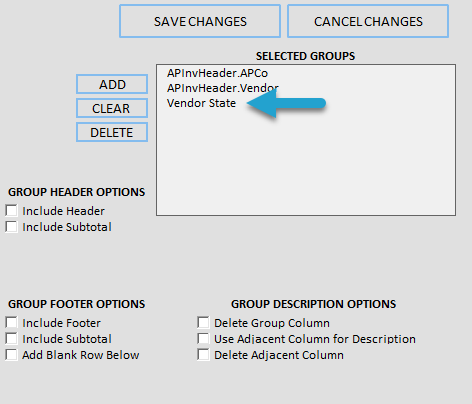
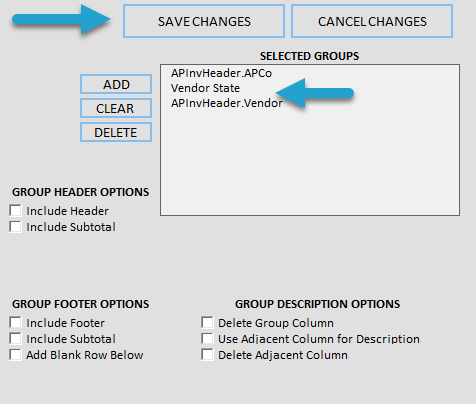
You can drag and drop the columns to rearrange them.
Add additional columns to adjust the sort order using the same steps above.
Click the Save Changes button when finished.
The SQL Statement field will be updated with your new sort order.
Click the Download Changes button to save the changes and download fresh data.
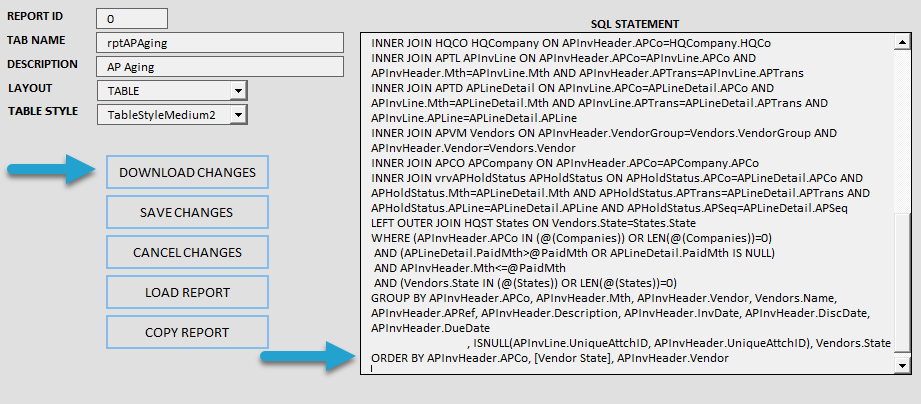
The data will download with the new sort order.