Assign TAD License
Getting Started
Each TAD user will need to be assigned a license in order for the Excel Add-in to work. The licenses are assigned in the TAD Admin - Licenses form in Vista.
Each license allows you to control security for individual users following the same security access that they have in Vista.
Assign License
On the Vista main menu, navigate to User Database → Programs, where you will see the TAD forms.
Open the TAD Admin - Licenses form.

Select the VPUserName field, then click the Binoculars button.
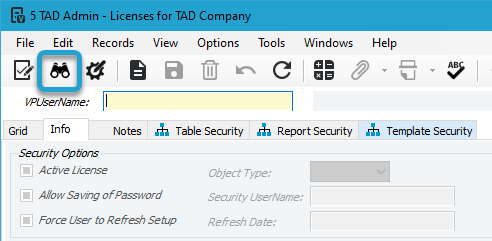
Find your SQL Account, then click the OK button.

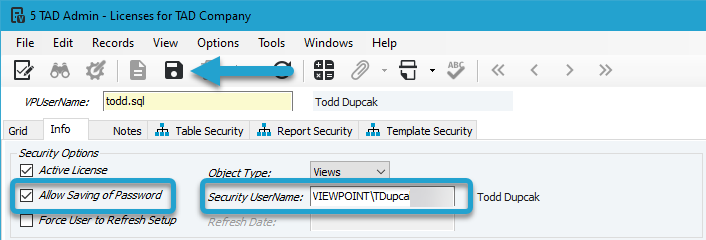
Check Allow Saving of Password if you want to enable password storage.
Select the Security UserName field, then click the Binoculars button to choose your main Vista account. The Vista security settings for this account will determine TAD security access.
Click the Save button to save the record.
On the right side, click the Generate All User Security button.
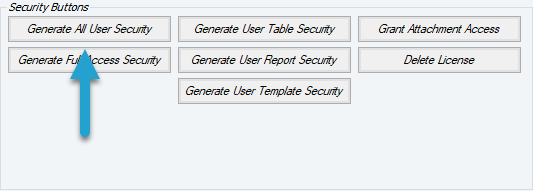
If you need access to all Tables, Reports, and Templates, regardless of your Vista access, you can click the Generate Full Access Security button.
This option should only be used in rare circumstances.
