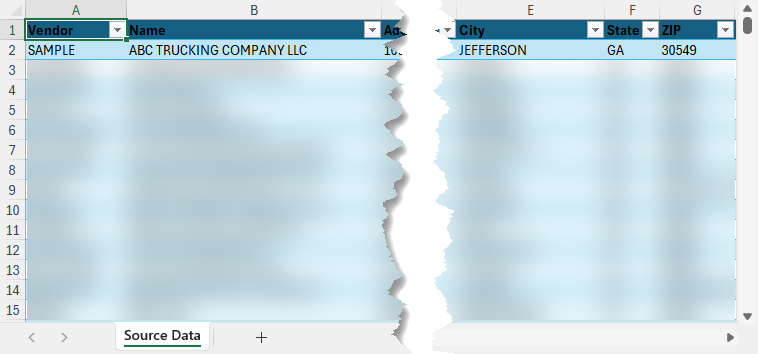
Change Source Data into Table
Getting Started
The only requirement for the Converter to work is that the source data must be a table in Excel. This enables the process to isolate the source data columns and makes the copy process more efficient.
Create Excel Table
The data below can be changed into an Excel table in a few simple steps.
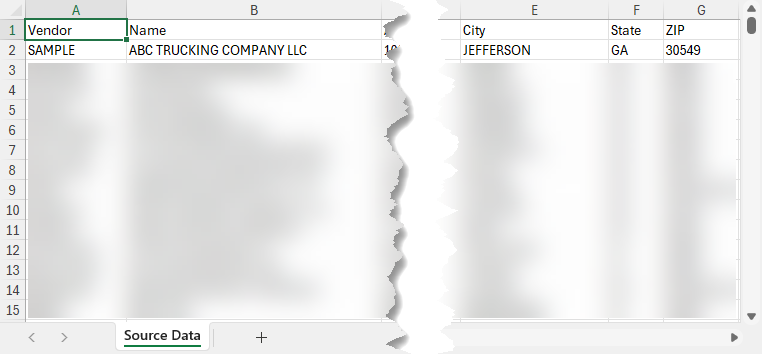
Start by highlighting the data, including every row and column.
In most cases, you should be able to use Ctrl + A on your keyboard to select the entire range.
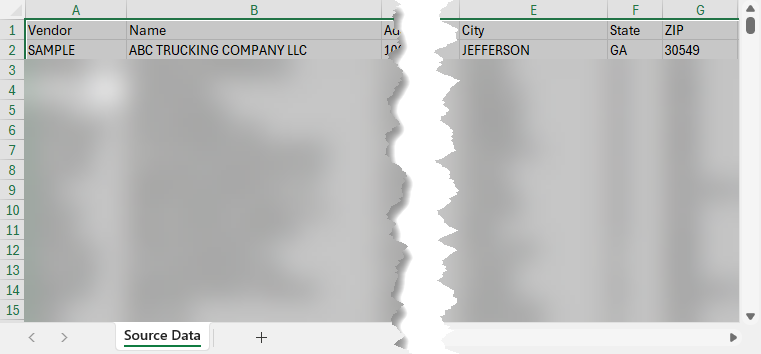
Go to the Insert ribbon.
Click the Table button.

Make sure My table has headers is checked.
Click the OK button.

The data will now be in an Excel table and can be used by the Converter process.