Changing a Tab Name
Getting Started
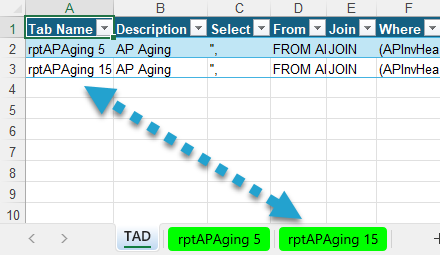
Getting Started with Changing a Tab NameChanging a Tab Name requires specific steps due to how TAD operates.
TAD tracks the configuration of every Table and Report you download on the TAD worksheet. To ensure proper functionality follow the correct process when renaming a tab.
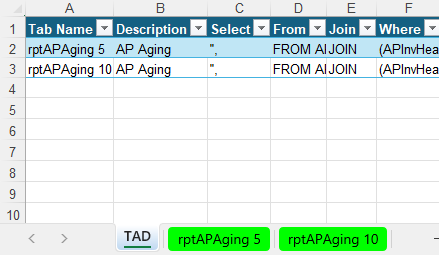
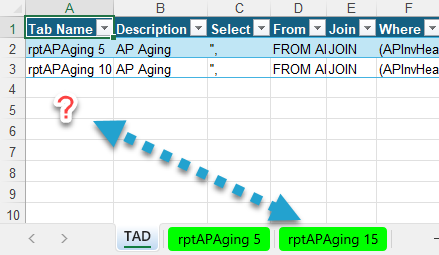
If you rename a worksheet using standard Excel methods, you will receive an error message stating that the configuration cannot be found.
To avoid this issue, use one of the approved methods listed below to rename a tab correctly within TAD.

Change Tab Name
Select the worksheet you need to rename.
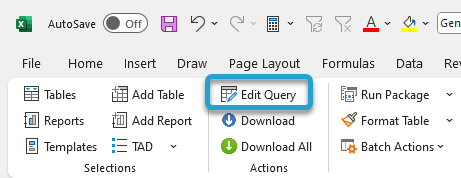
Click the Edit Query button on the left side of the ribbon.
You will see the existing Tab Name displayed in the Tab Name field.
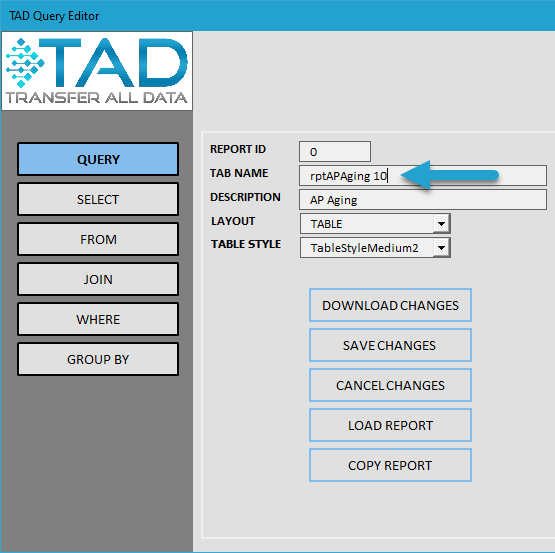
Change the value in the Tab Name field.
Click Save Changes to rename the worksheet.
Click Download Changes to rename the worksheet and download fresh data.
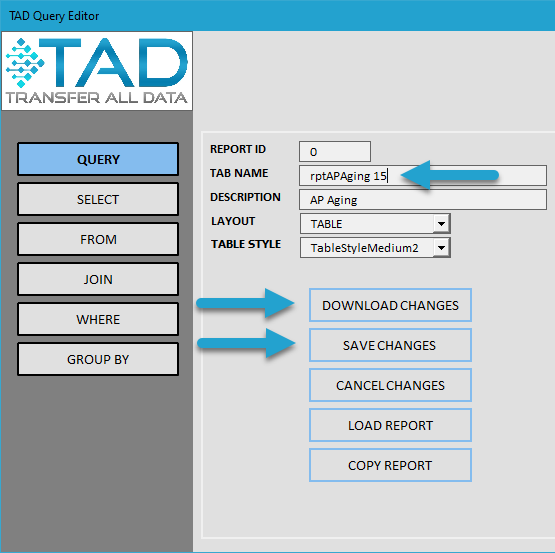
The worksheet will be renamed, and the TAD worksheet will be updated to keep the configuration in sync.