Clear Open Batches
Getting Started
If you need to clear open batches due to invalid records or to close the month follow the steps below.
If you have multiple batch sources while closing the month, you can download multiple Batches templates and complete the Clear Batch steps for each worksheet.
Summary Steps
- Downloading the Batch Records – Download the current batch records to identify which ones need to be cleared.
- Identifying Which Batches to Clear – Review the batch records to determine which batches need to be cleared.
- Clearing the Batches – Remove or reset the identified open batches to ensure the system is up to date.
Clear Batches
Downloading the Batch Records
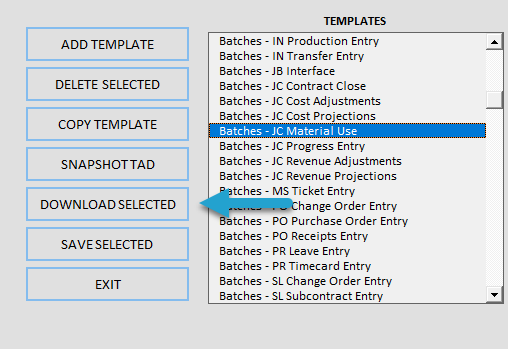
Click the Templates button on the left side of the ribbon.

Find the Batches templates containing your records.
Click the Download Selected button.
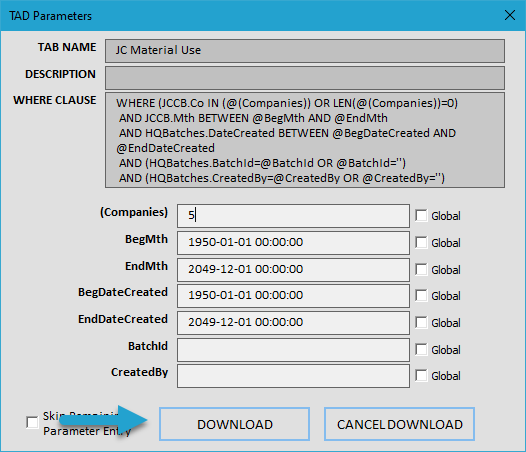
You can press F4 in the BatchId parameter to select your specific batch, or leave it empty to download all open batches.
Click the Download button.
Identifying Which Batches to Clear
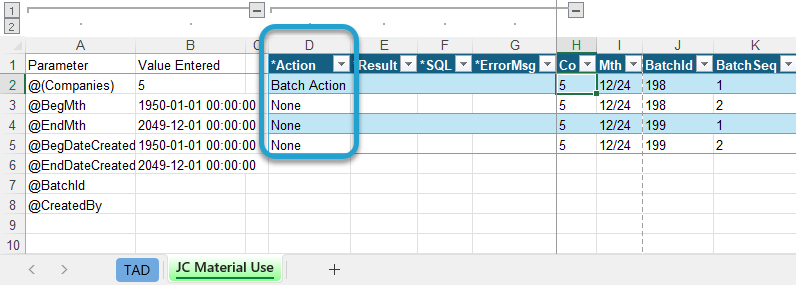
The example below shows records for two separate batches.
To clear all batches in the table, leave the Action column set to None.
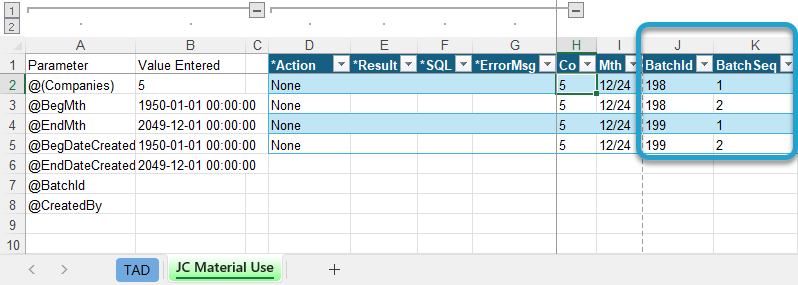
To clear specific batches, update the Action column to Batch Action for at least one record in each batch. TAD will then identify and isolate all unique batch values based on the marked records.
Clearing the Batches
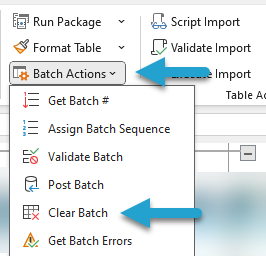
Click the Batch Actions button on the ribbon, and then click the Clear Batch button.
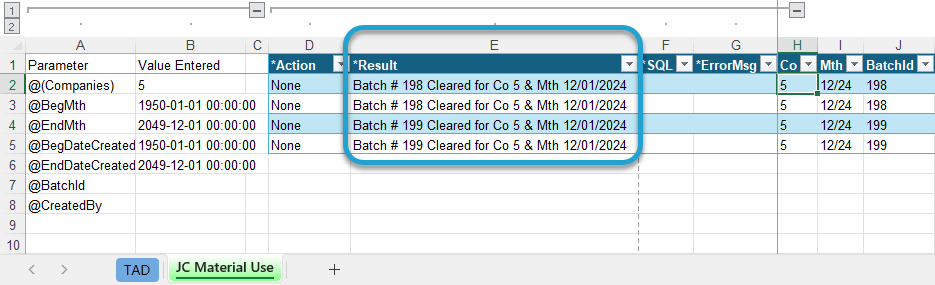
Once the process is complete, the Result column will be updated, as shown in the image below.
The batches have been cleared, and their batch numbers have been canceled.