Copying a Table/Report
Getting Started
Copying a Table or Report requires specific steps due to how TAD operates.
TAD tracks the configuration of every Table and Report you download on the TAD worksheet. To ensure proper functionality follow the correct process when copying a Table or Report.
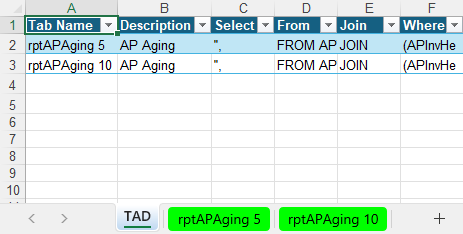
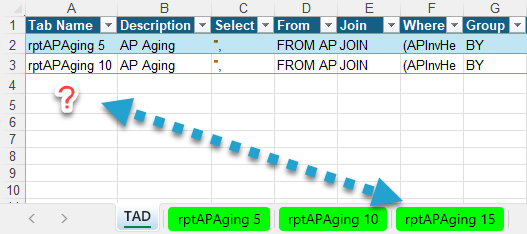
If you copy a worksheet using standard Excel methods, you will receive an error message stating that the configuration cannot be found.
To avoid this issue, use one of the approved methods listed below to correctly copy a Table or Report within TAD.

Copy During Download
This method works if the Table/Report has at least one Parameter. By changing the Tab Name during download, you create an exact copy of the original Table or Report.
Start by downloading your existing Table/Report.
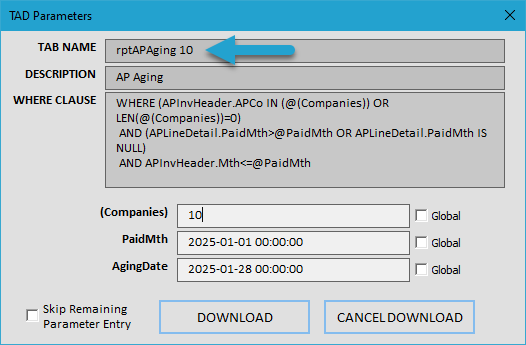
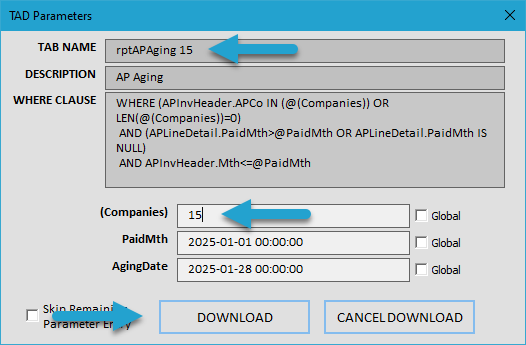
Change the Tab Name in the Tab Name field and update any Parameter values as needed.
Click Download to create the copied Table or Report.
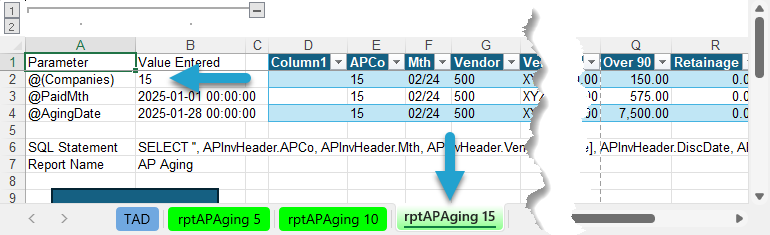
You will see the new Table/Report created as a separate worksheet.
Copy Using TAD Button
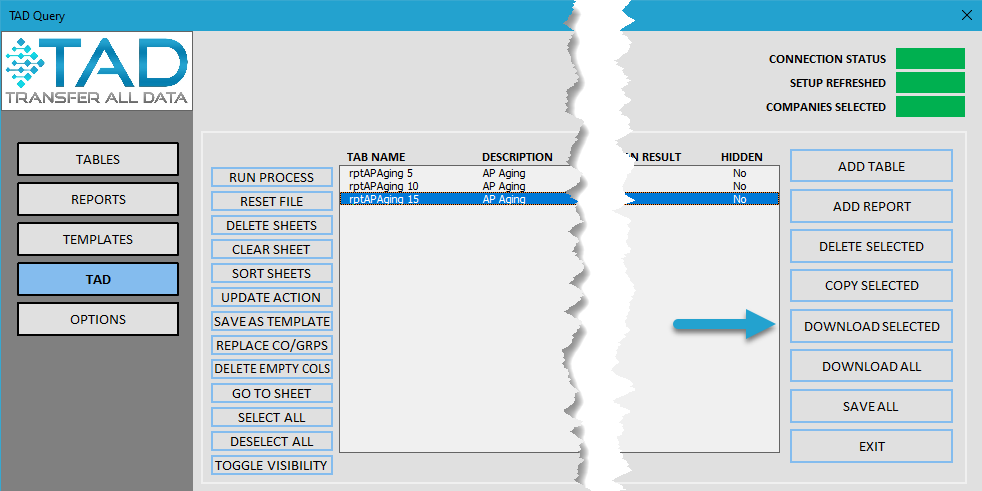
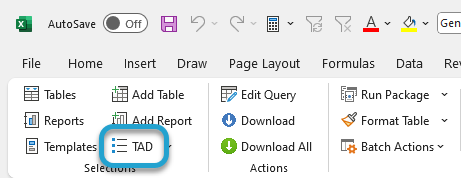
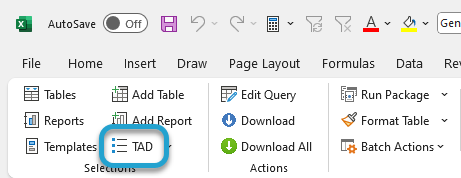
Click the TAD button on the left side of the ribbon.
You will see the same records that exist on the TAD worksheet, displaying the tracked Tables and Reports in the workbook.
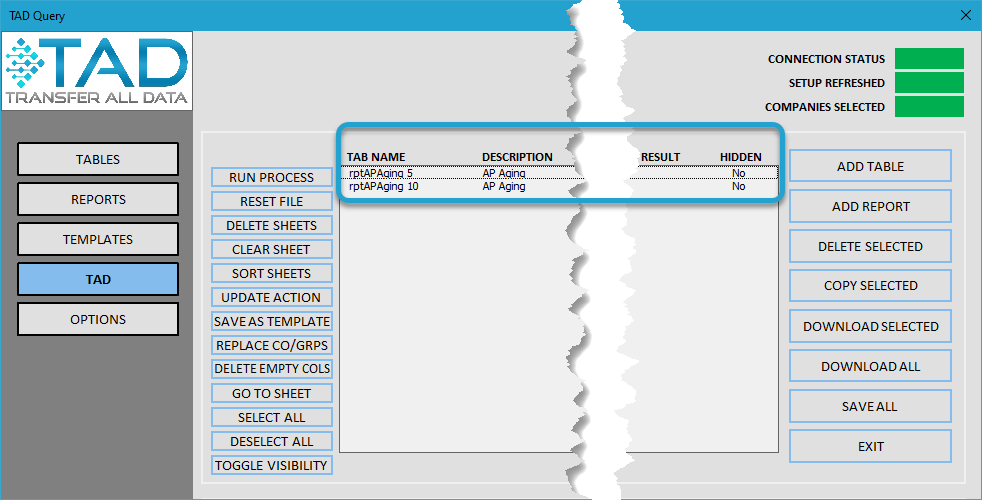
Select the Table/Report you want to copy and click the Copy Selected button.
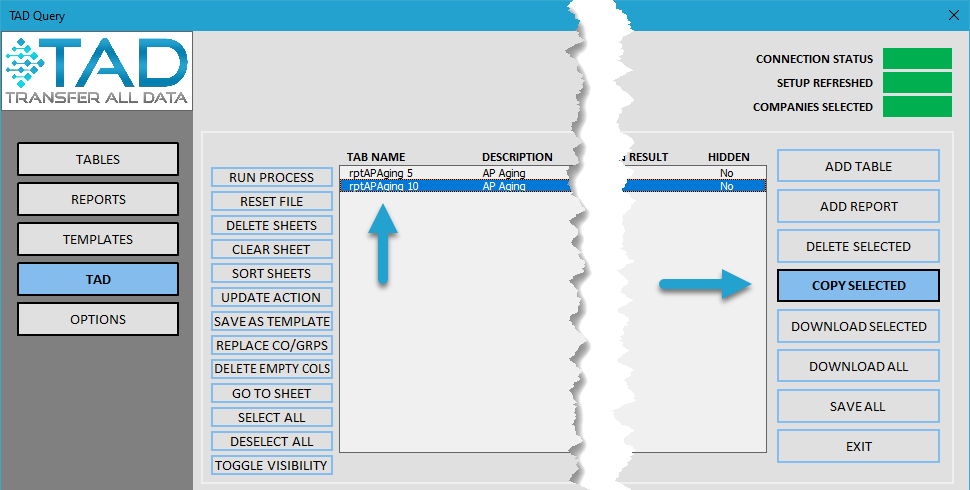
This will create an exact copy of the selected Table or Report and add "_Copy" to the end of the Tab Name.
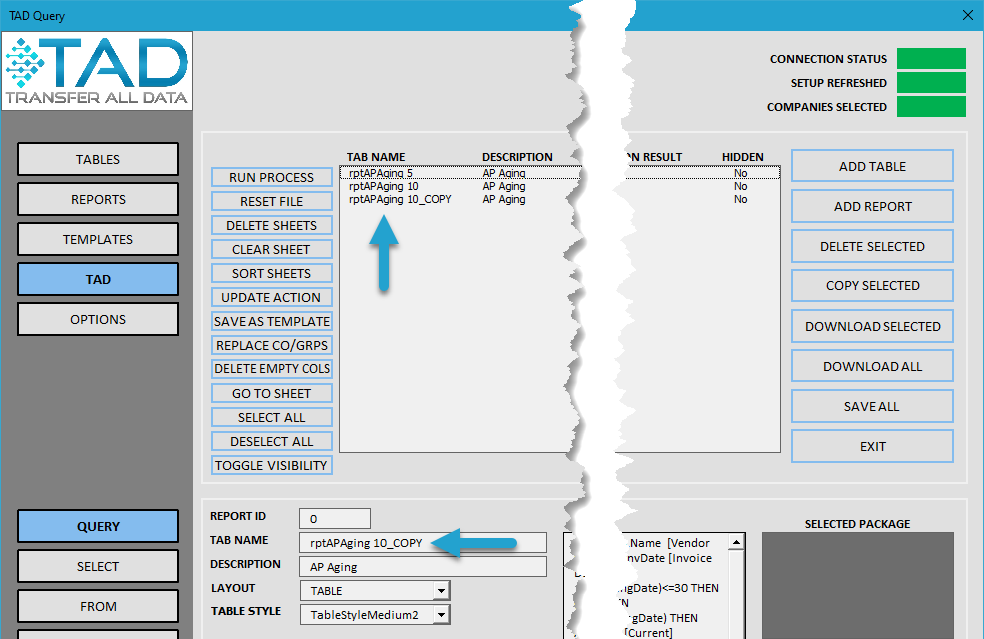
Optionally, rename the worksheet and click Save Changes to update the tab name.
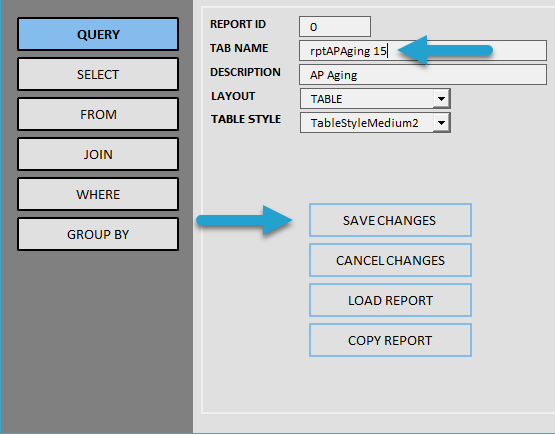
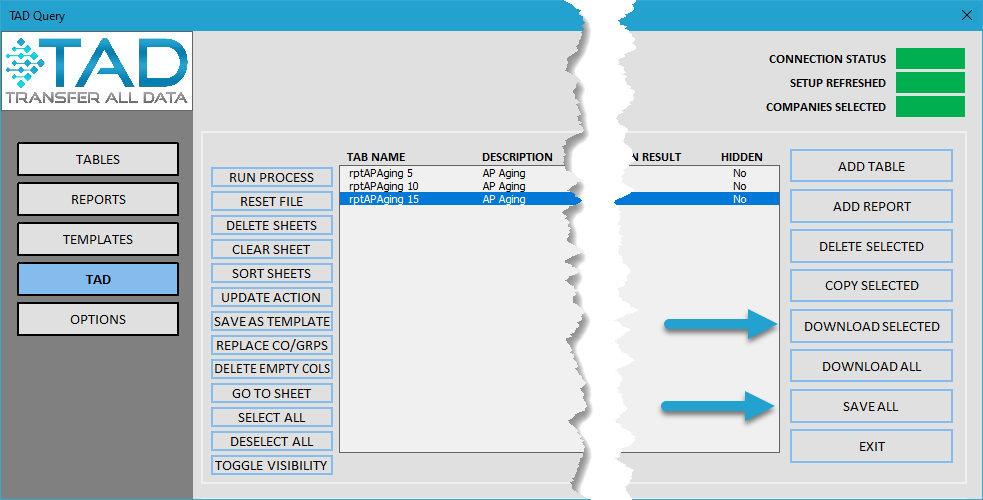
To save the new Table/Report, take one of the following actions:
- Select the new Table/Report and click Download Selected to retrieve the data.
- Click Save All to save the changes to the TAD worksheet without downloading new data.
Copy Directly on TAD Worksheet
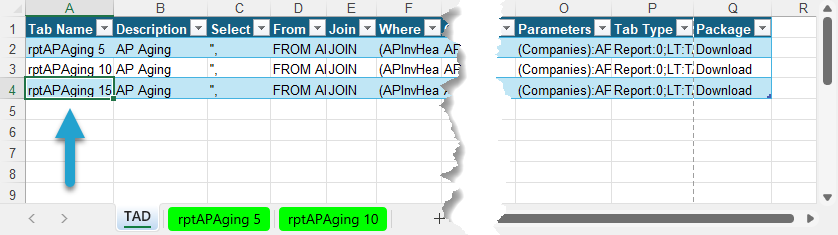
If your TAD License permissions allow you to unlock the TAD worksheet, you can copy and paste new rows directly into the table.
Highlight the entire row and copy the cells to duplicate an existing Table or Report.

Paste the copied row into the next available row, and Excel will automatically add it to the table.

Make sure to rename the new record(s) to distinguish them from the original entries.
You can download the new Table/Report by clicking the TAD button on the ribbon and selecting the newly added record.
Select the new Table/Report and click Download Selected to retrieve the data.