Create a Converter Sheet
Getting Started
The Converter sheet is how you link your source worksheet with the destination worksheet. This enables a copy and transformation process making the loading of records much easier and more consistent.
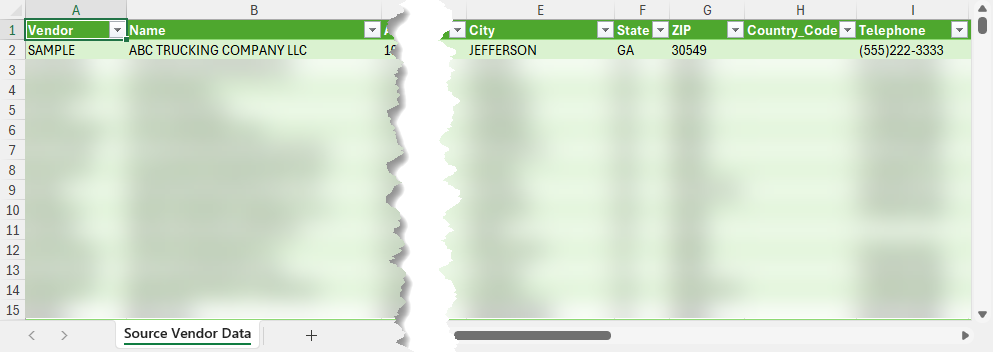
Make sure your source data is not just plain text on a worksheet. It must be an Excel table in order for the Converter process to utilize it. Follow the Change Source Data into Table steps if you are unsure of how to do that.
Create Converter Sheet
This example starts with Vendor data. A Template will be downloaded using TAD, but you can also download a Table for the default column layout.
Start by opening your source data in Excel.
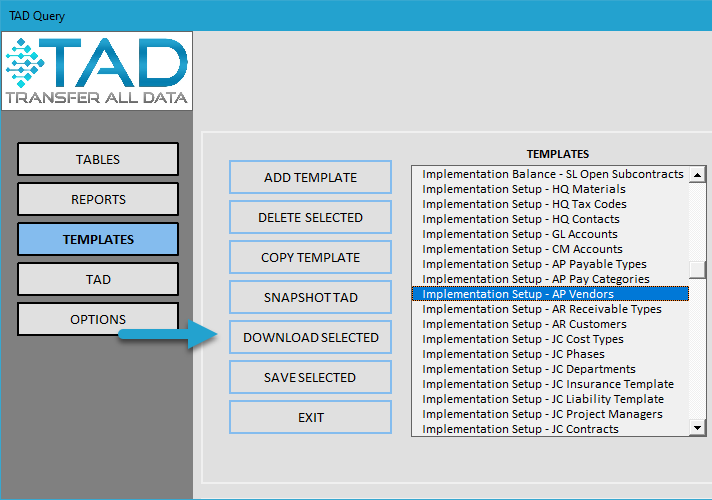
Click the Templates button on the left side of the ribbon.

Select the Template you want to download.
Click the Download Selected button.
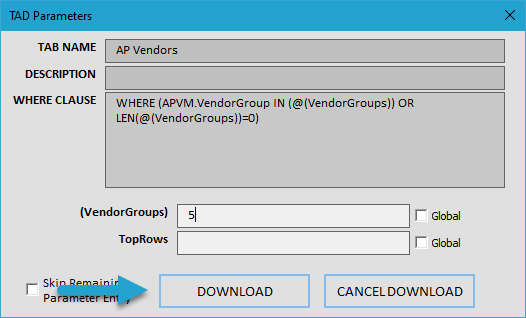
Adjust the parameter values if needed. Refer to the Top Rows Parameter article on how that can be used.
Click the Download button.
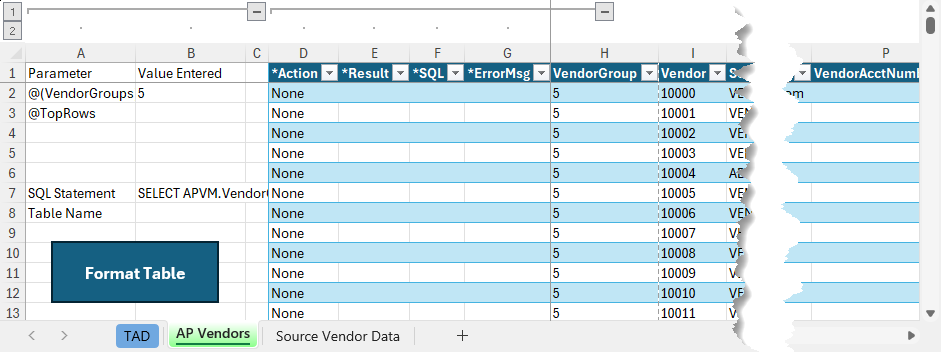
Depending on your parameter values, you will see existing records in the table.
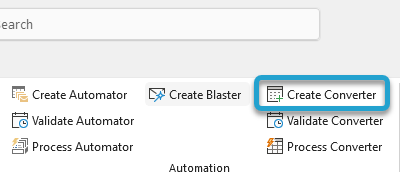
Click the Create Converter button on the ribbon.
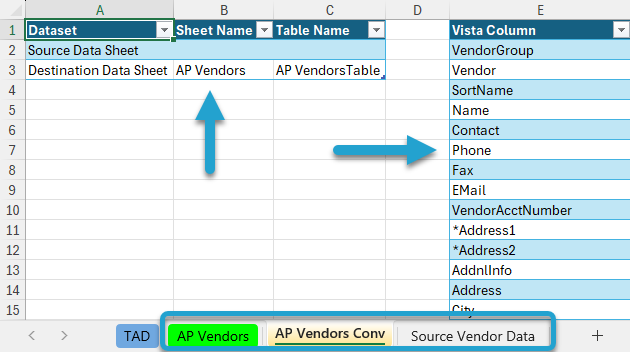
That will create a new worksheet with the same name and Conv added to the end.
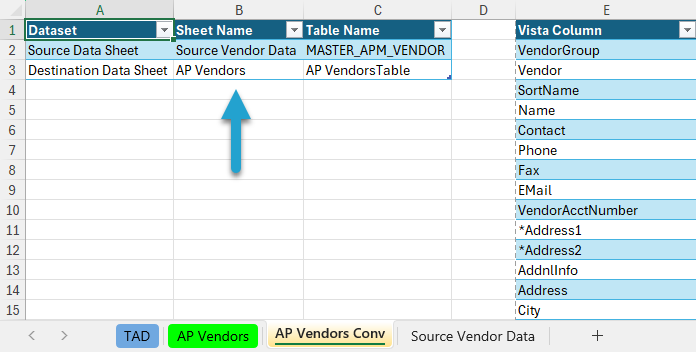
The box in the upper left is where you will link the source and destination worksheets.
The box on the right is where you will link the source and destination columns.
Select cell B2 or C2 and press your F4 key to bring up the lookup.
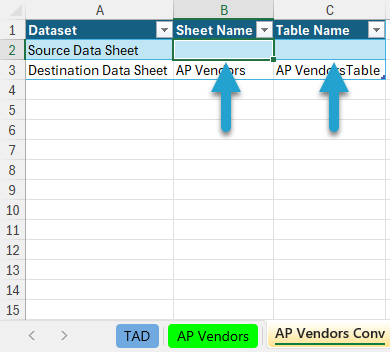
Select the source data worksheet and click the Save button.
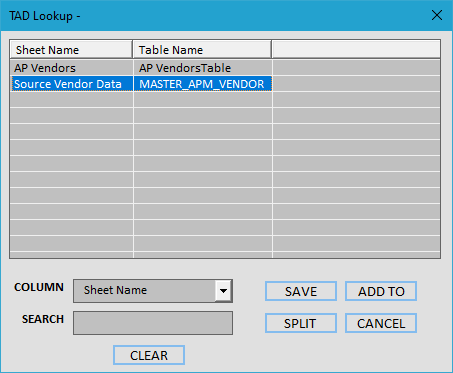
The source and destination worksheets are now linked, and you can start configuring the converter.