Download a Standard Report
Getting Started
TAD Standard Reports are the best starting point for downloading data from Vista. These reports cover all modules giving you access to all necessary data within Vista. After downloading a standard report, you can use the Edit Query button on the ribbon to adjust the report structure.
When you download a standard report, you are downloading a copy of the configuration into the specific Excel workbook. Any changes made to the report exist solely in that workbook unless you upload it as a Company Report.
Download a Report
Click the Reports button on the ribbon to access the standard reports.
The Add Report button is used if you want to start a report from scratch.

That brings up a list of the reports that you have access to.
Missing Report? Review the TAD Setup - Reports form → Report Security tab in Vista to see if you have access. If you change the access, make sure to click the Refresh Setup button on the right side of the ribbon.
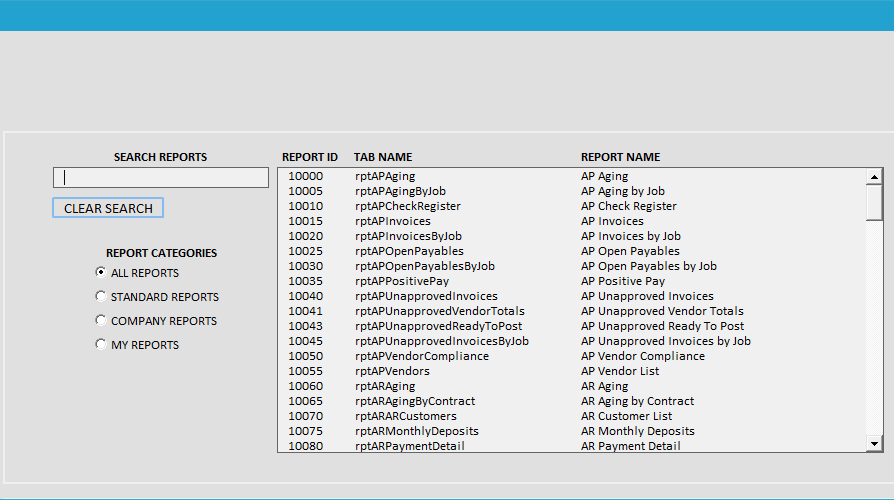
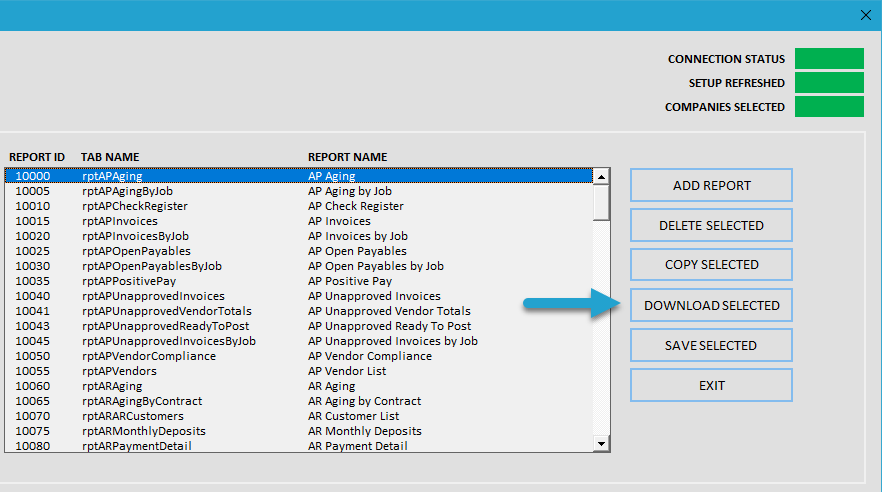
Select the report(s) you want to download. Use your Ctrl key to select multiple reports.
Click the Download Selected button.
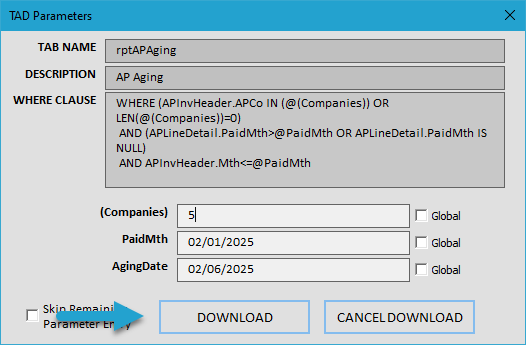
Most standard reports have parameters, so you will see the TAD Parameters form.
Adjust the parameters as needed.
Click the Download button.
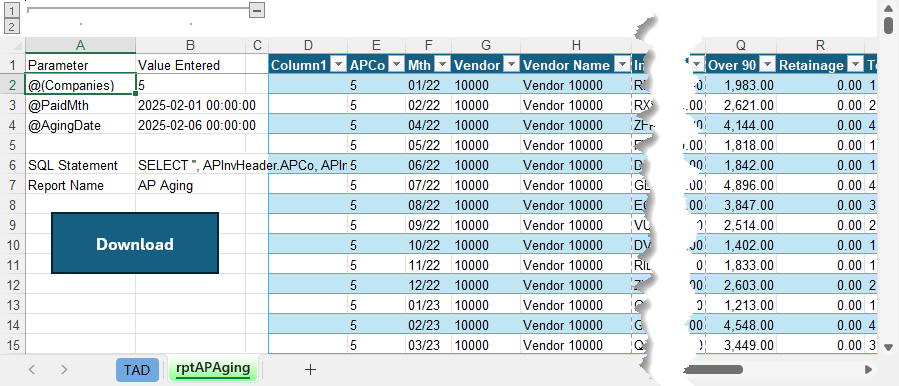
You will see the new report(s) and the corresponding data.
Columns A and B store the last downloaded parameter values.
Use the blue Download button to redownload the data.