Implementation Balance - JB Progress Billings
Getting Started
If you plan to invoice from the Job Billing module you’ll want to create placeholder billings for the month of conversion to ensure that previous amounts on future invoices are accurate. These billings use the billed and retainage amounts from the AR Open Invoices (Contracts) and AR Contracts Billed and Received templates. They are marked as Never Interfaced, so they do not need to be posted.
Template Info
- Required Source Data Make sure all Billed and Retainage Amounts have been posted for each Contract using the AR Open Invoices and AR Contracts Billed templates.
- Optional Source Data N/A
- Additional Tips N/A
- Basic Steps Download TAD Template
- Import the Billing Records
- Update Billing Items
- Validate Billing Records
Download TAD Template
Open a blank workbook in Excel.
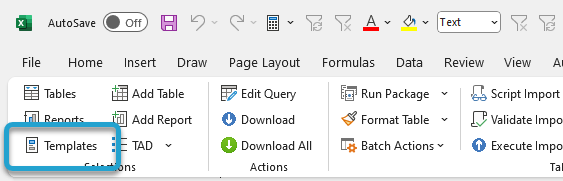
Click the Templates button on the left side of the ribbon.
If you've signed into TAD before, then you should receive the message below. Click Yes.
If you have not signed into TAD before, follow the Get Connected instructions.

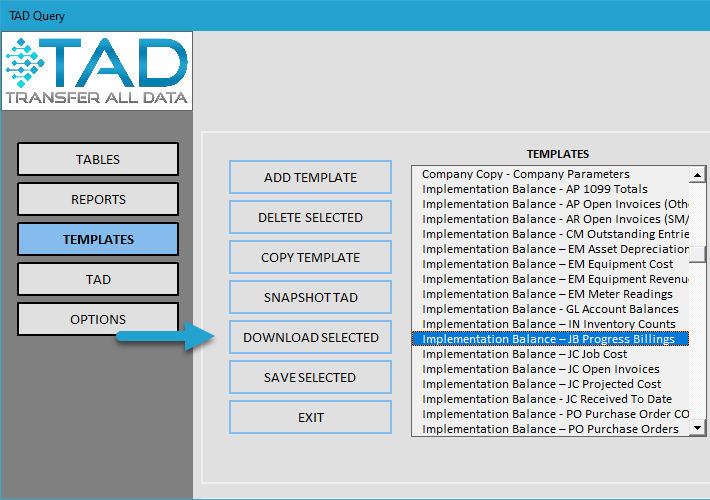
Select the Implementation Balance – JB Progress Billings template.
Click the Download Selected button.
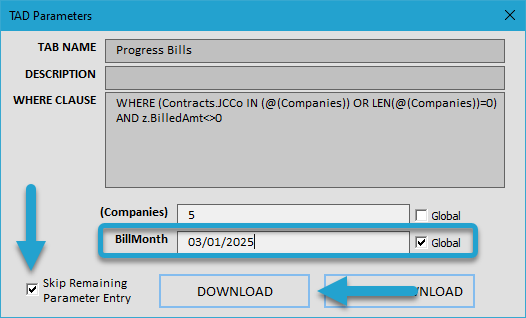
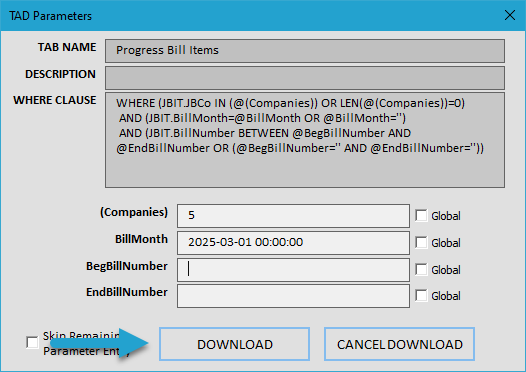
Change the BillMonth parameter to the month that you are converting balances.
Check the Global checkbox for both parameters.
Then check the Skip Remaining Parameter Entry box and click the Download button to download both worksheets.
You’ll see multiple worksheets, as shown below.
The Progress Bills sheet will contain one record for every Contract that has a Billed Amount.
The Progress Bill Items sheet will contain the Contract Items for each Contract. These records will not appear until the invoices on the Progress Bills sheet are imported.
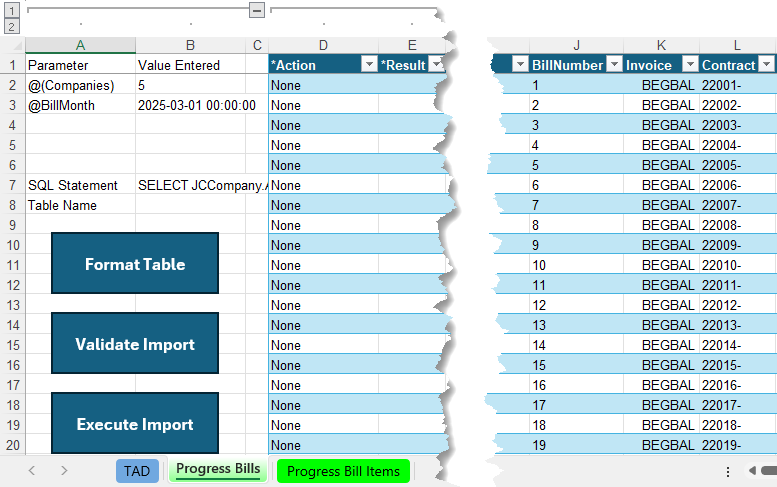
Import the Billing Records
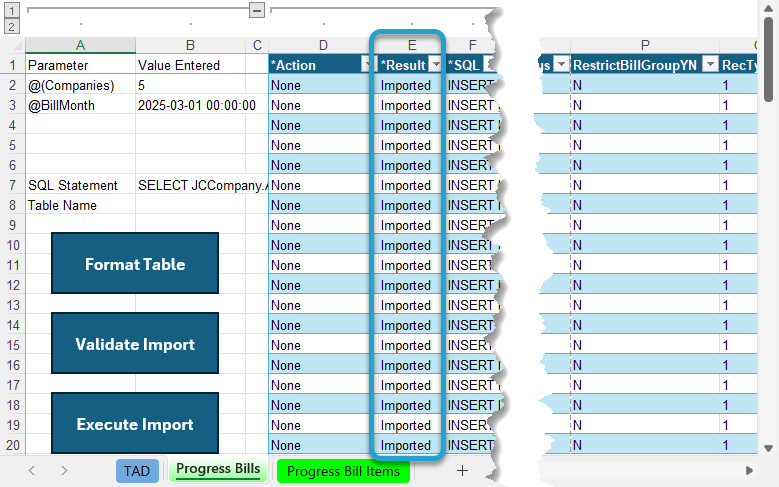
Click the Format Table button to format the data.
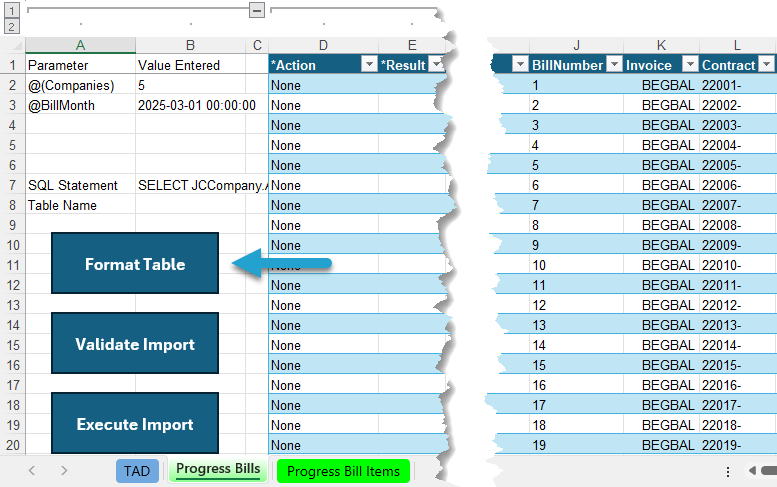
The Result column will show Formatted for every record. You will see the default Company number applied.
Click the Validate Import button.
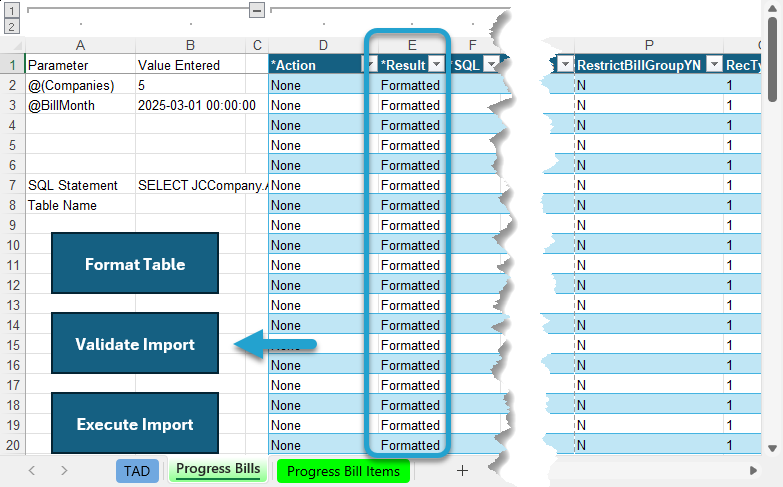
The Result column will show Validated for every record. If this says Failure, then the ErrorMsg column will provide the error.
Click the Execute Import button.
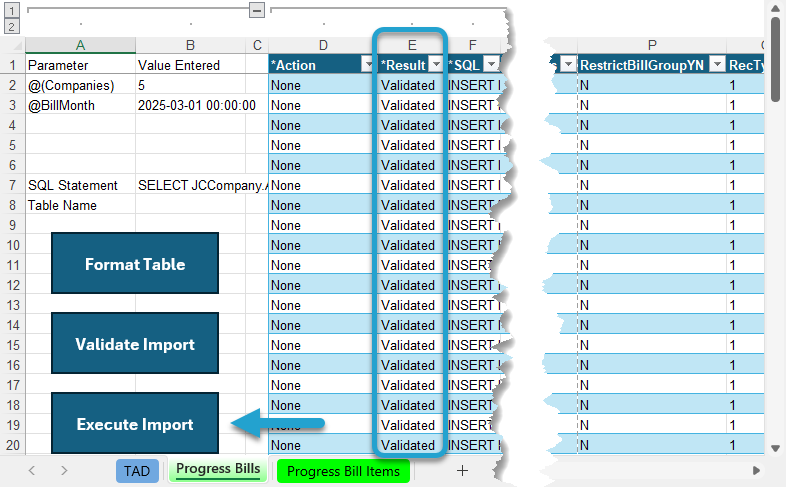
The Result column will show Imported for every record.
Update Billing Items
Go to the Progress Bill Items worksheet and click the Download button.
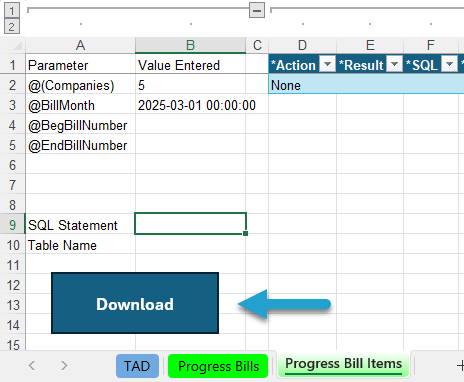
Click the Download button.
Columns T (Billed Amt) and U (Retainage Amt) represent the amounts you imported for open invoices and the billed/received to date amounts.
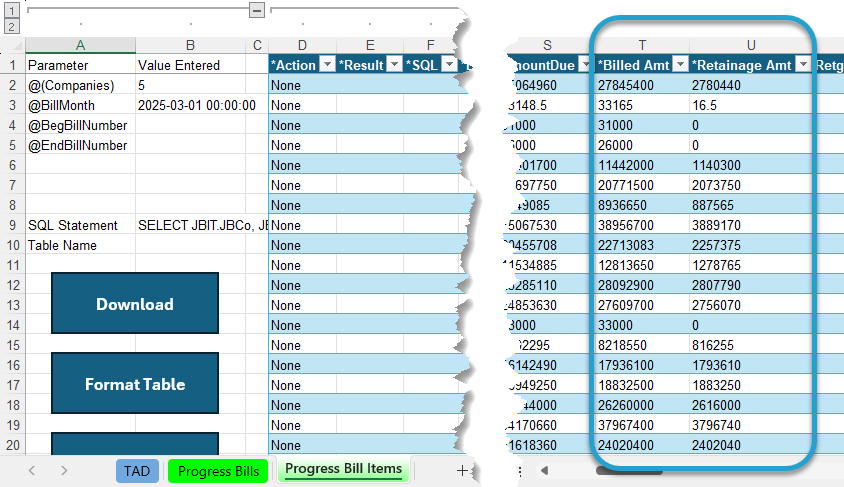
Columns O–S are the columns that need to be updated with the Billed and Retainage amounts. All five columns contain Excel formulas that already pull the correct values.
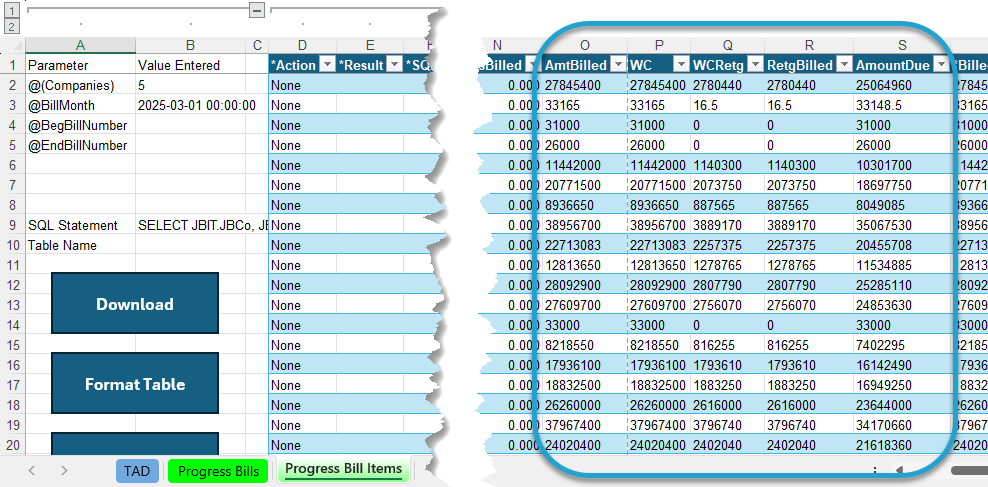
Select all cells in Columns O–S and fill them with yellow.
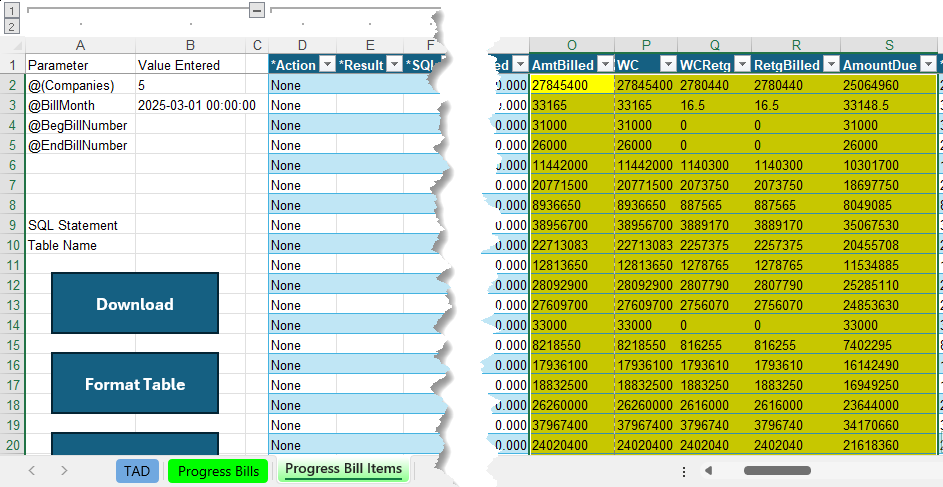
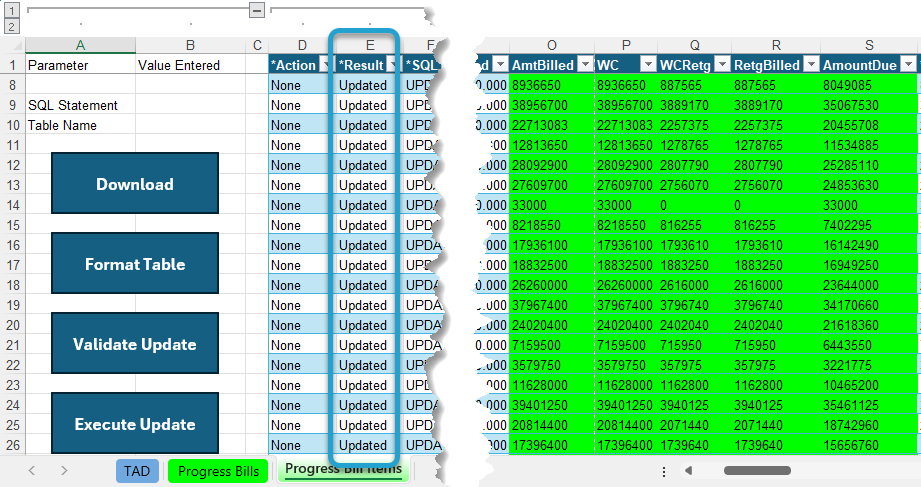
Click the Validate Update button.
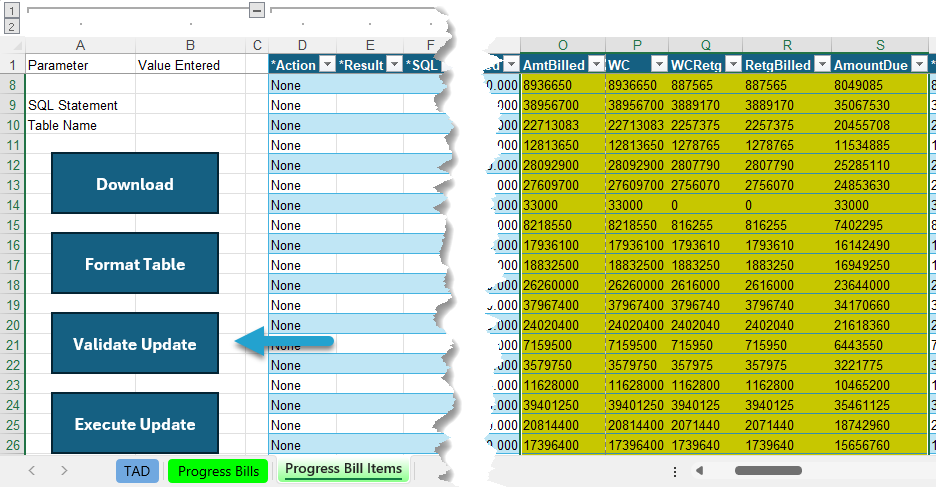
The Result column will show Validated for every record. If this says Failure, then the ErrorMsg column will provide the error.
Click the Execute Update button.
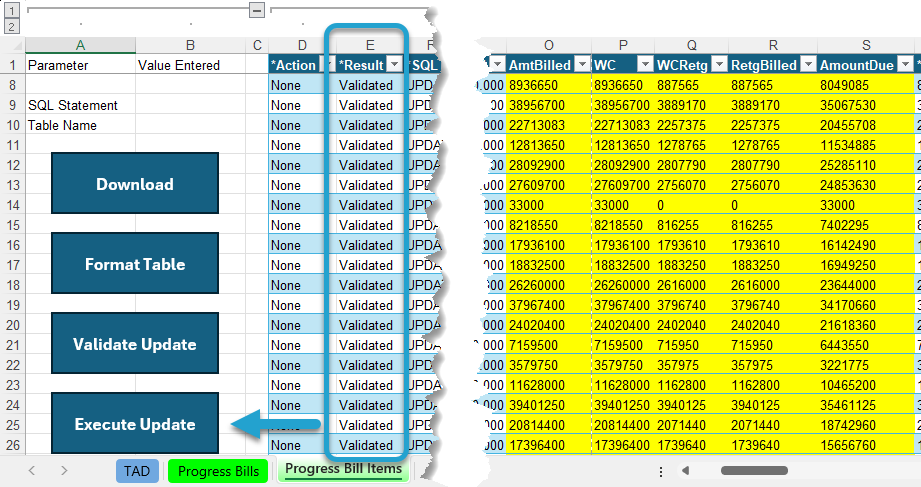
The Result column will show Updated for every record.
That completes all steps needed in TAD. You can now open the JB Progress Billings form in Vista to review the billing records.
Validate Billing Records
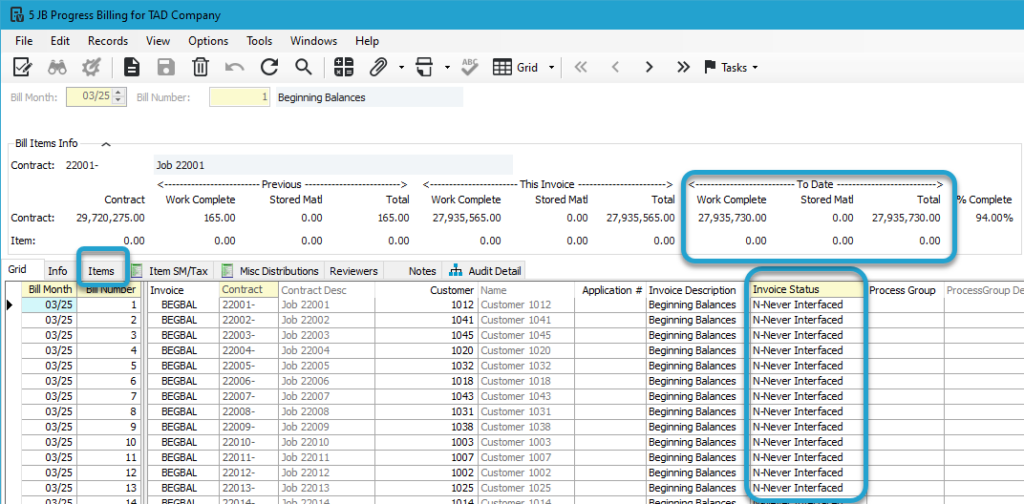
If you go to JB Progress Billing, you’ll see the bill records you imported with an Invoice Status of N – Never Interfaced. This means they do not need to be posted any further. These records now contain the Billed To Date values, so all future invoices will have the correct previous amounts.
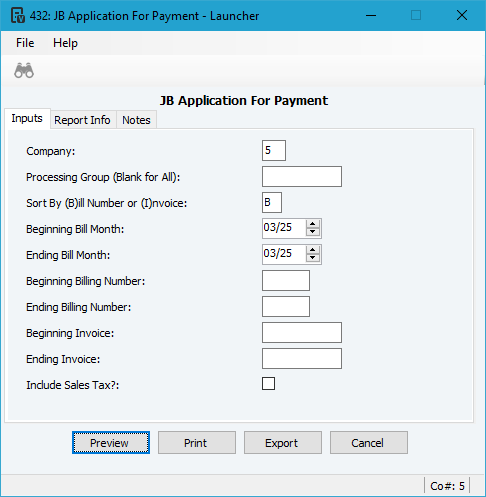
You can also validate the Billing Amounts by running the JB Application For Payment report in Vista.
Enter your Company and the Beginning/Ending Bill Month that you just imported.
Make all other parameters look like the image below.
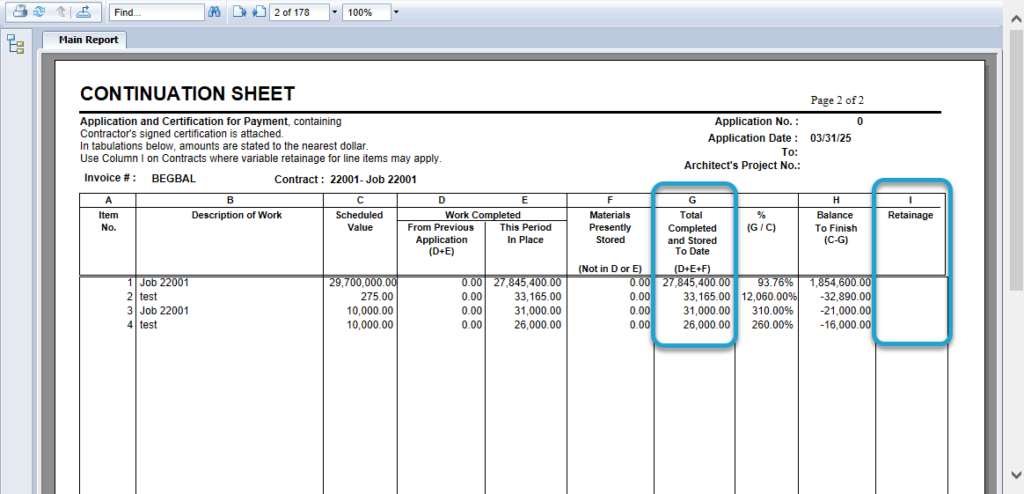
Verify the Total Completed and Stored To Date and Retainage columns equal the amounts you imported.
If you don’t see the Retainage column, proceed to the next step.
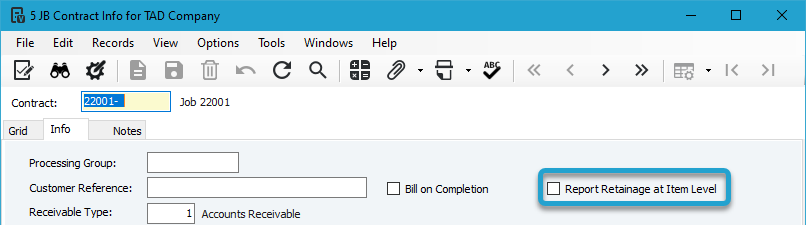
Go to JC Contracts or JB Contract Info and check the Report Retainage at Item Level checkbox.