Implementation Balance - PO Purchase Orders
Getting Started
If you’re carrying over open purchase orders import these records to preserve your committed costs and maintain an accurate picture of outstanding vendor obligations going forward.
Template Info
- Required Source Data Header Table
- Vendor #
- Purchase Order #
- Job #
- Description
- Order Date
- Line Table
- Purchase Order #
- PO Item #
- Job #
- Phase #
- Cost Type #
- Description
- Unit of Measure
- Original Units
- Original Unit Cost
- Original Cost
- Optional Source Data N/A
- Additional Tips The Purchase Order column is used to link the Header and Line records together for each invoice, so make sure the numbers are unique and assigned appropriately.
- Make sure to include all Purchase Order Items in this import—even those created from purchase order change orders with $0 original amounts. These PO Items are required for the purchase order change order import.
- Basic Steps Download TAD Template
- Copy the Source Data
- Import the Records
- Post Open Batch
- Validate Imported Data
Download TAD Template
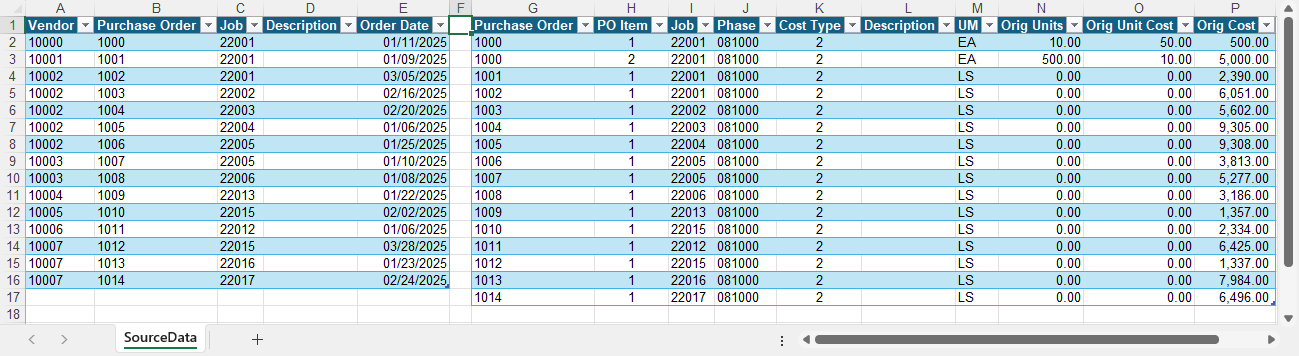
Open your source data file in Excel.
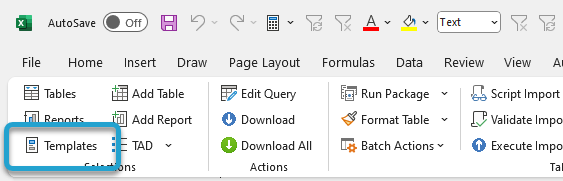
Click the Templates button on the left side of the ribbon.
If you've signed into TAD before, then you should receive the message below. Click Yes.
If you have not signed into TAD before, follow the Get Connected instructions.

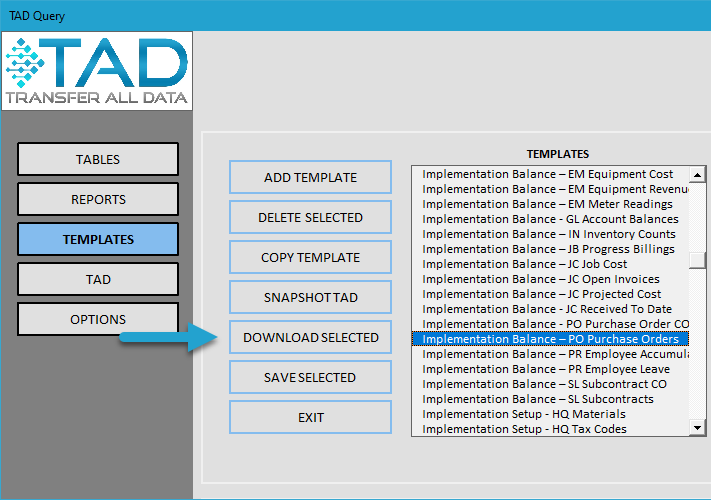
Select the Implementation Balance – PO Purchase Orders template.
Click the Download Selected button.
This template includes multiple tables, so make sure to check the Skip Remaining Parameter Entry box and click the Download button to download them all at once.
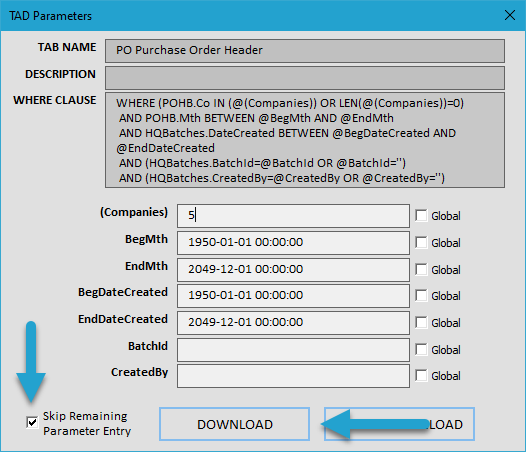
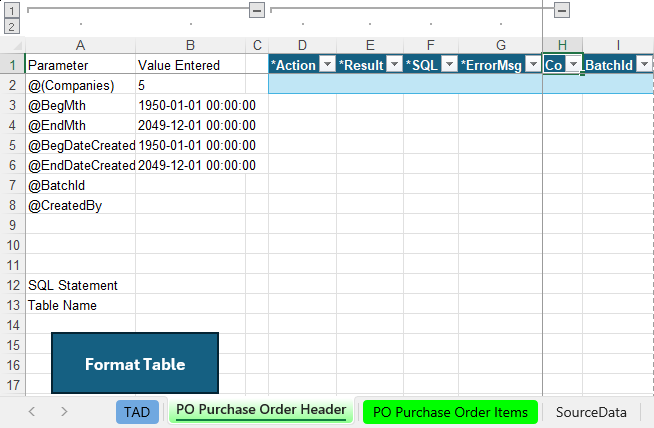
You’ll see multiple worksheets, as shown below.
The PO Purchase Order Header and PO Purchase Order Items sheets are used to import the purchase orders.
Copy the Source Data
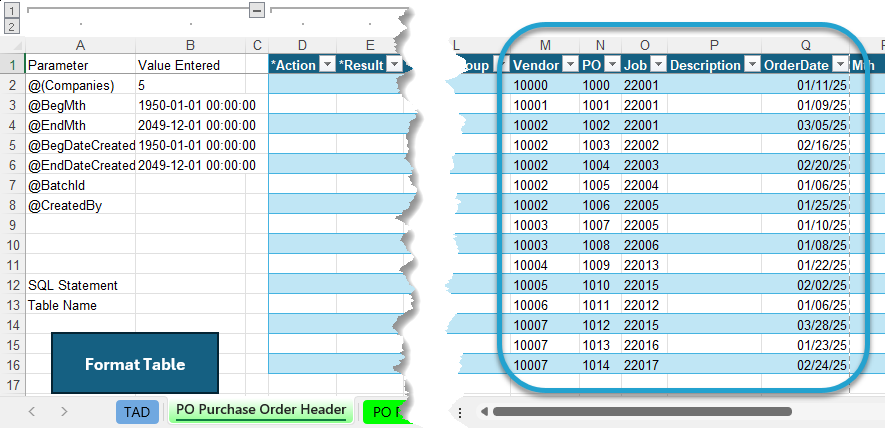
Copy and paste the header source data into the PO Purchase Order Header sheet. If your source data layout matches the example above, this will be a single copy and paste since the PO Purchase Order Header columns are already in the same order.
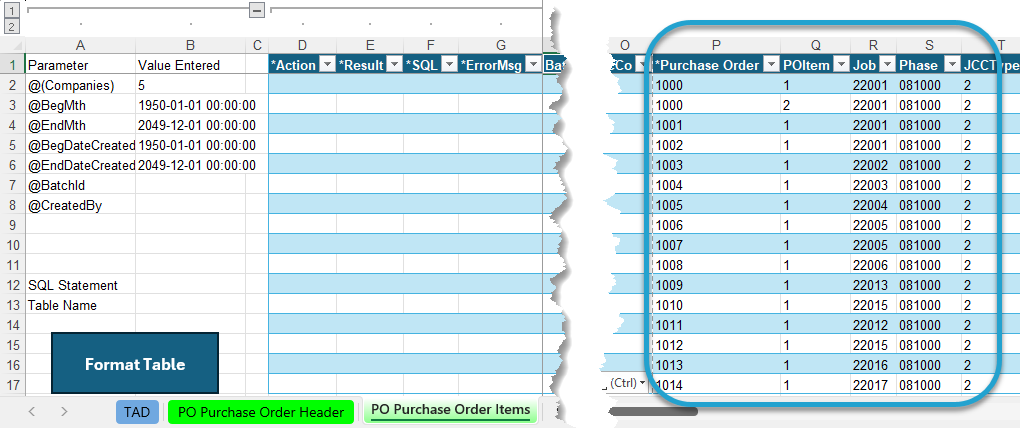
Copy and paste the line source data into the PO Purchase Order Items sheet. If your source data layout matches the example above, this will be a single copy and paste since the PO Purchase Order Items columns are already in the same order.
Import the Records
Go to the PO Purchase Order Header worksheet.
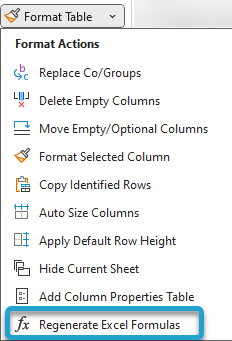
Click the submenu of the Format Table button on the ribbon and choose the Regenerate Excel Formulas button. This will apply formulas to multiple columns.
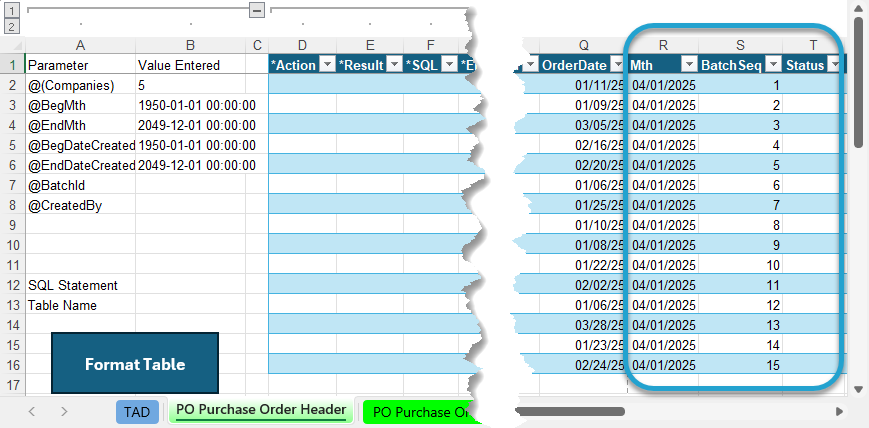
The Mth column defaults to the current month. Update this value if you're loading balances as of the prior month.
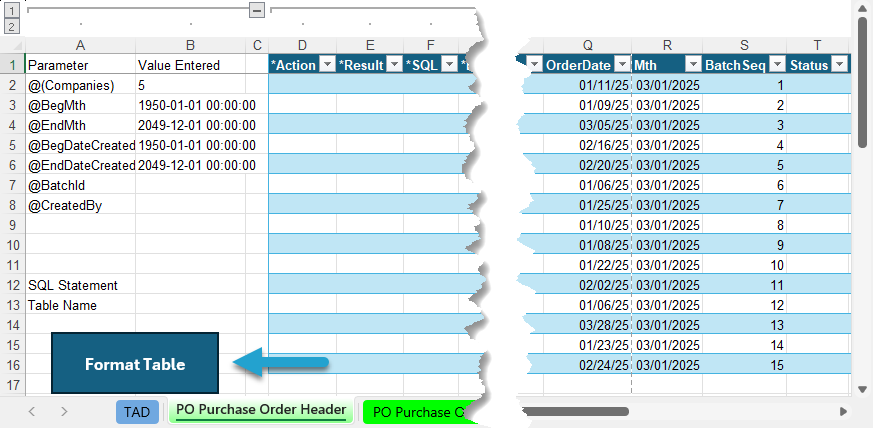
Click the Format Table button to format the data you copied and to apply missing default values.
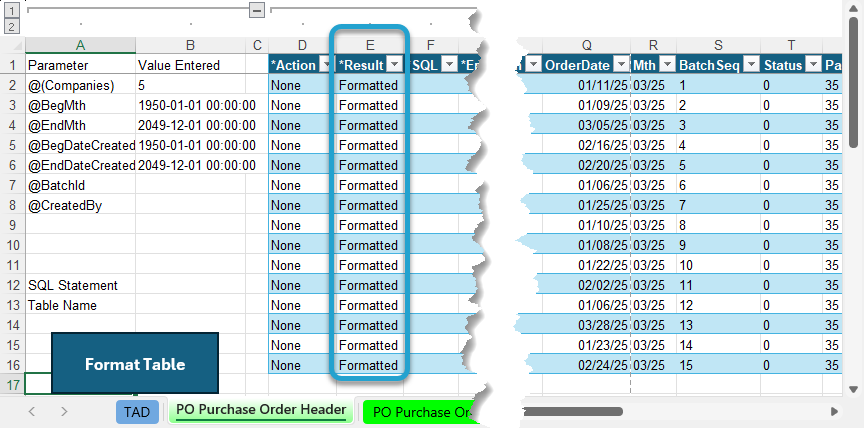
The Result column will show Formatted for every record. You will see the default Company number applied.
Go to the PO Purchase Order Items worksheet.
Click the submenu of the Format Table button on the ribbon and choose the Regenerate Excel Formulas button. This will apply formulas to multiple columns.
The Mth column defaults to the current month. Update this value if you're loading balances as of the prior month.
The Mth value should match the Mth value on the PO Purchase Order Header worksheet.
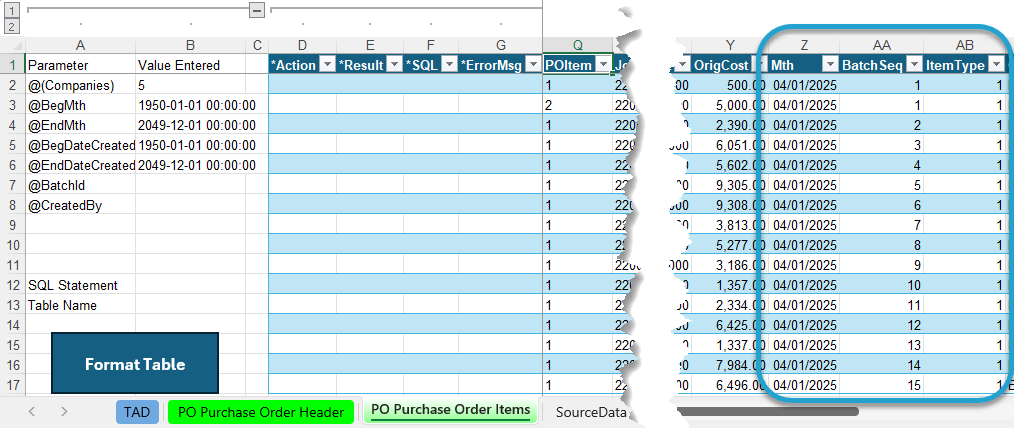
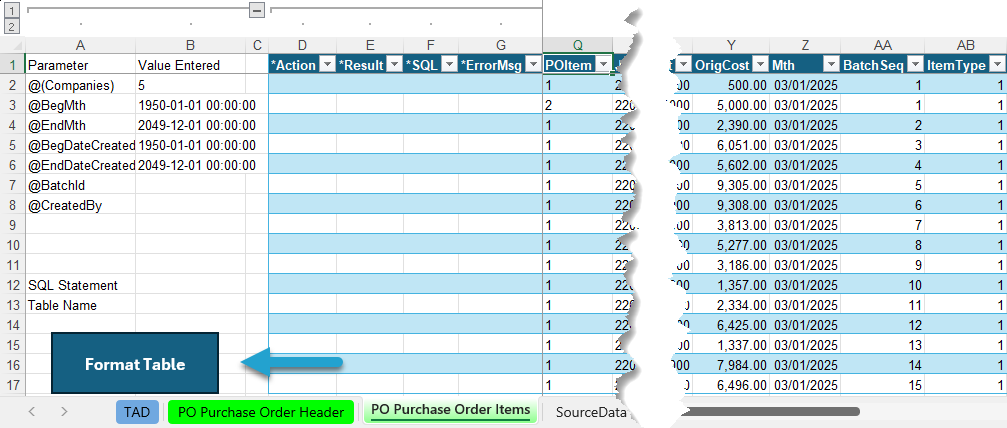
Click the Format Table button to format the data you copied and to apply missing default values.
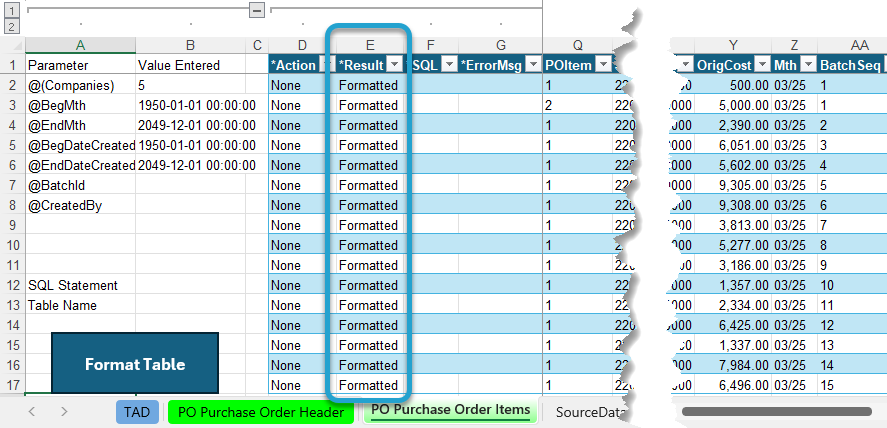
The Result column will show Formatted for every record. You will see the default Company number applied.
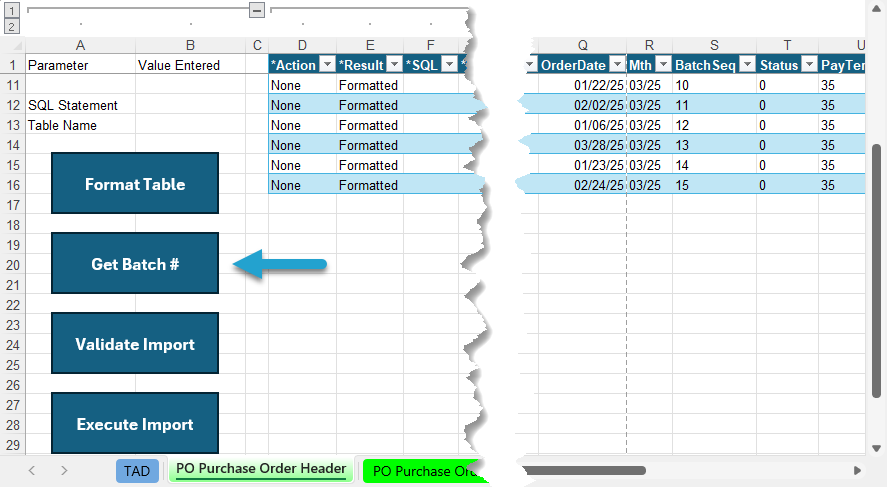
Go to the PO Purchase Order Header worksheet.
Click the Get Batch # button to assign the next batch number to both the Header and Lines worksheets.
The Result column will show Batch #XX Assigned for every record.
Click the Validate Import button.
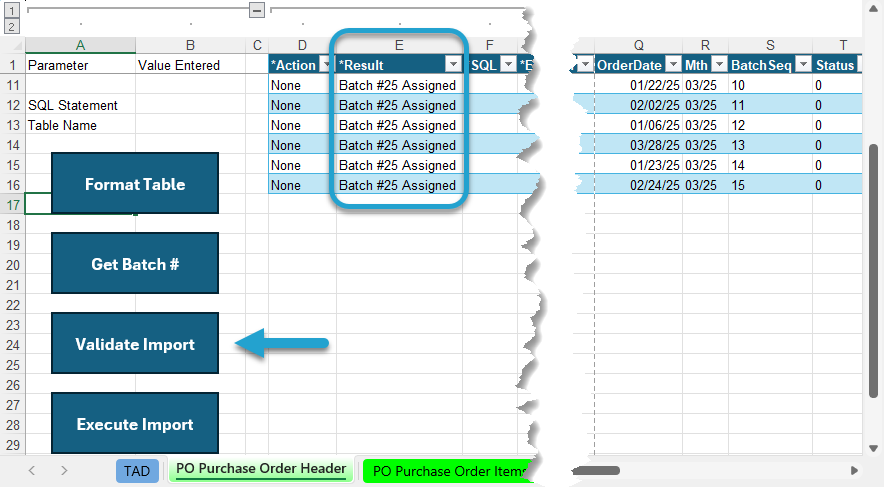
The Result column will show Validated for every record. If this says Failure, then the ErrorMsg column will provide the error.
Click the Execute Import button.
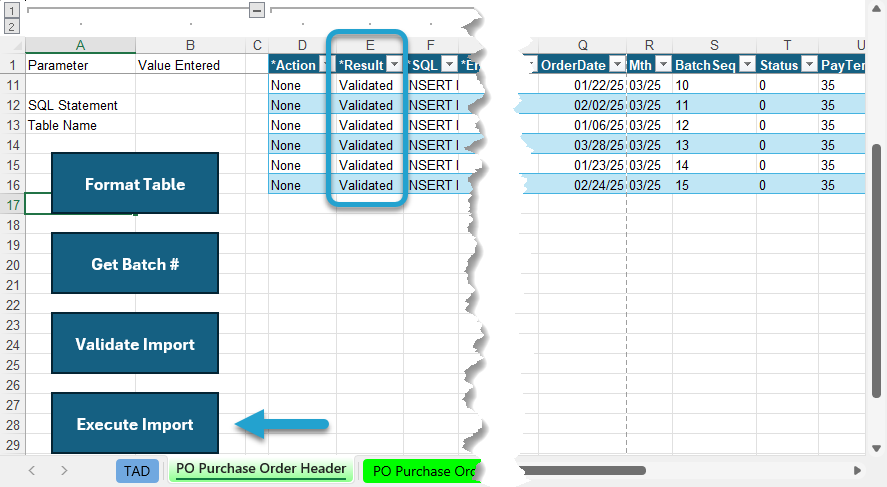
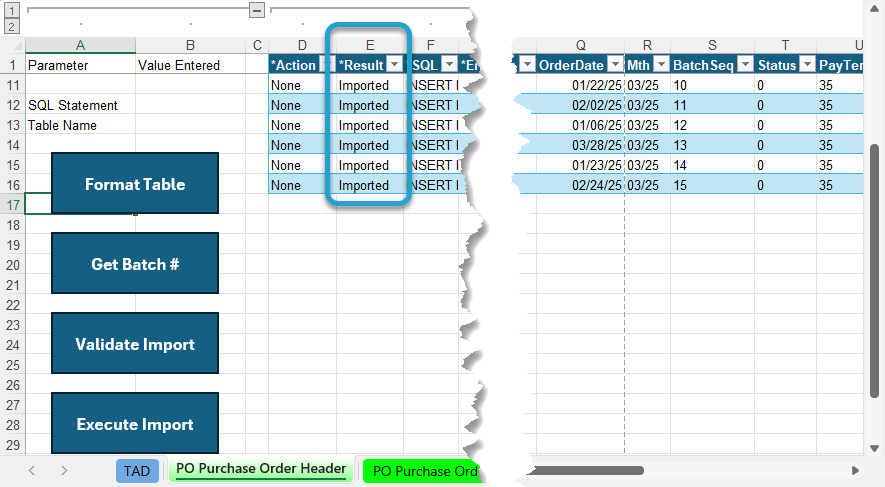
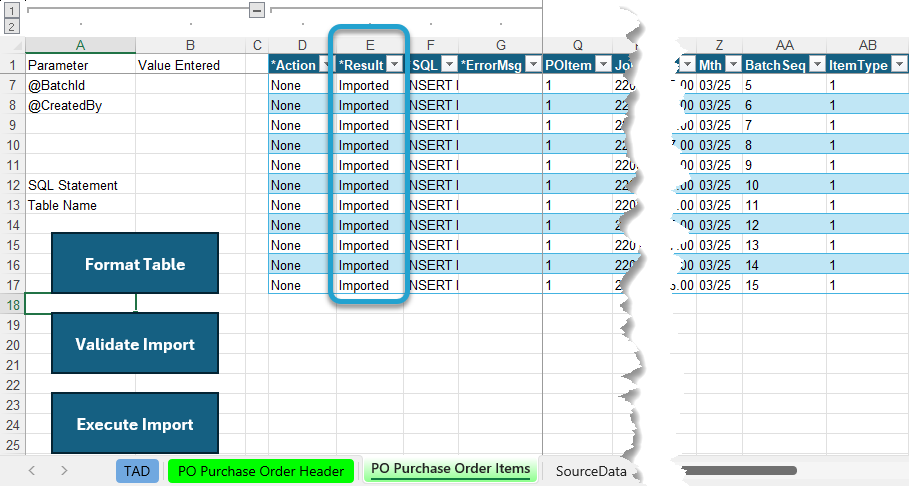
The Result column will show Imported for every record.
Go to the PO Purchase Order Items worksheet.
The Result column will show Batch #XX Assigned for every record since that was the last action on the worksheet.
Click the Validate Import button.
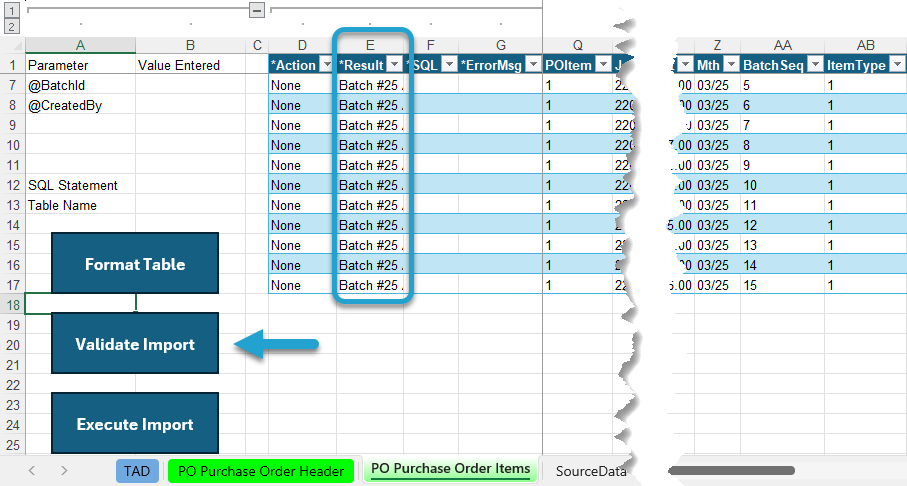
The Result column will show Validated for every record. If this says Failure, then the ErrorMsg column will provide the error.
Click the Execute Import button.
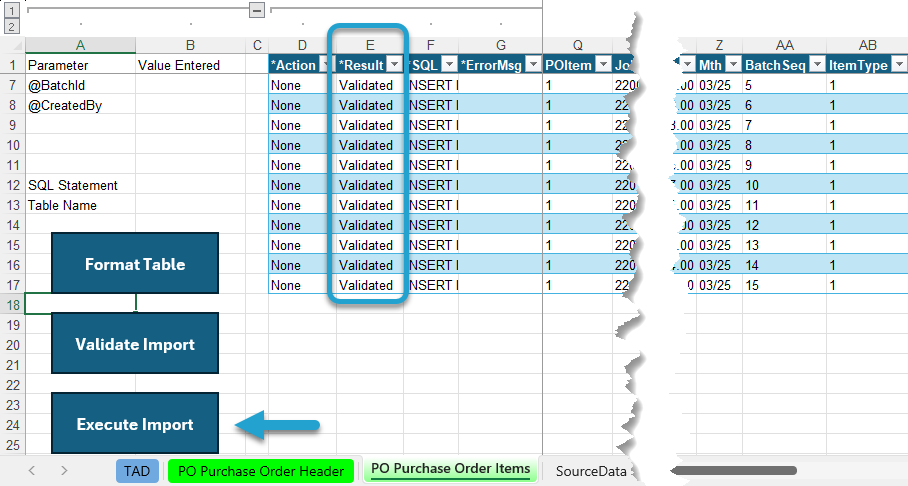
The Result column will show Imported for every record.
That completes all steps needed in TAD. You can now open the PO Purchase Order Entry batch in Vista to validate and post.
Post Open Batch
There’s no interfacing that needs to be turned off for subcontracts.
Open the batch in PO Purchase Order Entry.
With the batch open, go to File → Process Batch, then click the Validate button followed by the Post button.
Validate Imported Data
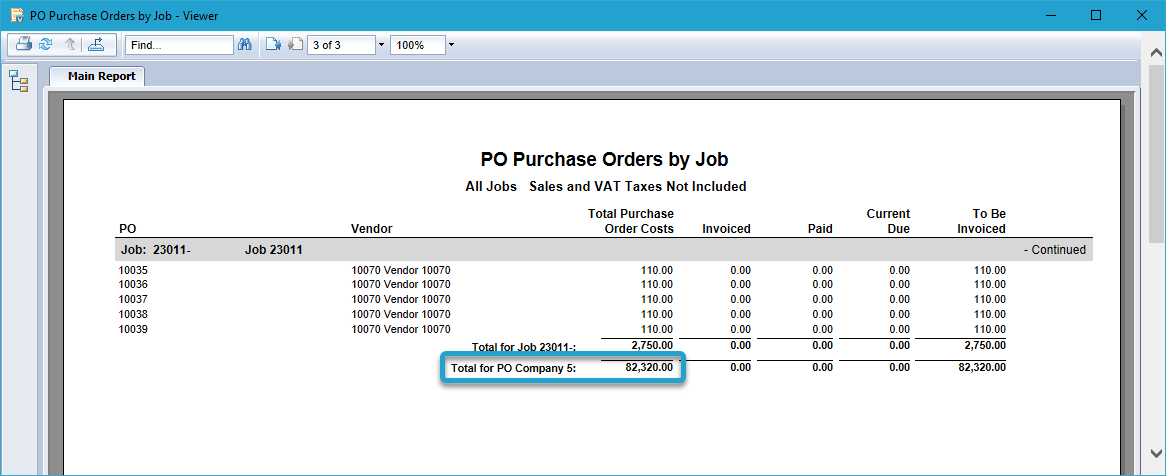
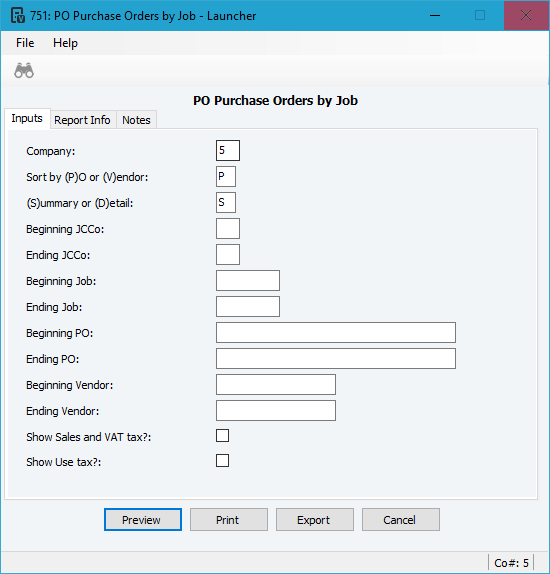
You can validate the Purchase Order Amounts by running the PO Purchase Orders by Job report in Vista.
Enter your Company that you just imported.
Make all other parameters look like the image below.
Verify the Total for PO Company for the Total Purchase Order Costs column at the end of the report matches the transactions that you imported.