Process the Converter
Getting Started
When you are ready to copy the source data to the destination worksheet follow the steps below to validate and process the Converter worksheet.
All Required columns must have a value assigned in order for you to proceed.
Process Converter
Select your Converter worksheet.
Click the Validate Converter button on the ribbon.

You want to see the message below stating everything validated.
Otherwise, the message will list what items need to be fixed before you can proceed.

Click the Process Converter button on the ribbon to copy the data.

You want to see the message below stating everything was successful.

You will see the copied records on your destination worksheet.
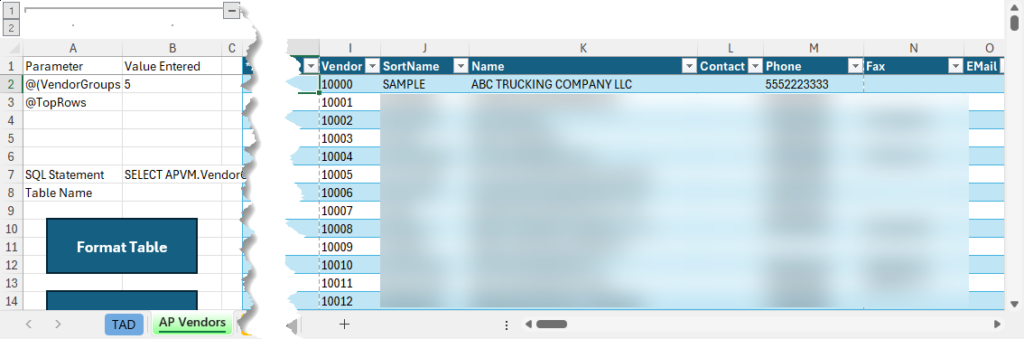
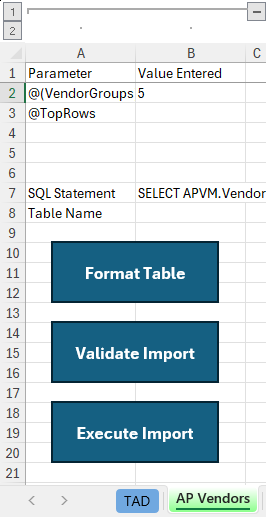
If you started with a Template, then you can use the blue workflow buttons to finish the import into Vista.
If you started with a Table, then you should complete the three actions below to import the new records.
Missing Cross Reference Values
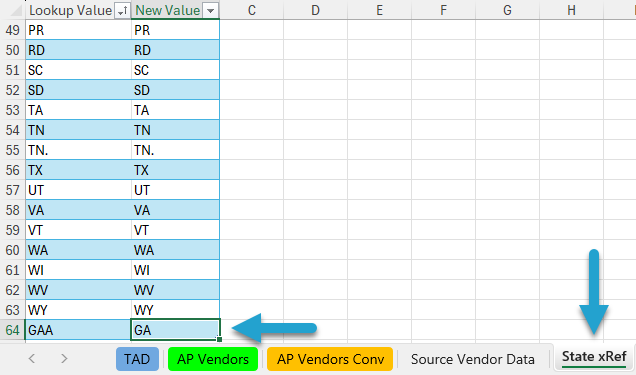
If your message mentions missing cross-reference values being found, go to those worksheets and update the missing values.

The missing values will be added to the bottom of the cross-reference table.
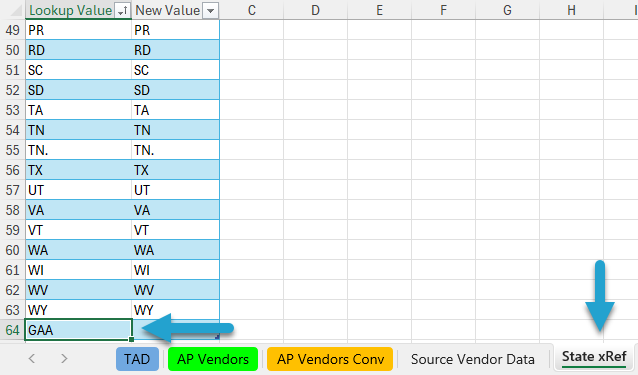
After updating the missing values, make sure to click the Process Converter button. That will copy all the data again to the destination worksheet using the new cross-reference values.