Query Editor Form - Where Button
Getting Started
The Where button is used to add filters to the data. You can hard code values or add parameters to filter the data when downloading.
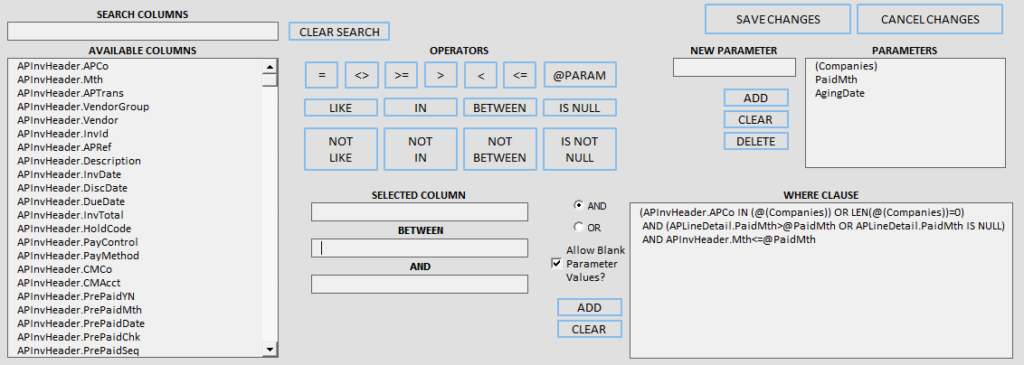
Fields
-
Search Columns
- Use this to filter the list of Available Columns.
-
Available Columns
- This lists all columns that can be filtered based on the main table and joined tables selected.
-
Selected Column
- This is the column that will be filtered.
-
Value 1
- This can be a hard coded value or you can use the @PARAM button to create a parameter.
-
Value 2
- This appears when you use the Between and Not Between operators.
-
And
- Use this if the filter should be true in addition to what already exists.
-
Or
- Use this if the filter could be true or what already exists is true. This is not used a lot.
-
Allow Blank Parameter Values
- Use this when adding a parameter if you do not want the parameter to be required.
-
New Parameter
- Enter a new parameter name here and make sure to select a column. This is only needed if the parameter is only used on the Select or Join buttons.
-
Parameters
- This lists all parameters currently in the report.
-
Where Clause
- This shows the current filters. You can add manual changes to the box if needed.
Buttons
 This will clear the search box.
 Equal To
 Not Equal To
 Greater Than or Equal To
 Greater Than
 Less Than
 Less Than or Equal To
 This adds a parameter to the Value fields and cycles through existing parameters.
 Use to search for a specific pattern. If a match is found then the record will be included.
 Use to search for a specific pattern. If a match is found then the record will not be included.
 Allows you to specify multiple values that you separate with a comma.
 Allows you to specify multiple values that you separate with a comma.
 Use for values within a given range.
 Use for values not within a given range.
 Use to find fields with no value.
 Use to find fields with a value.
 (Parameter) This will add the new parameter if a column is selected and a parameter named is entered.
 (Parameter) This will show in place of Add if you select a parameter from Parameters to edit. Use this to save any changes.
 (Parameter) This will clear the Selected Column and New Parameter fields.
 (Parameter) This will delete any selected parameters. If you delete parameters make sure the appropriate lines in the Where Clause are removed.
(Column) This will add the new filter after all required values have been selected.
(Column) This will clear all fields on the form.
 This will save any changes to the Where portion of the SQL Statement.
 This will cancel any changes to the Where portion of the SQL Statement.