Query Form - TAD Button
Getting Started
The TAD button displays the tables and reports you have saved in the specific file. This allows you to see the configurations that are loaded in the specific workbook.
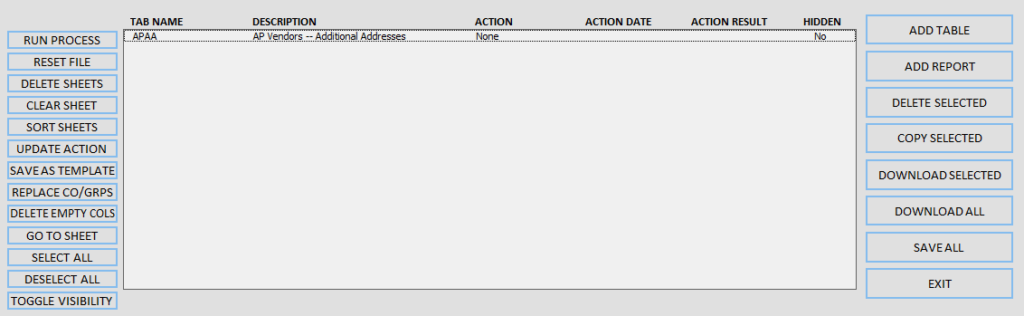
Buttons
-
Run Process
- Loops through table list and performs action in the Action column.
-
Reset File
- Deletes all worksheets and Clears TAD form.
-
Delete Sheets
- Deletes all worksheets in the workbook.
-
Clear Sheet
- Clears all tables from the TAD form.
-
Sort Sheets
- Sorts worksheets based on listed order.
-
Update Action
- Applies the same action to all tables.
-
Save As Template
- Saves a snapshot of the current TAD worksheet as a new template.
-
Replace Co/Grps
- Replaces the Company/Group values on selected worksheets.
-
Delete Empty Cols
- Deletes empty columns on selected worksheets.
-
Go To Sheet
- Goes to the selected worksheet.
-
Select All
- Selects all tables/reports.
-
Deselect All
- Deselects all tables/reports.
-
Toggle Visibility
- Hides/Shows the selected worksheets.
-
Add Table
- Opens the TAD Query Editor section for you to choose which table you want to download.
-
Add Report
- Opens the TAD Query Editor section for you to create a new report.
-
Delete Selected
- Deletes the selected tables/reports.
-
Copy Selected
- Copies the selected tables/reports.
-
Download Selected
- Downloads the selected tables/reports.
-
Download All
- Downloads all tables/reports in the list.
-
Save All
- Saves all tables/reports to the TAD Sheet in order to download in the future.
-
Exit
- Closes the TAD Query form.