Query Form - Update Action
Getting Started
The Update Action view can be accessed three ways.
- Through the TAD button sub menu on the ribbon by choosing Update Action Column . The value selected here will be applied to all Tables/Reports on the TAD Sheet.
- Through the TAD button on the TAD Query form by choosing Update Action . The value selected here will be applied to all Tables/Reports on the TAD Sheet.
- On the TAD Sheet if your cursor is in the Action column for any row and you click the Edit Query button on the ribbon or press F4.
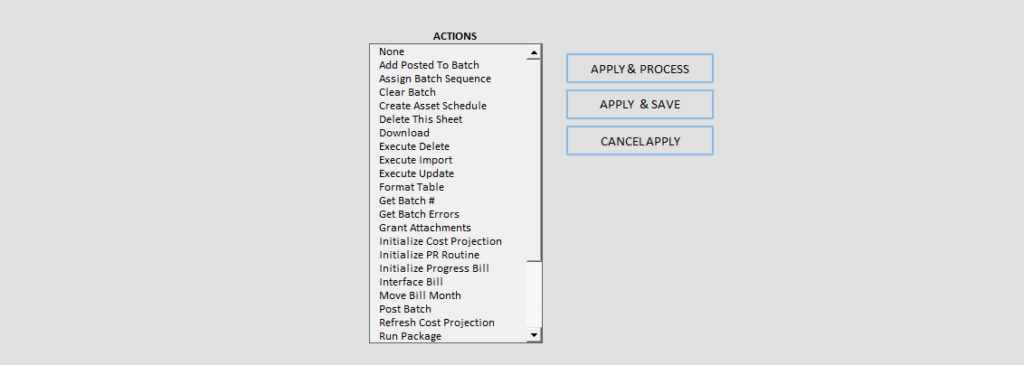
Fields
- Actions
- List all available actions that can be applied to Tables.
Buttons
 This will assign the selected Action to the appropriate Tables/Reports and then process those actions.
 This will assign the selected Action to the appropriate Tables/Reports for future processing.
 This will cancel the selected of an Action.
Actions
- None
- Default value and no action taken.
- Add Posted To Batch
- Use this to add identified records into a batch.
- Refer to the Add Posted To Batch templates.
- Assign Batch Sequence
- Assigns the Sequence # to each combination of Co, Month & Batch Id.
- Clear Batch
- Clears each Batch # in the combination of Co, Month & Batch Id.
- Create Asset Schedule
- Creates the EM Asset Schedule for selected assets.
- Refer to the Process - EM Create Asset Schedule template.
- Delete This Sheet
- Deletes the sheet that the button is on.
- Download
- Downloads the specific worksheet.
- Execute Delete
- Deletes the identified records from the database.
- Execute Import
- Imports the identified records into the database.
- Execute Update
- Updates the identified records in the database.
- Format Table
- Formats data to avoid data issues when importing/updating.
- Get Batch #
- Assign a Batch # to each combination of Co & Month. This means you can list multiple Companies on the same sheet, and each will be assigned the next appropriate batch #.
- Get Batch Errors
- Generates a new sheet containing the batch errors.
- Grant Attachments
- Use this to grant access to attachments.
- Refer to the Granting Attachment Access article.
- Initialize Cost Projection
- Use this to create a JC Cost Projection batch based on identified job numbers.
- Refer to the Process - JC Cost Projections template.
- Initialize PR Routine
- Use this to initialize the PR Routines across one or multiple companies.
- Refer to the Process - PR Initialize Routines template.
- Initialize Progress Bill
- Use this to initialize progress bills for entering beginning balances.
- Refer to the Process - JB initialize Progress Bills template.
- Interface Bill
- Use this to interface bills across multiple companies/months.
- Refer to the Process - JB Interface Bills template.
- Move Bill Month
- Use this to move bills to another month.
- Refer to the Process - JB Move Bill Month template.
- Post Batch
- Posts each Batch # in the combination of Co, Month & Batch Id. The audit reports will not be generated in this process. If you want those reports, you must post the batches inside the system.
- Refresh Cost Projection
- Use this to refresh the data for an existing JC Cost Projection batch.
- Refer to the Process - JC Cost Projections template.
- Run Package
- Runs the package assigned to the specific table. This allows you to run multiple actions in sequence which can be useful for posting batches.
- Script Delete
- Creates the DELETE statements for each record.
- Script Import
- Creates the INSERT statements for each record.
- Script Update
- Creates the UPDATE statements for each record.
- Validate Batch
- Validates each Batch # in the combination of Co, Month & Batch Id.
- Validate Delete
- Validates that the records you are deleting will be successful.
- Validate Import
- Validates that the records you are importing will be successful.
- Validate Update
- Validates that the records you are updating will be successful.