Reset SQL Account Password
Getting Started
SQL account passwords can only be reset using SQL Server Management Studio (SSMS). You can either submit a support ticket to Trimble to request a password reset or reset it yourself by accessing SSMS through one of the following methods:
- Download SSMS from Microsoft
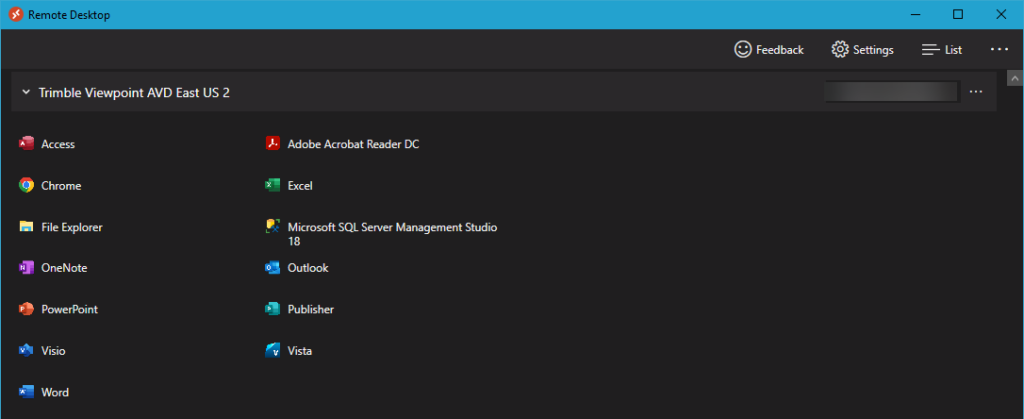
- Access SSMS via AVD Remote Desktop (Cascade)
Reset Password
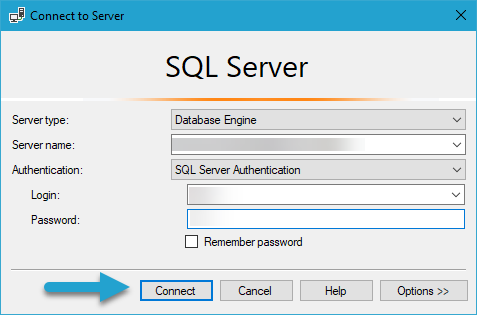
Once you have access to SSMS, connect to the same Server that you use with TAD.
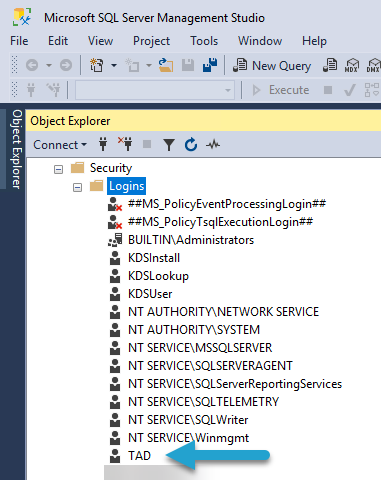
Once connected, expand Security → Logins.
If you only see two accounts, like the image below, then you don't have the correct permissions.
Submit a support ticket to Trimble with the subject: "Please assign the securityadmin server role to SQL Account �CODE0�."
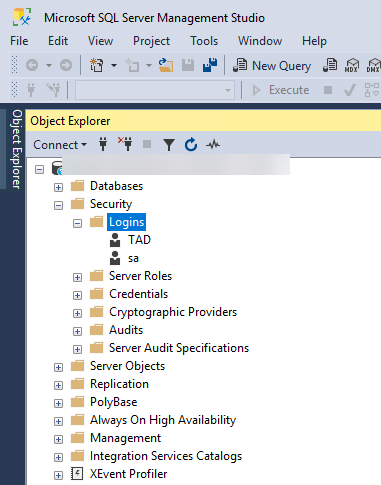
If you see a long list of accounts, then you should have the correct permissions.
Double-click on the SQL Account that needs a password change.
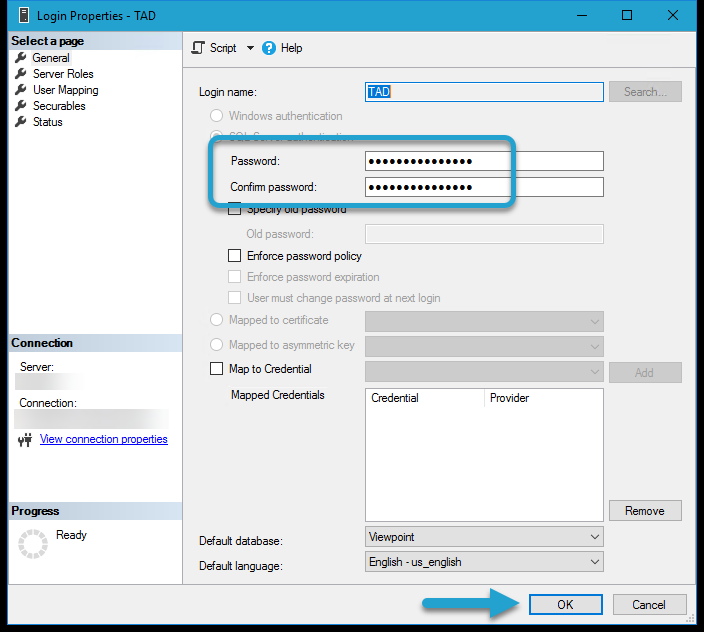
Change both password fields and click the OK button.
The password has now been changed, and the user can try again.