Saving Column Layouts with Scraper
Getting Started
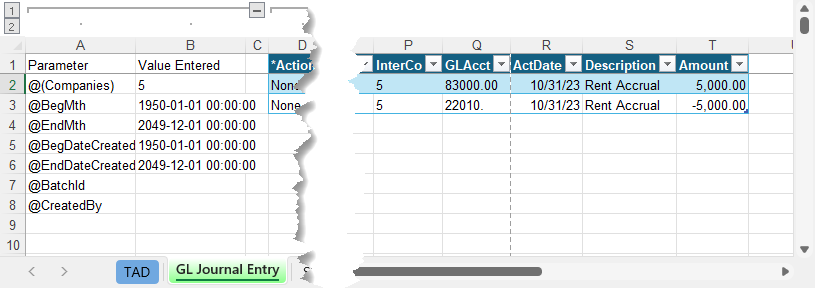
If you rearrange or delete columns after downloading a table you must use the Scraper button to save the new layout.
If you do not save the layout and later download the table again, it will revert to the original layout, undoing any changes you made. Using Scraper ensures your custom column arrangement is preserved for future downloads.
Saving the Layout
With your table downloaded and columns adjusted, follow the steps below to save the new layout using Scraper.
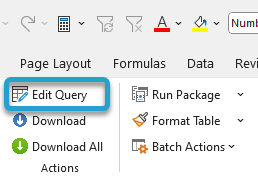
Click Edit Query on the ribbon to open the query editor.
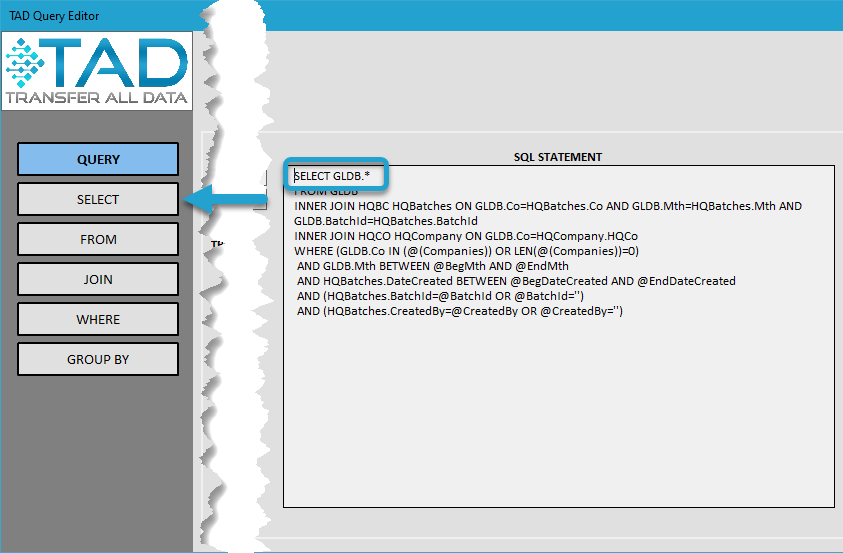
The current SQL statement still displays GLDB.*, indicating that all columns are included in the selection.
Click Select on the left side to modify the column selection.
You will see the current Selected Columns displayed in the query editor.
Click the bottom button on the right side to proceed.
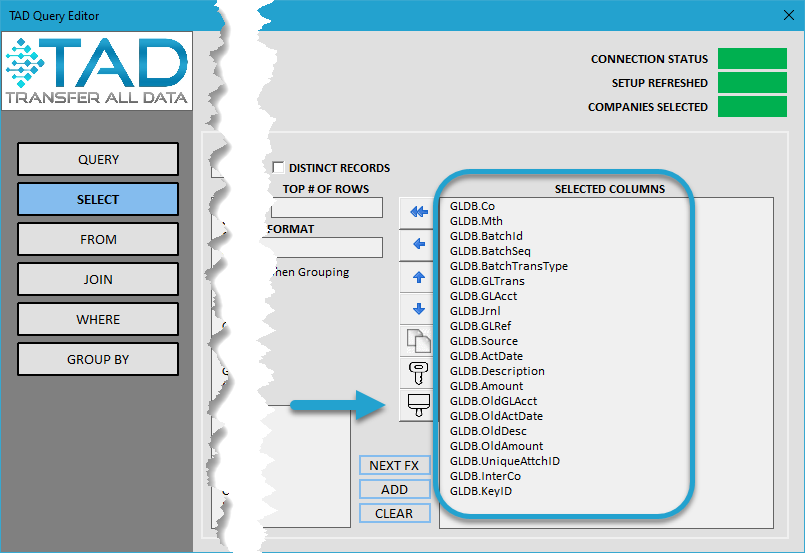
You will receive a confirmation prompt asking if you want to replace all columns with the current table layout.
Click OK to confirm and apply the changes.

The Selected Columns will now be updated to match the layout of the table in the worksheet.
Click Save Changes to apply and finalize the updated column selection.
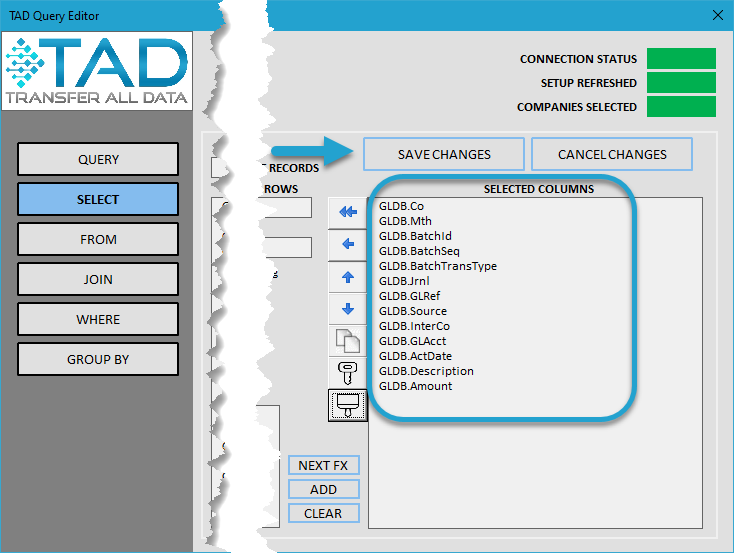
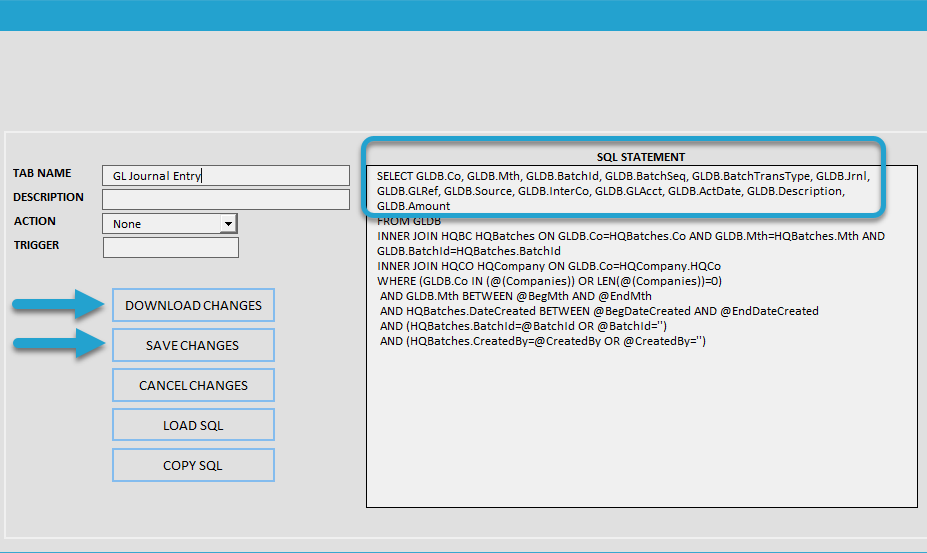
The SQL Statement field will be updated to reflect the new column layout.
- Click Download Changes to save the changes and download fresh data based on the updated layout.
- Click Save Changes to finalize and store the updated column selection.