Split Parameter Values
Getting Started
When selecting multiple values for a parameter the SPLIT() function allows you to generate a separate worksheet for each parameter value, rather than downloading a single, consolidated output.
Requirements for SPLIT() to Work- The parameter must be a multi-select parameter, created using the IN button.
- Only one parameter per download can utilize the SPLIT() function.
Using Split
The example below uses the rptAPAging report.
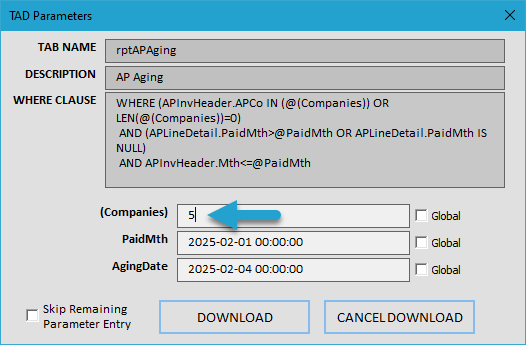
Click the Download button to open the TAD Parameters form.
Press F4 or double-click in the (Companies) parameter field to open the TAD Lookup form.
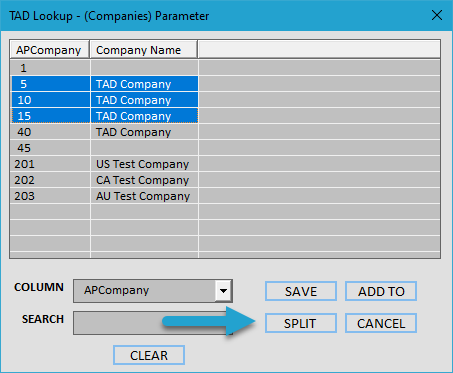
Select multiple values from the list.
Click the Split button to apply the SPLIT() function.
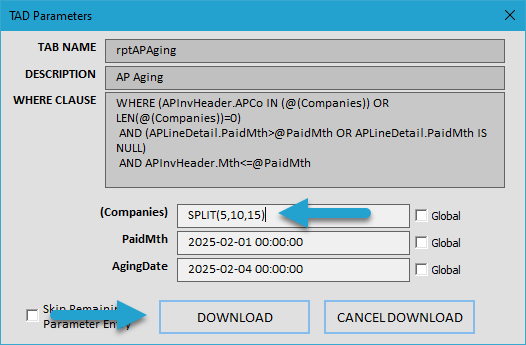
The selected values will be returned to the parameter field, wrapped by the SPLIT() function, indicating that a separate worksheet will be generated for each value.
Click the Download button to proceed.
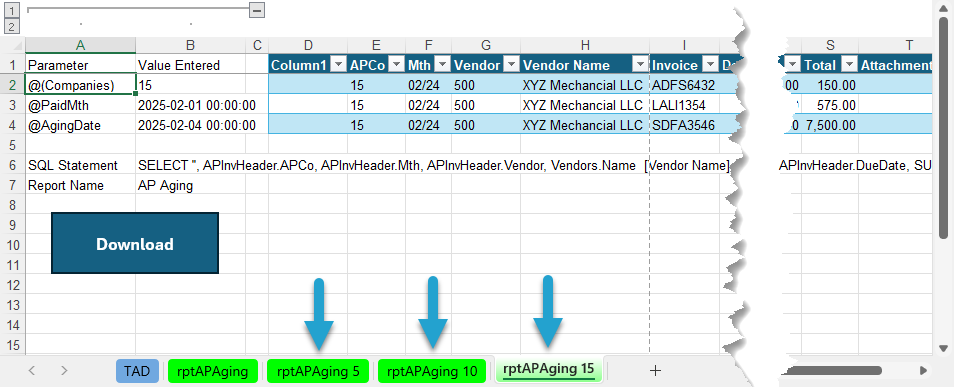
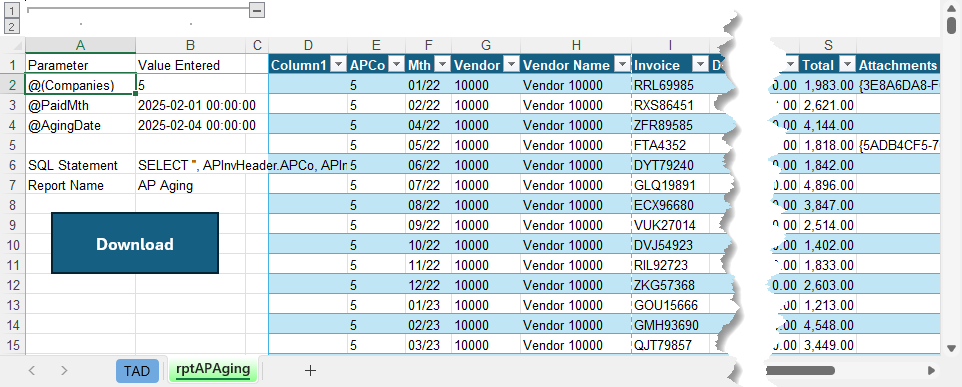
You will see one worksheet per parameter value, with each worksheet containing data specific to the selected value.
The original worksheet remains, allowing you to use it for downloading consolidated totals if needed.