TAD Ribbon
Getting Started
The ribbon is broken down into five sections.
-
Selections
- These buttons are the starting point of everything you do in TAD.
-
Actions
- These buttons can be used with both Tables and Reports.
-
Table Actions
- These buttons can only be used with Tables.
-
Automation
- These buttons allow you to schedule reports and copy conversion data.
-
Utilities
- These buttons give you access to options refreshing your setup and general information.
Selections Buttons

-
Tables
- Download one or more tables with the intent to import/update/delete records.
-
Reports
- Download one of the standard reports.
- Download one of the Company Reports that you can upload to your Vista configuration.
-
Templates
- Download a template containing Tables with specific configurations.
- These may have specific column layouts or additional actions like the Batches templates.
-
Add Table
- Download a single Table.
-
Add Report
- Download a single Report built from scratch.
-
TAD
- Add, Delete, Copy and Download the Tables and Reports in the workbook.
Actions Buttons

-
Edit Query
- Use to edit the structure (columns, joins, conditions) of the Table/Report.
-
Download
- Downloads the selected worksheet.
-
Download All
- Downloads all worksheets in the workbook.
Table Actions Buttons
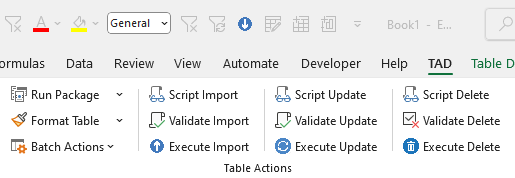
-
Run Package
- Runs the package assigned to the specific table.
- This allows you to run multiple actions in sequence which can be useful for posting batches.
- What are Packages?
-
Format Table
- Formats data to avoid data issues when importing/updating.
-
Batch Actions
- Contains the various batch actions that can be used on Batch tables.
- Intro to Batches
-
Script Import
- Creates the INSERT statements for each record which can be executed in SQL Server Management Studio.
-
Validate Import
- Validates that the records you are importing will be successful.
-
Execute Import
- Imports the identified records into the database.
-
Script Update
- Creates the UPDATE statements for each record which can be executed in SQL Server Management Studio.
-
Validate Update
- Validates that the records you are updating will be successful.
-
Execute Update
- Updates the identified records in the database.
-
Script Delete
- Creates the DELETE statements for each record which can be executed in SQL Server Management Studio.
-
Validate Delete
- Validates that the records you are deleting will be successful.
-
Execute Delete
- Deletes the identified records from the database.
Automation Buttons

-
Create Automator
- Creates the Automator worksheet which can be used to email/save worksheets.
-
Validate Automator
- Validates the Automator worksheet to make sure all entry is correct.
-
Process Automator
- Processes the Automator worksheet and emails/saves the worksheets.
-
Create Blaster
- Creates a Blaster worksheet for the select Table/Report.
-
Create Converter
- Creates a Converter worksheet for the selected Table.
-
Validate Converter
- Validates the Converter worksheet to eliminate errors.
-
Execute Converter
- Processes the Converter worksheet and copies data from source to destination worksheets.
Utilities Buttons

-
Options
- Opens the TAD Query form showing the available options.
-
Refresh Setup
- Refresh the TAD setup tables based on your permissions.
-
About
- Displays Version, User Manual link and Licenses purchased.
TAD Button Sub-Menu

-
Run Process
- Loops through TAD Sheet and performs the action in the Action column.
-
Reset File
- Deletes and worksheets from the workbook and clears everything on the TAD Sheet.
-
Delete Sheets
- Deletes all worksheets from the workbook.
-
Clear TAD Sheet
- Clears everything on the TAD Sheet.
-
Sort Sheets
- Sorts worksheets based on listed order on TAD Sheet.
-
Update Action Column
- Applies the same action to all tables/reports in the file.
Run Package Button Sub-Menu

-
Regenerate Action Buttons
- Regenerates and resyncs the blue action buttons on the selected worksheet.
Format Table Button Sub-Menu
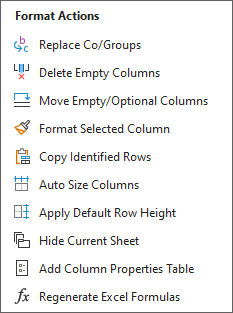
-
Replace Co/Groups
- This will replace the Company & Group columns on the selected worksheet. The Destination Company is used to determine the Company & Group values. This replaces all rows in the column.
-
Delete Empty Columns
- This will delete all empty columns on the selected worksheet.
-
Move Empty/Optional Columns
- Moves all empty and optional columns to the end of the table.
-
Format Selected Columns
- This will format the column where your cursor is placed. Select a single cell and not the entire column.
-
Copy Identified Rows
- This allows you to copy the rows identified in the Action column on the sheet. You will be prompted for the # of copies.
-
Auto Size Columns
- This will auto size every column on the sheet.
-
Apply Default Row Height
- This will change all row heights to the default value of 15.
-
Hide Current Sheet
- This will hide the sheet and update the Hide column on the TAD Sheet. Use that column to unhide the sheet.
-
Add Column Properties Table
- Adds a table showing the column properties for each column.
-
Regenerate Excel Formulas
- This regenerates the Excel formulas in the columns which can be useful after a Format Table, Validate Import or other action.
Batch Actions Button Sub-Menu

-
Get Batch #
- Assign a Batch # to each combination of Co & Month.
- This means you can list multiple Companies on the same sheet, and each will be assigned the next appropriate batch #.
-
Assign Batch Sequence
- Assigns the Sequence # to each combination of Co, Month & Batch Id.
-
Validate Batch
- Validates each Batch # in the combination of Co, Month & Batch Id.
-
Post Batch
- Posts each Batch # in the combination of Co, Month & Batch Id.
- The audit reports will not be generated in this process. If you want those reports, you must post the batches inside the system.
-
Clear Batch
- Clears each Batch # in the combination of Co, Month & Batch Id.
-
Get Batch Errors
- Generates a new sheet containing the batch errors.
Refresh Setup Button Sub-Menu

-
Clear User Setup
- Clears all user setup in the workbook.
- The TAD worksheet keeps the configurations so the workbook can be sent to another user to connect and download.