Top Rows Parameter
Getting Started
The @TopRows parameter allows you to control the number of records downloaded making it especially useful for large datasets.
- Limiting the record count speeds up the download process.
- Helps you review the data layout before making further adjustments.
This parameter can be applied to both Tables and Reports, depending on your specific needs.
Add Top Rows Parameter
The example below demonstrates using the @TopRows parameter by downloading the Job Cost Detail (JCCD) table, which typically contains 100,000+ records.
Click the Add Report button on the left side of the ribbon.

Search for the table containing the records. The Vista form name usually matches the table name, making it easier to locate.
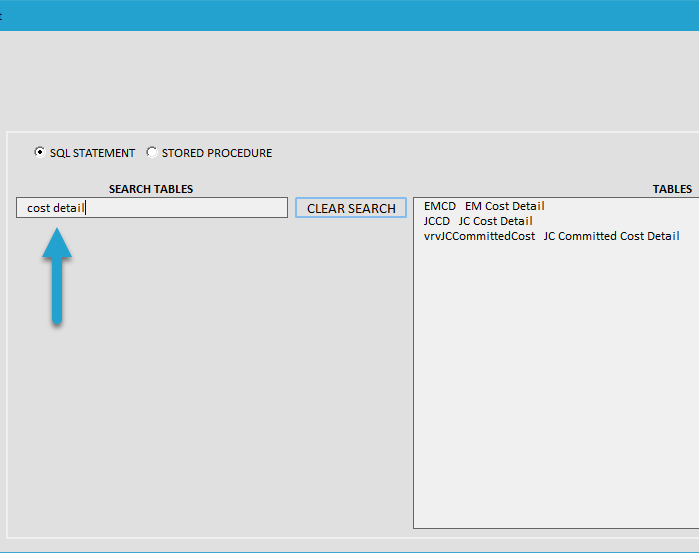
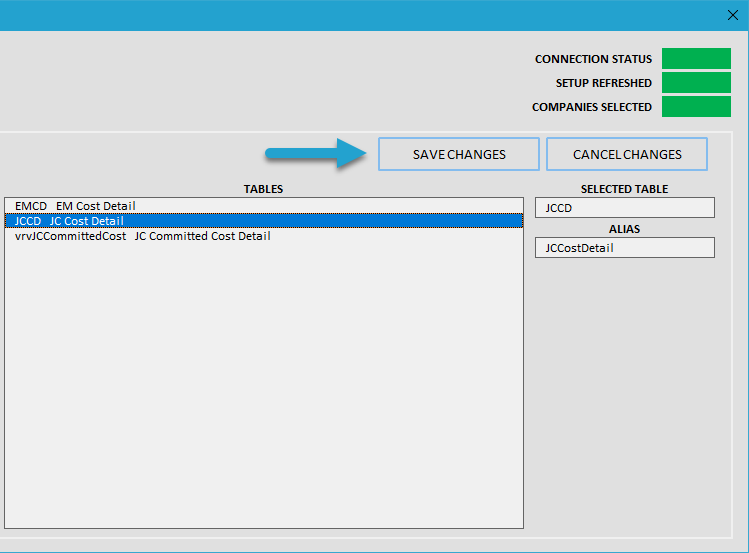
Either double-click on the table to select it or highlight the table and click Save Changes to confirm your selection.
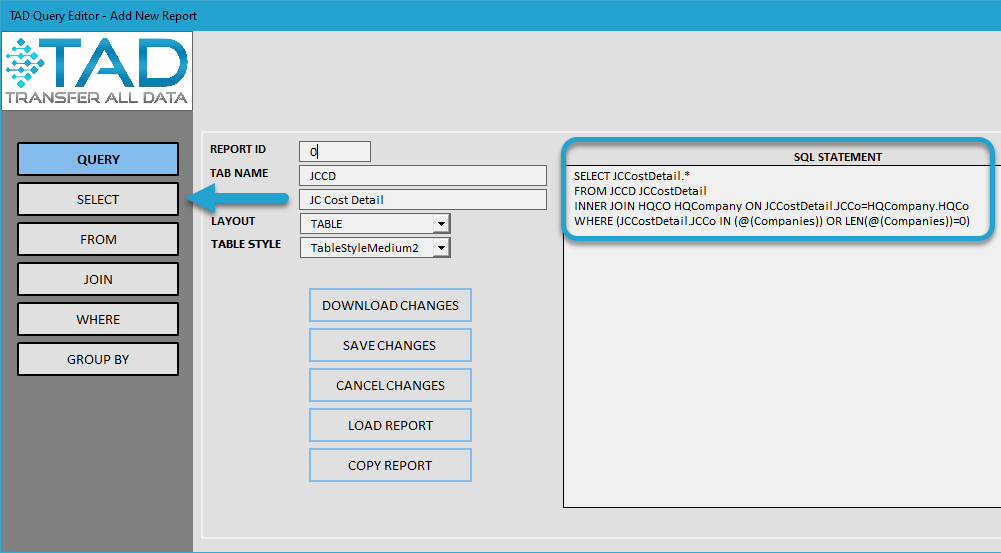
The base SQL statement will download all records and columns by default.
Click the Select button to add the @TopRows parameter, allowing you to limit the number of records downloaded.
Enter @TopRows in the Top # of Rows field.
Click Save Changes to apply the update.
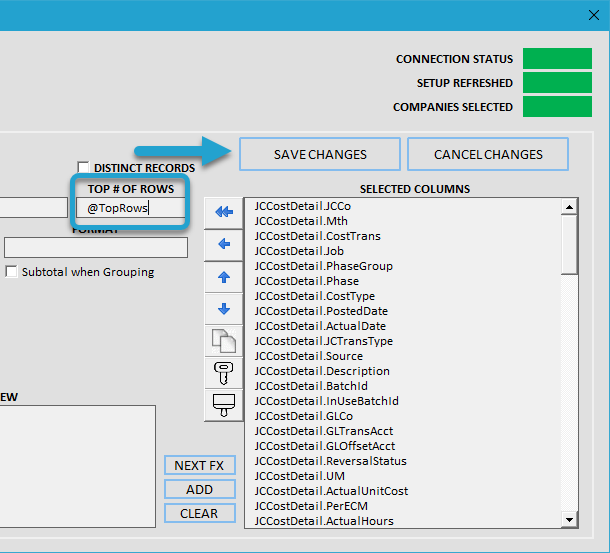
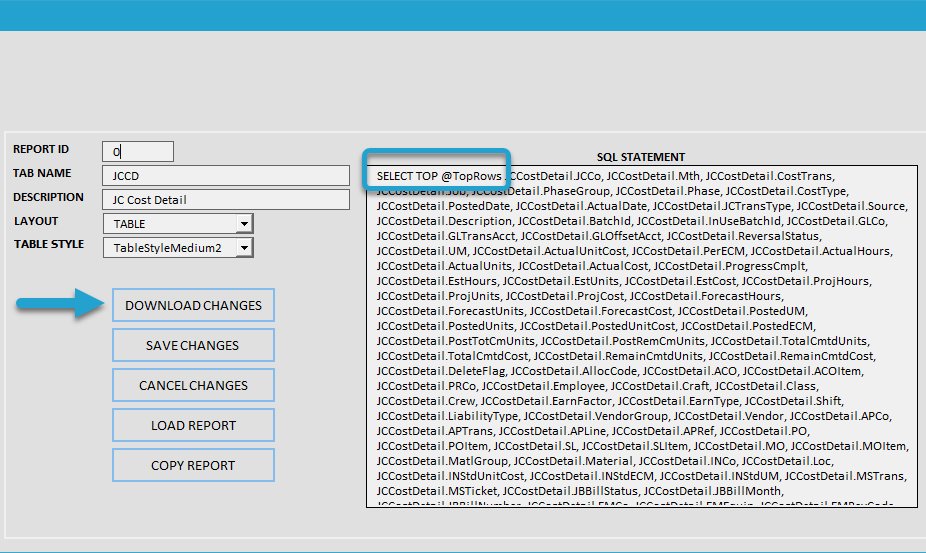
This will add the @TopRows parameter to the SQL Statement field.
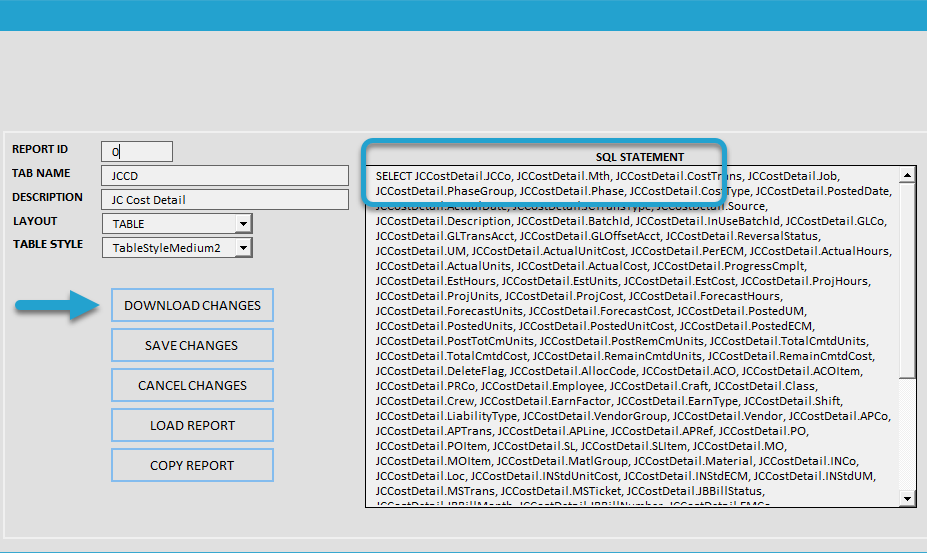
Click Download Changes to apply the update and retrieve a limited number of records.
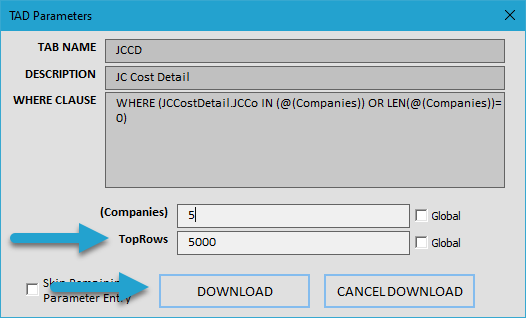
You will see a TopRows parameter field. Enter the number of records you want to download.
Click the Download button to retrieve the specified number of records.
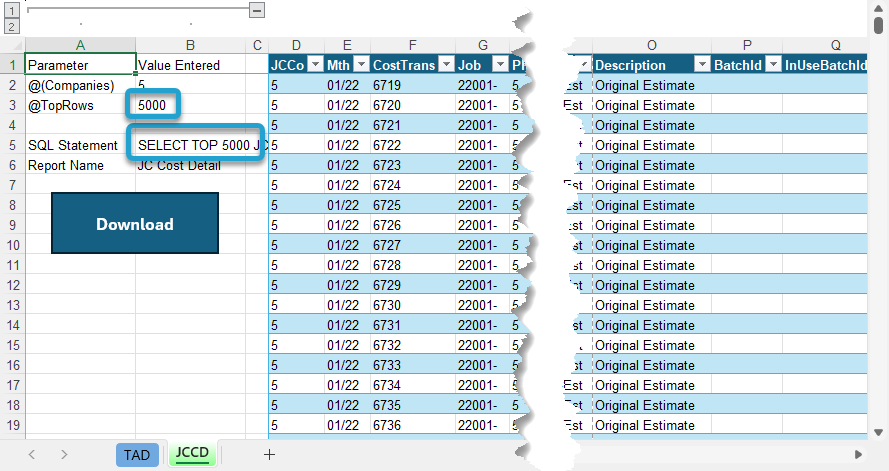
The saved Parameter and SQL Statement values will reflect the number of records downloaded, confirming that the @TopRows parameter was applied successfully.
Download All Records
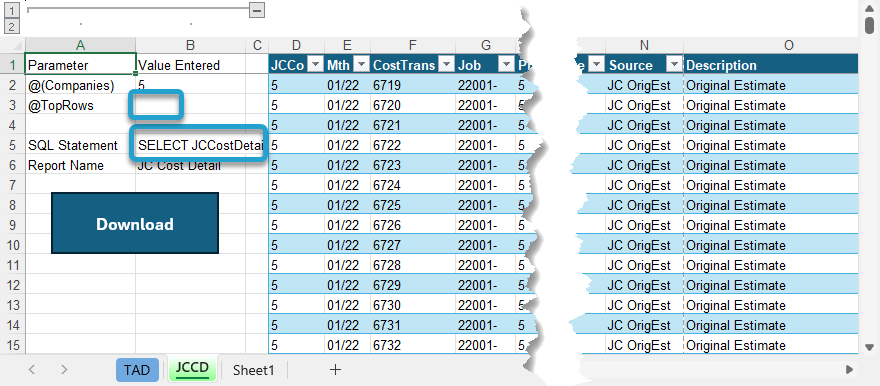
When you remove the value from the @TopRows parameter, all records will be downloaded, retrieving the full dataset without limitations.
Download Blank Table
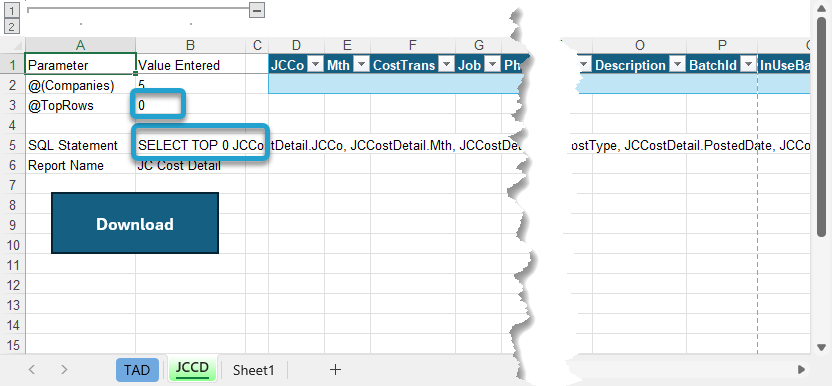
Entering 0 (zero) in the @TopRows parameter downloads a blank template, allowing you to:
- Add new records without preloaded data.
- Rearrange columns before importing or updating data.
Remove Parameter
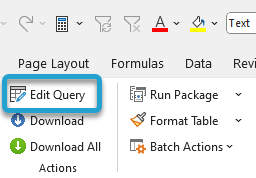
To remove the @TopRows parameter, click the Edit Query button on the ribbon.
Go to the Select option on the left side of the query editor.
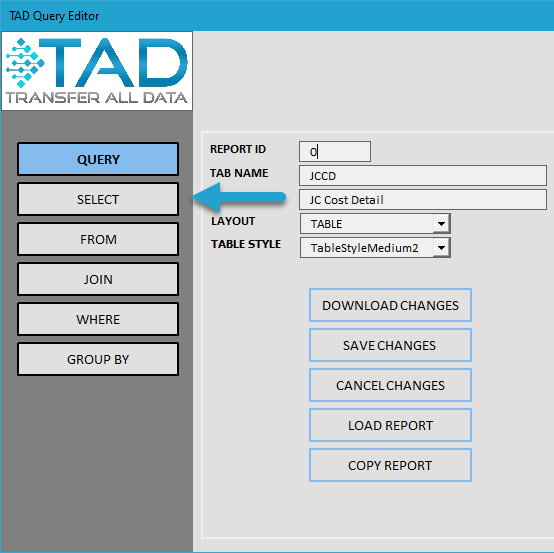
Remove the value from the Top # of Rows field.
Click Save Changes to update the query.
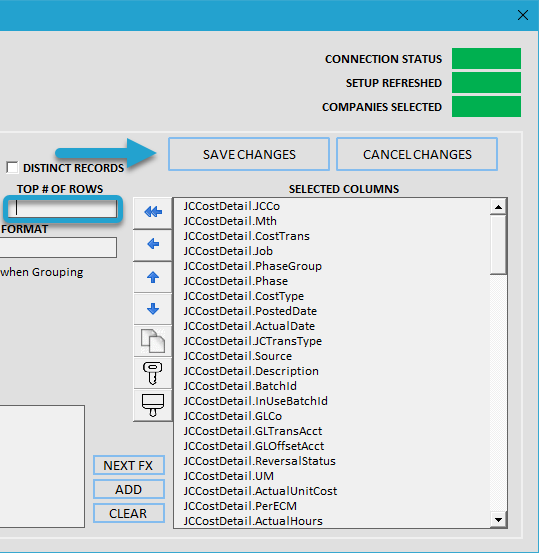
This will remove the @TopRows parameter from the SQL Statement field.
Click Download Changes to retrieve the full dataset without any row limit.