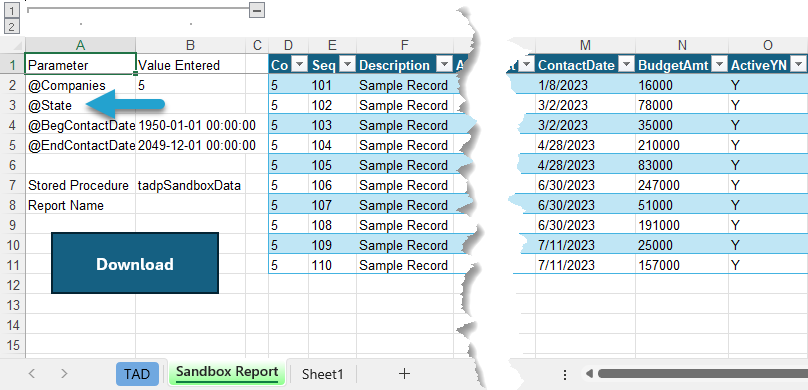
Update Stored Procedure Parameters
Getting Started
If you are downloading data from a stored procedure that has new parameters you must update the TAD report configuration to include them; otherwise, the download will fail.
Add New Parameters to Existing Report
Select the worksheet with your report.
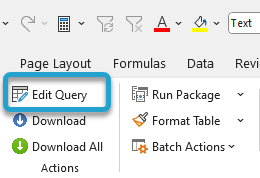
Click the Edit Query button on the left side of the ribbon.
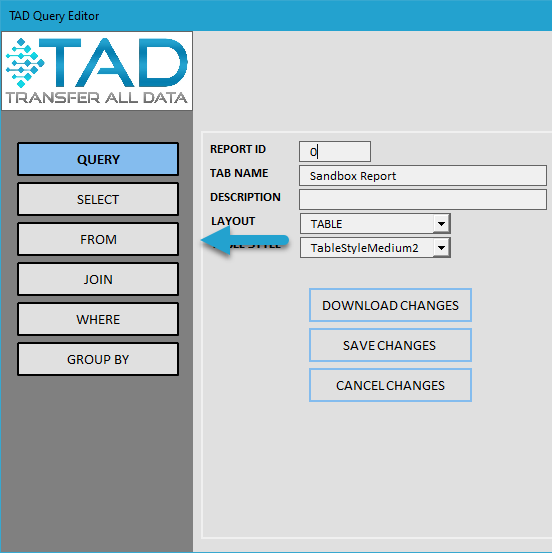
That will open the TAD Query Editor form.
Click the From button on the left side.
Click the Refresh Parameters button to pull the new parameters for the stored procedure.
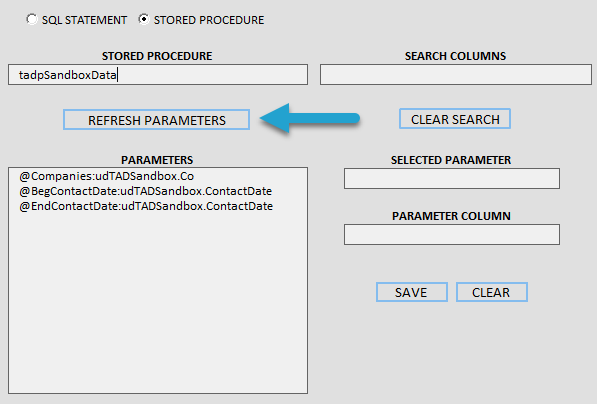
The Parameters list will show the new parameter(s).
You must associate every parameter with a Table Column. This is used for the formatting of the parameter values and drives what the F4 lookup will show.
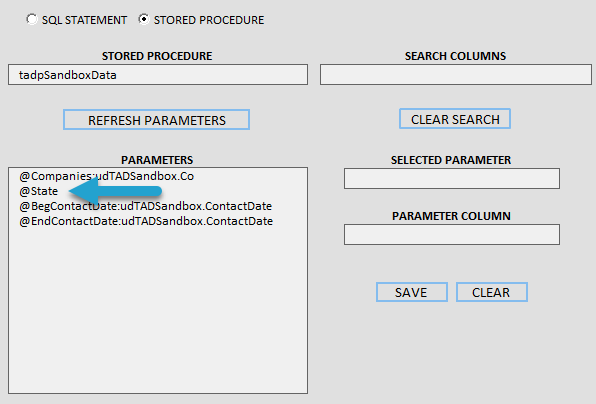
Select the new parameter in the Parameters list.
Select the associated table column in the Table Columns list.
Click the Save button.
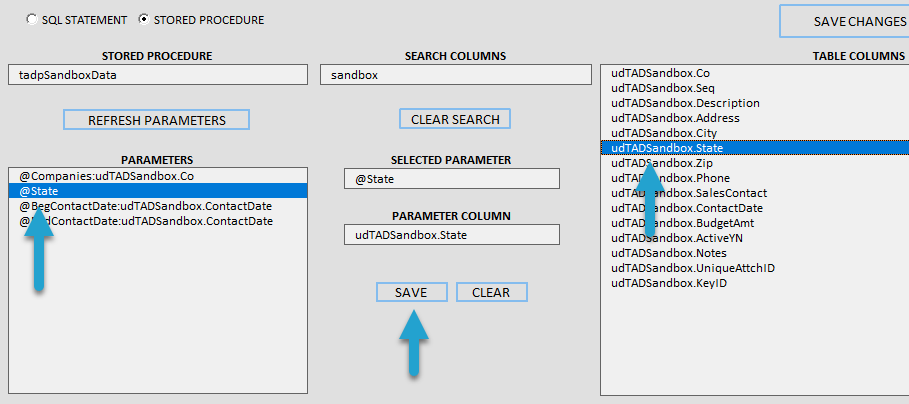
You will see the updated parameter value in the Parameters list.
Repeat the same steps for the remaining parameters.
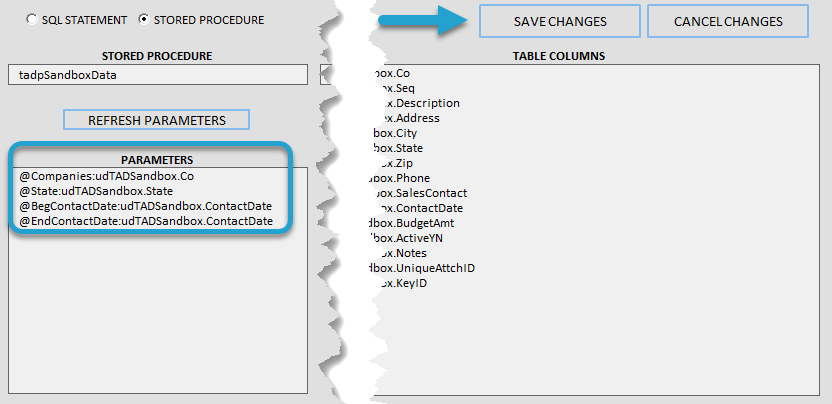
You are finished once all parameters are linked to a table column.
Click the Save Changes button.
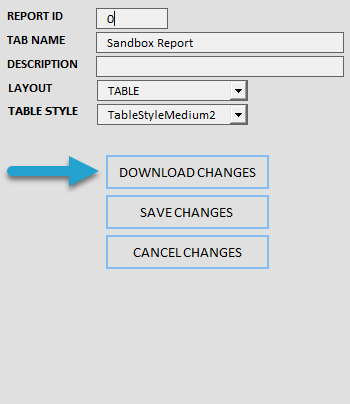
Click the Download Changes button.
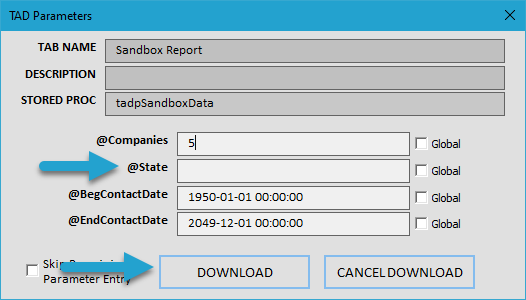
You will see the TAD Parameters form with the new parameters. Update any of the parameter values.
Click the Download button.
You will see the data generated from the stored procedure and the new parameter(s) in Column A.