Using Converter Functions
Getting Started
The following list contains the functions currently available for the Converter.
- TADVLookup New – Creates a new cross-reference worksheet which is used during the copy process to change the source value.
- TADVLookup Update – Updates an existing cross-reference worksheet if there are new source values.
- TADVLookup Custom – Defaults the syntax for the TADVLookup function to reference that sheet. This should be used if you already have a cross-reference worksheet.
- TADRemove – Removes specified characters from the source value. Use the / key to separate multiple removals.
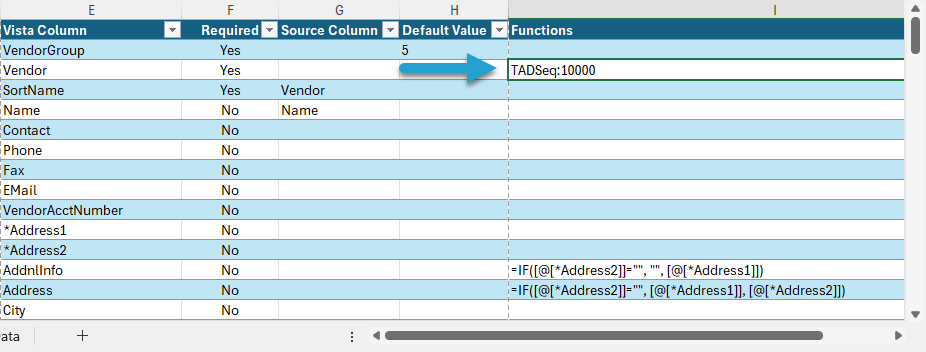
- TADSeq – Sequences the specific column from a specified starting number.
- Excel Formulas – You can enter full Excel formulas into the Function column, and they will be applied to the destination columns.
TADVLookup New
The TADVLookup New function creates a new cross-reference worksheet, which is used during the copy process to change the source value.
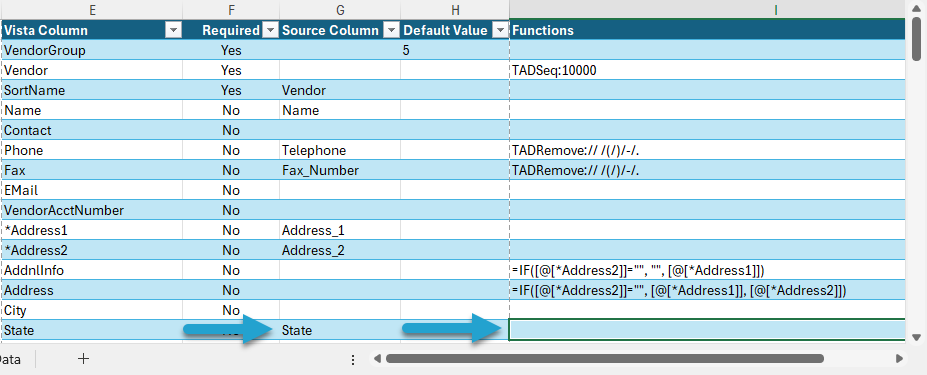
Make sure you have a Source Column entered. Press F4 to select from a list.
Select the Functions cell and press the F4 key.
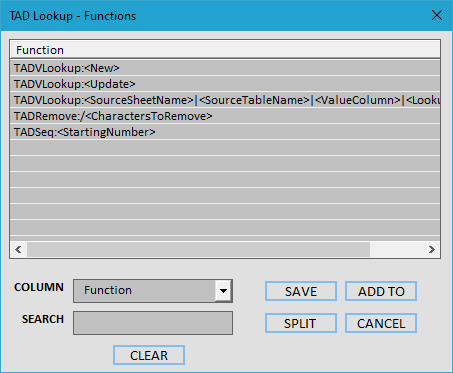
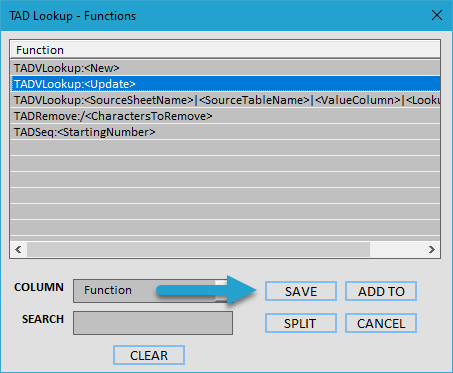
That will open the Lookup form, showing a list of the Functions.
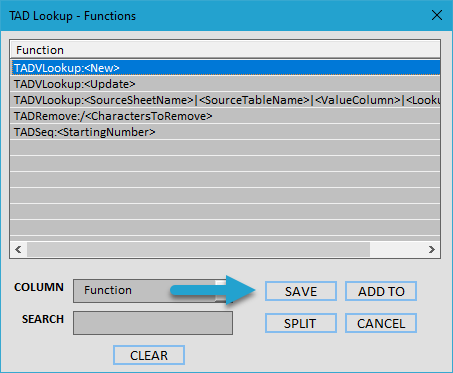
Select the TADVLookup: value.
Click the Save button.
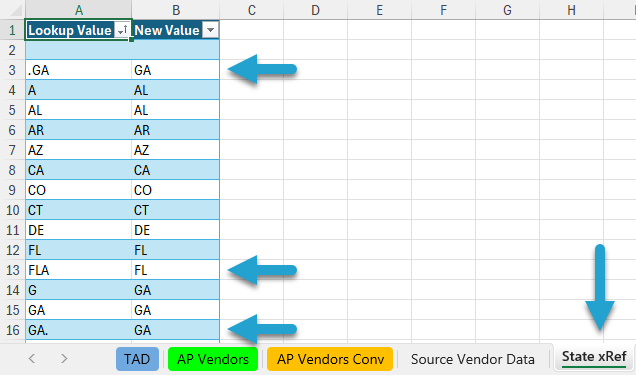
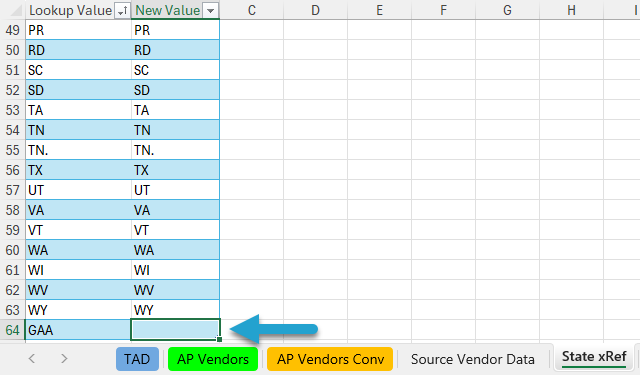
That will create a new worksheet with the column name and xRef added to the end.
Update the New Value column with the values you want to import into Vista.
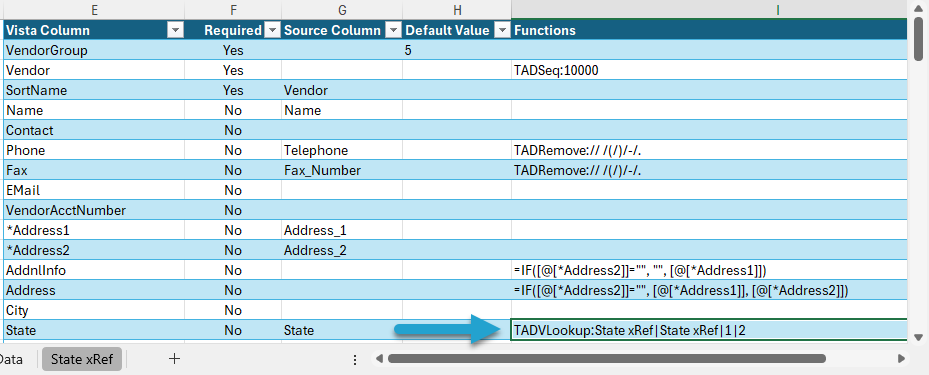
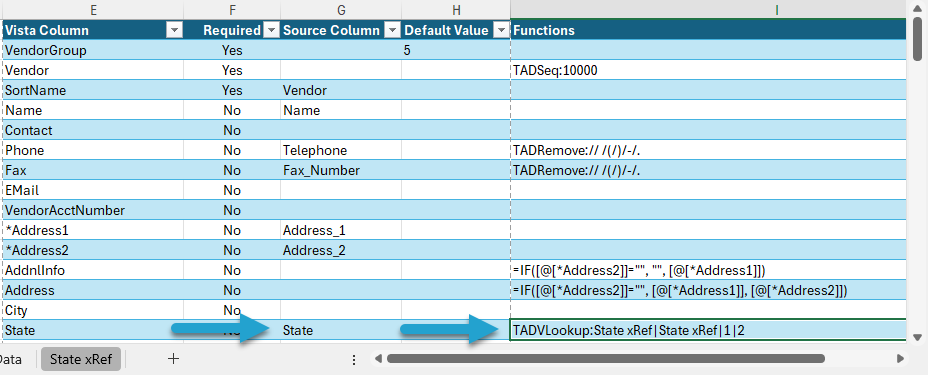
Back on the Converter worksheet, you will see the function applied to the cell.
TADVLookup Update
The TADVLookup Update function updates an existing cross-reference worksheet if you think there are new source values.
Make sure you have a Source Column entered. Press F4 to select from a list.
Select the Functions cell containing the existing TADVLookup formula and press the F4 key.
That will open the Lookup form, showing a list of the Functions.
Select the TADVLookup:<Update> value.
Click the Save button.
That will add any new source values to the bottom of the existing cross-reference worksheet.
Update the New Value column with the value you want to import into Vista.
TADVLookup Custom
The TADVLookup Custom function should be used if you already have a cross-reference worksheet. It defaults the syntax for the TADVLookup function for you to reference that sheet.
Make sure your lookup data is not just plain text on a worksheet. It must be an Excel table in order for the Converter process to utilize it. Follow the Change Source Data into Table steps if you are unsure of how to do that.
The full syntax of the function is:
<SourceSheetName>|<SourceTableName>|<ValueColumn>|<LookupColumn>- SourceSheetName – This is the source worksheet name.
- SourceTableName – This is the table name.
- ValueColumn – This is the column number in the table containing the source values.
- LookupColumn – This is the column number in the table containing the new values.
Make sure you have a Source Column entered. Press F4 to select from a list.
Select the Functions cell and press the F4 key.
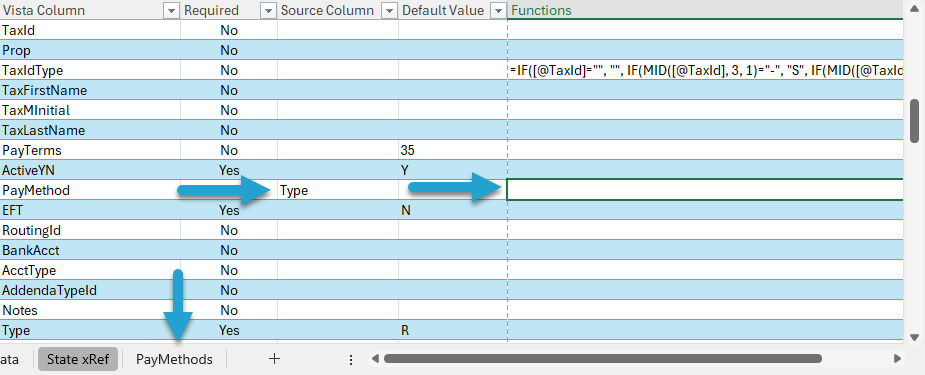
That will open the Lookup form, showing a list of the Functions.
Select the TADVLookup:<SourceSheetName> value.
Click the Save button.
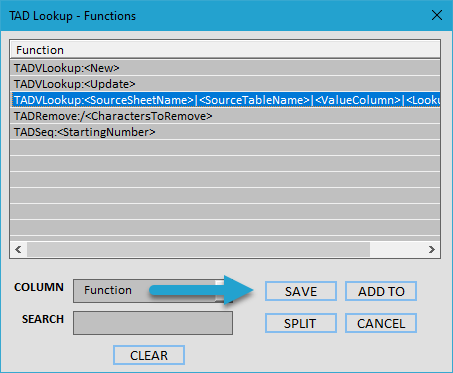
That will apply the default formula to the cell.
Replace <SourceSheetName> with the source worksheet name.
Replace <SourceTableName> with the table name on the source worksheet.
Replace <ValueColumn> with the column number containing the source values.
Replace <LookupColumn> with the column number containing the new values.
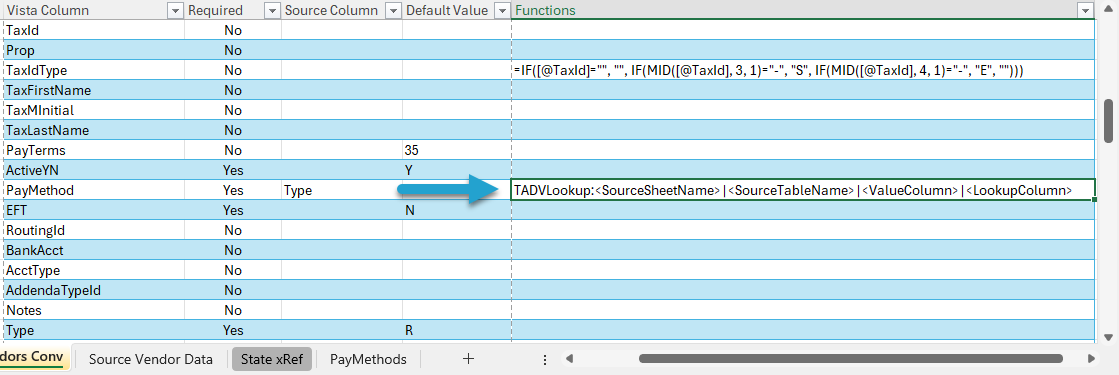
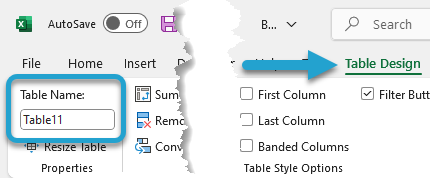
To find the <SourceTableName> value, select any cell in the table.
Go to the Table Design ribbon, and you will see the Table Name on the left.
After your updates, your function should look similar to the image below.
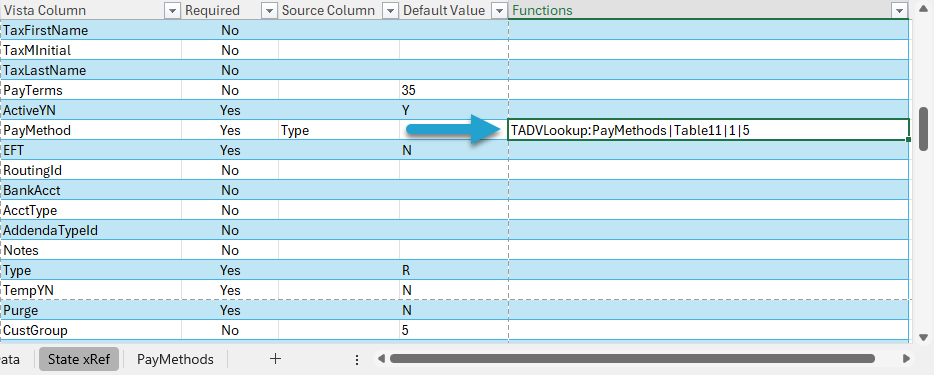
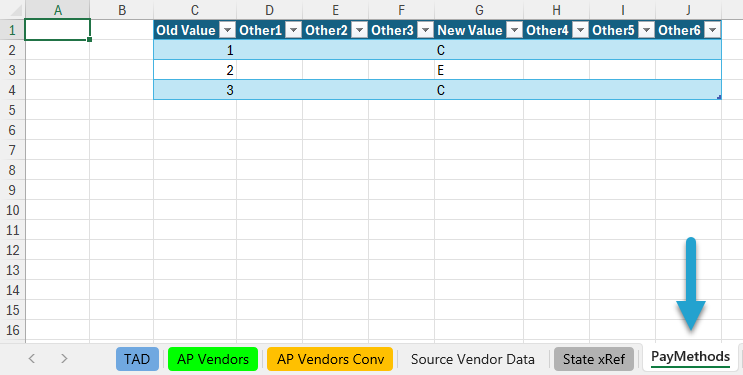
The <ValueColumn> is the Old Value column in the image below, which is table column 1.
The <LookupColumn> is the New Value column in the image below, which is table column 5.
TADRemove
The TADRemove function removes specified characters from the source value.
Make sure you have a Source Column entered. Press F4 to select from a list.
Select the cell you want to update and press the F4 key.
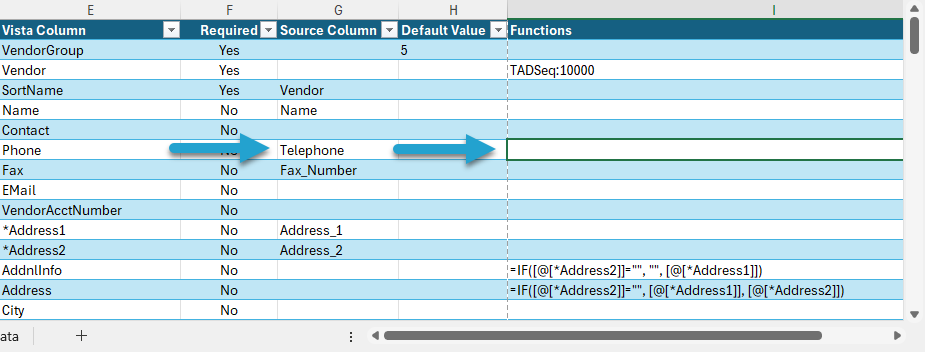
That will open the Lookup form showing a list of the Functions.
Select the TADRemove:/<CharactersToRemove> function.
Click the Save button.
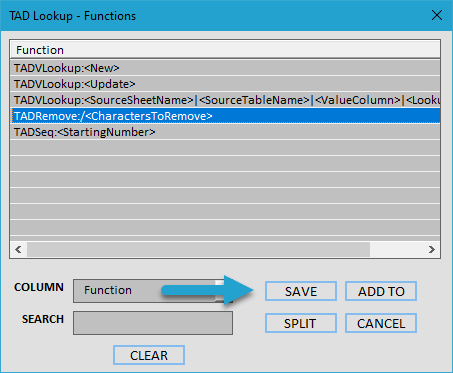
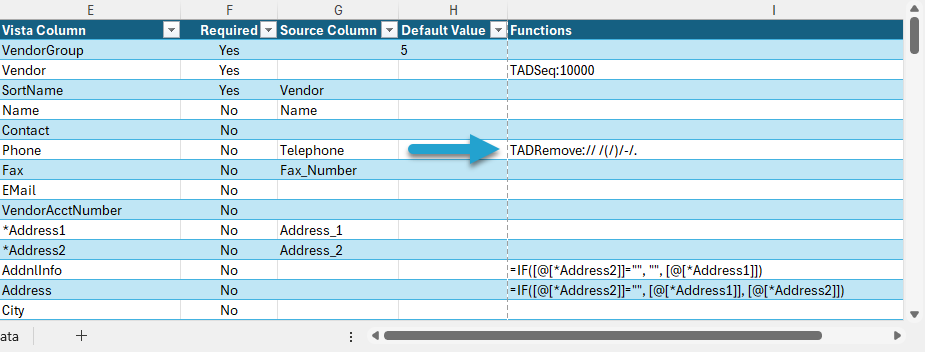
Separate each character that you want to remove with the / key.
The example below is / /(/)/-/. which will remove spaces, parentheses, hyphens, and periods from the Phone #, leaving the 10-digit phone number.
Click the OK button.

That will return the function into the cell.
TADSeq
The TADSeq function sequences the specific column from a specified starting number.
Select the cell you want to update and press the F4 key.
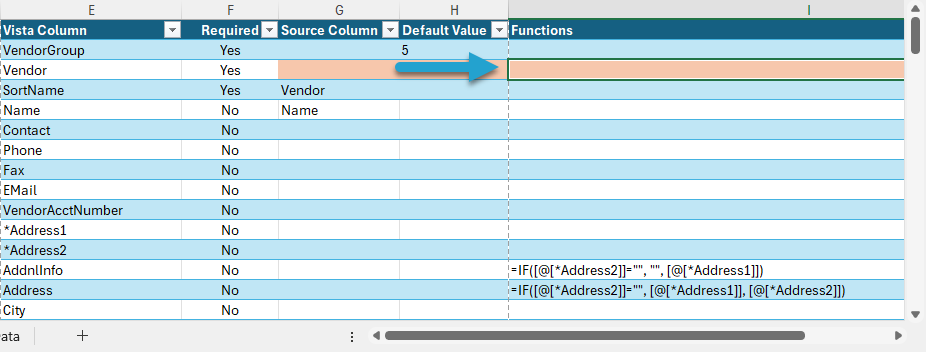
That will open the Lookup form showing a list of the Functions.
Select the TADSeq:<StartingNumber> function.
Click the Save button.
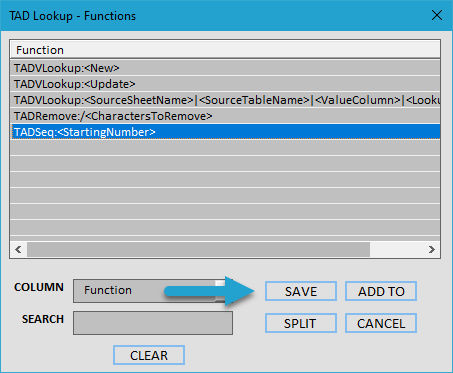
Enter the starting sequence number.
Click the OK button.

That will return the function into the cell.
Excel Formulas
You can enter Excel formulas into the Function column, and they will be applied to the destination columns. The Functions column is formatted as Text, so you can paste or key in the Excel formula.
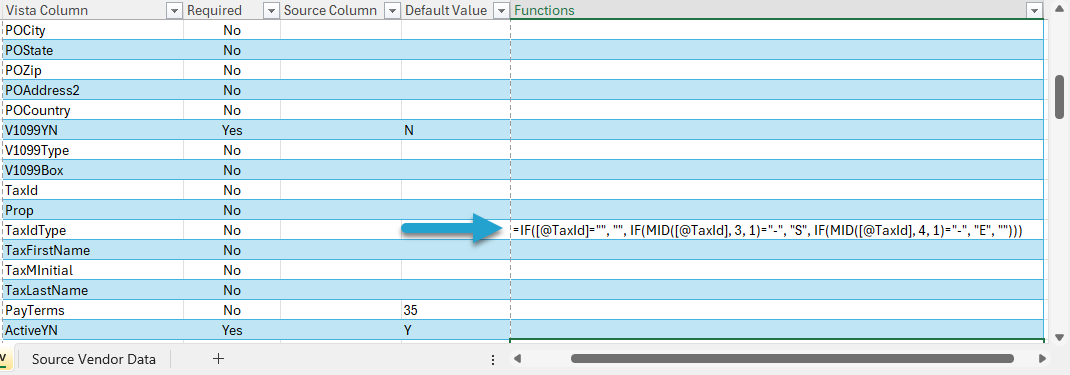
In the example below, the TaxIdType column has an Excel formula that will detect if the TaxId column is an EIN or SSN and return the corresponding E or S value.