Submit a Trimble Support Ticket for TLS Database Endpoint Allowlisting
Use this guide to submit a Trimble support case to whitelist the TUDS Azure IP for your Vista-hosted environment and request your TLS Database Endpoint connection details.
Before you begin
- You can sign in to the Trimble support portal.
- You are ready to submit the static IP address 20.69.254.118 .
- You want Trimble to provide your TLS Database Endpoint connection details, including the host, port, and database name.
Open the Create a Case page
Open the Trimble Create a Case page.

Complete the case form
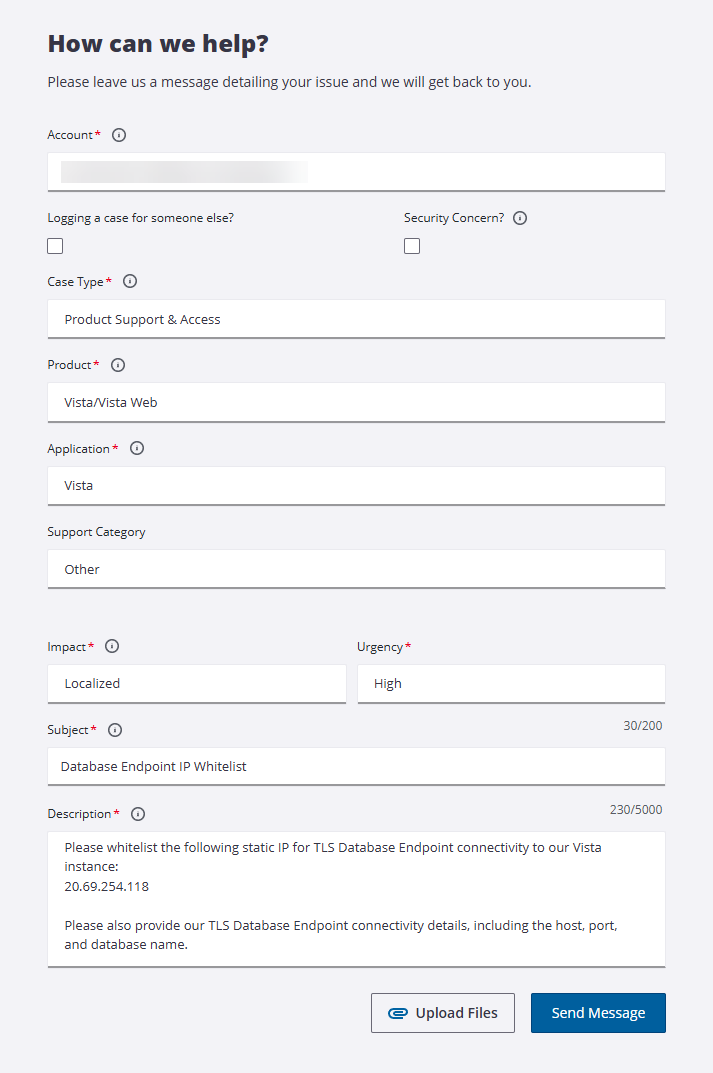
On the form, enter the following values:
-
Set Case Type to Product Support & Access .
-
Set Product to Vista/Vista Web .
-
Set Application to Vista .
-
Set Support Category to Other .
-
Set Impact to Localized .
-
Set Urgency to High .
-
Enter Database Endpoint IP Whitelist in Subject .
-
Paste the following text into Description :
Please whitelist the following static IP for TLS Database Endpoint connectivity to our Vista instance:
20.69.254.118
Please also provide our TLS Database Endpoint connectivity details, including the host, port, and database name.
-
Review the completed form, then select Send Message .
Expected result
Your case is submitted to Trimble with the whitelist request and the request for your TLS Database Endpoint connection details. After Trimble provides the host, port, and database name, you can go to Team Settings -> Connectors to enter the Azure endpoint details and activate the connection.