Team Onboarding for Captains
This guide is for team captains and IT admins who are setting up a new team in Mission Control. Follow this order to avoid setup loops and missing-data issues.
What this setup covers
- Add users and assign access in Users & Access.
- Activate the team subscription in Team Billing.
- Configure Azure Bridge in Connectors.
- Refresh companies in Vista Configs.
Before you begin
- You have signed in and completed the Getting Started onboarding flow in Mission Control.
- You have the Captain role for the team.
- SQL Server connection details and credentials are ready (host, port, database name, SQL login).
- SQL Server is reachable from TUDS-hosted Azure Bridge — or your IT team is ready to allowlist Azure Bridge egress IP if required.
Step 1: Add users and assign access
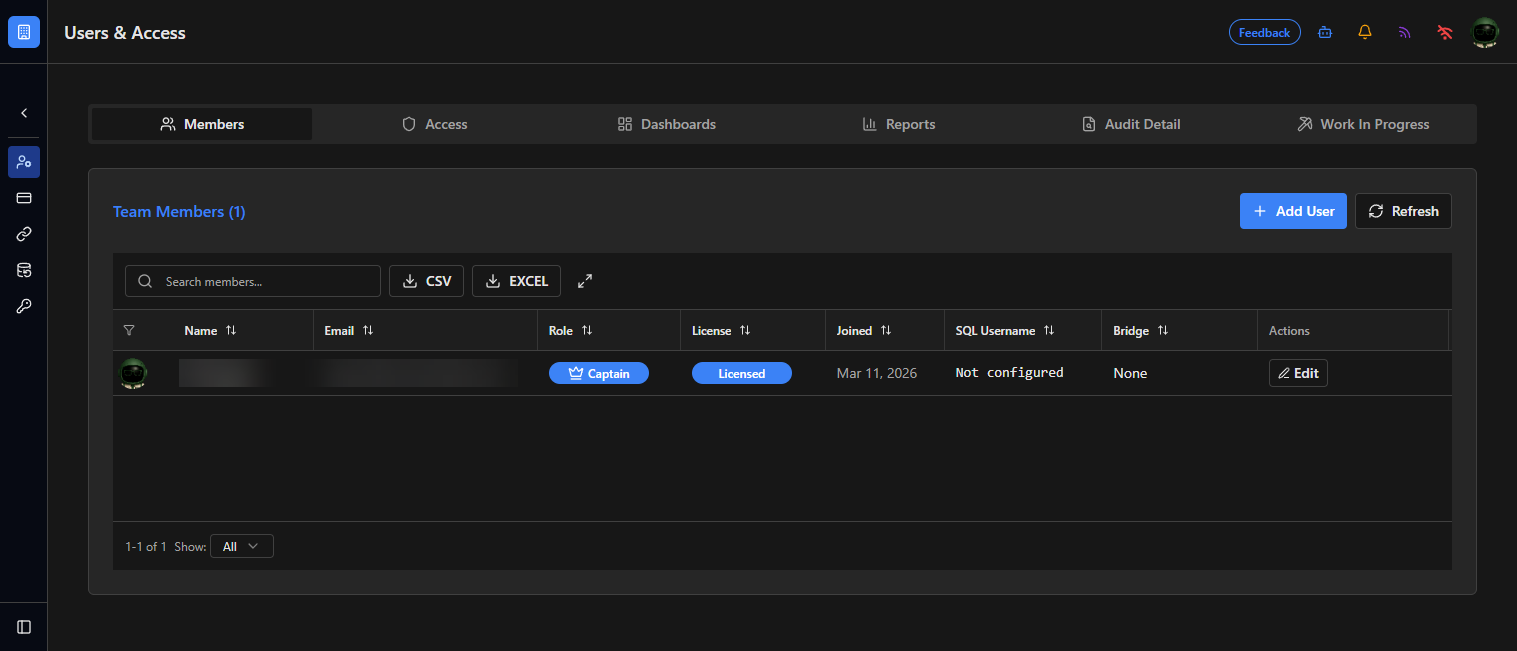
Go to Team Settings → Users & Access. Complete this step first so you can set licensed users before activation.
- Select the Add Users button to open the add-user modal.
- Enter the user's Name and Email.
- Choose the user's Role, License, and Profile options.
- Save the new user, then repeat for each additional user.
- Set users to Read-only when they should not consume a paid seat.
- Confirm users can sign in and open Mission Control.
Read-only note: Read-only users are excluded from license fees, but they cannot access paid features/options.
Role note: Team Settings pages are visible to users with the Captain role. The Bounty Hunter role is typically reserved for third parties (for example, consultants) who are temporarily supporting your team.
Step 2: Activate subscription
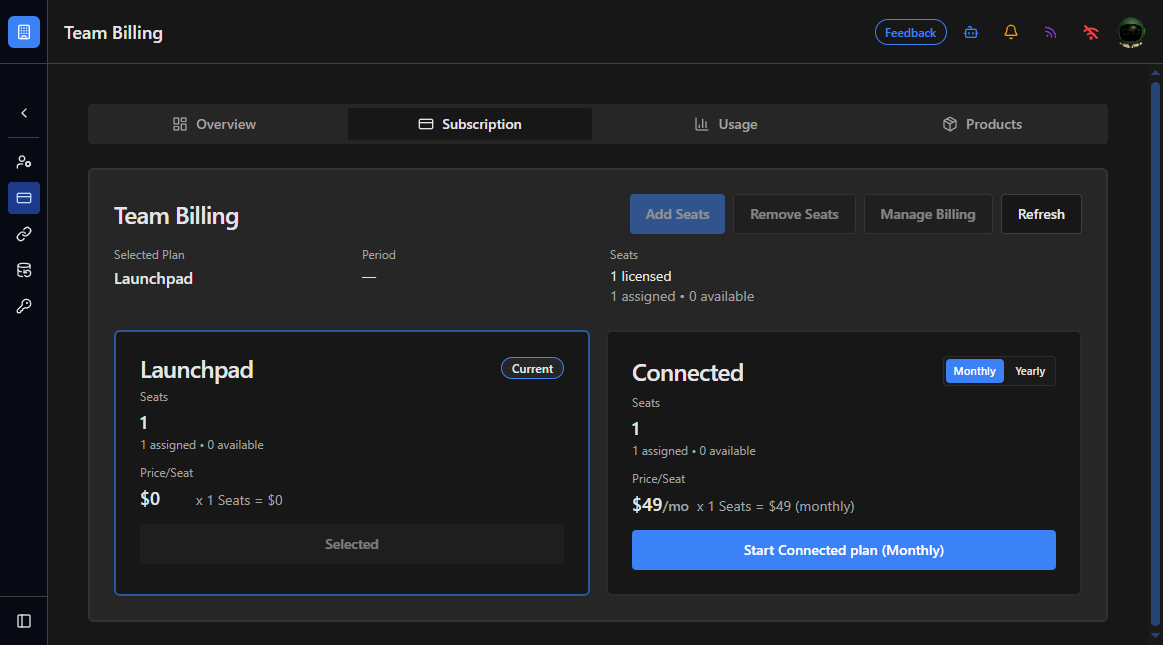
Go to Team Settings → Team Billing, then open the Subscription tab.
- Review user counts and licensed seat expectations.
- Select your preferred billing cycle: Monthly or Yearly.
- Select Started Connected plan to continue to Stripe and complete subscription checkout.
- After checkout is complete, return to the Subscription page and confirm Selected Plan shows Connected.
This is also where seats are managed. Added seats are prorated and take effect immediately. Removed seats stay active through the current billing period and are not renewed in the next period.
Step 3: Configure Azure Bridge
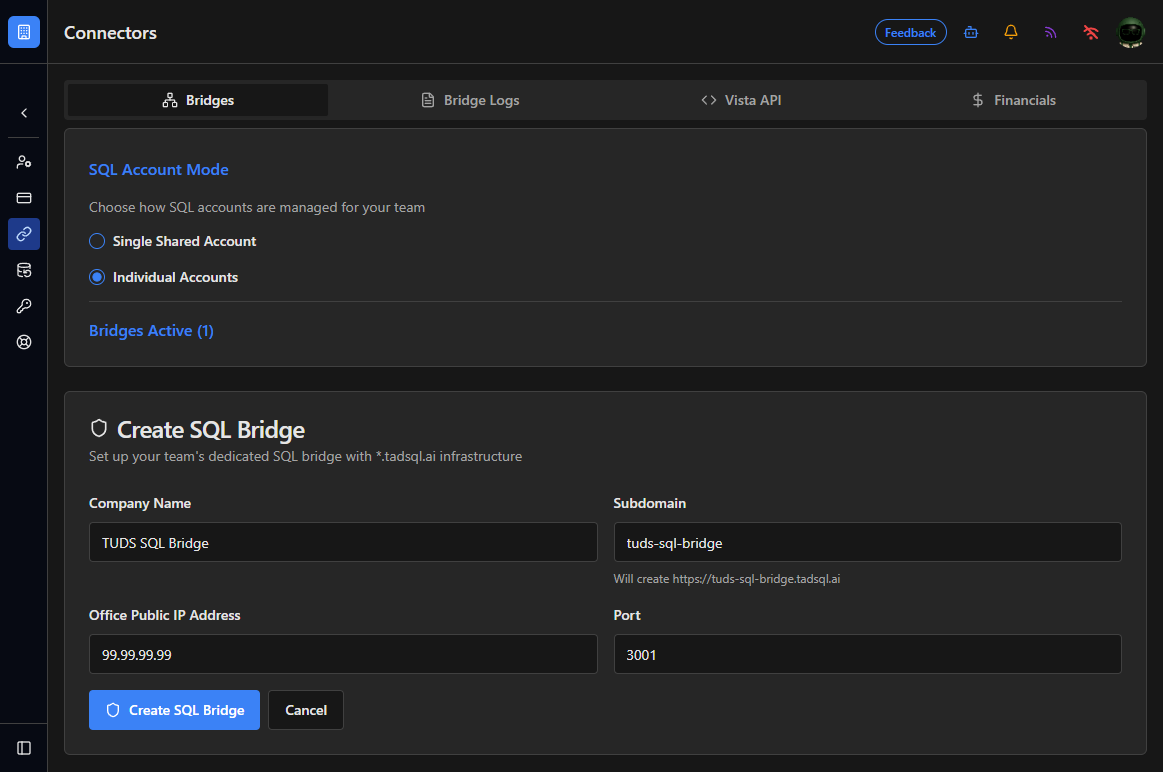
Go to Team Settings → Connectors, then open Azure Bridge.
Azure Bridge is TUDS-hosted in Azure. You do not install bridge or tray software on a customer Windows host.
3.1 Enter connection details
- On the Azure Bridge tab, enter the SQL Server host, port, and database name.
- Enter the SQL username and password (or configure per-user SQL account mapping if your team uses that model).
- Save the configuration.
3.2 Complete network approvals
- If your SQL environment requires allowlisting, permit inbound connections from TUDS Azure Bridge egress. Work with IT and see Request Database Endpoint IP Whitelisting or Azure Bridge Customer FAQ.
- For cloud Vista SQL, confirm your TLS Database Endpoint or IPsec VPN path is ready so TUDS-hosted Azure Bridge can reach SQL Server.
3.3 Test and validate
- Run the connection test from the Azure Bridge tab.
- Confirm at least one real TUDS workflow that depends on Azure Bridge succeeds.
- Check the Wi-Fi icon in Mission Control. A green icon indicates Azure Bridge is connected and healthy.
Bridge health indicator: After Step 3 completes, the Wi-Fi icon in Mission Control should show a healthy Azure Bridge connection.

Step 4: Run Vista Configs resync actions
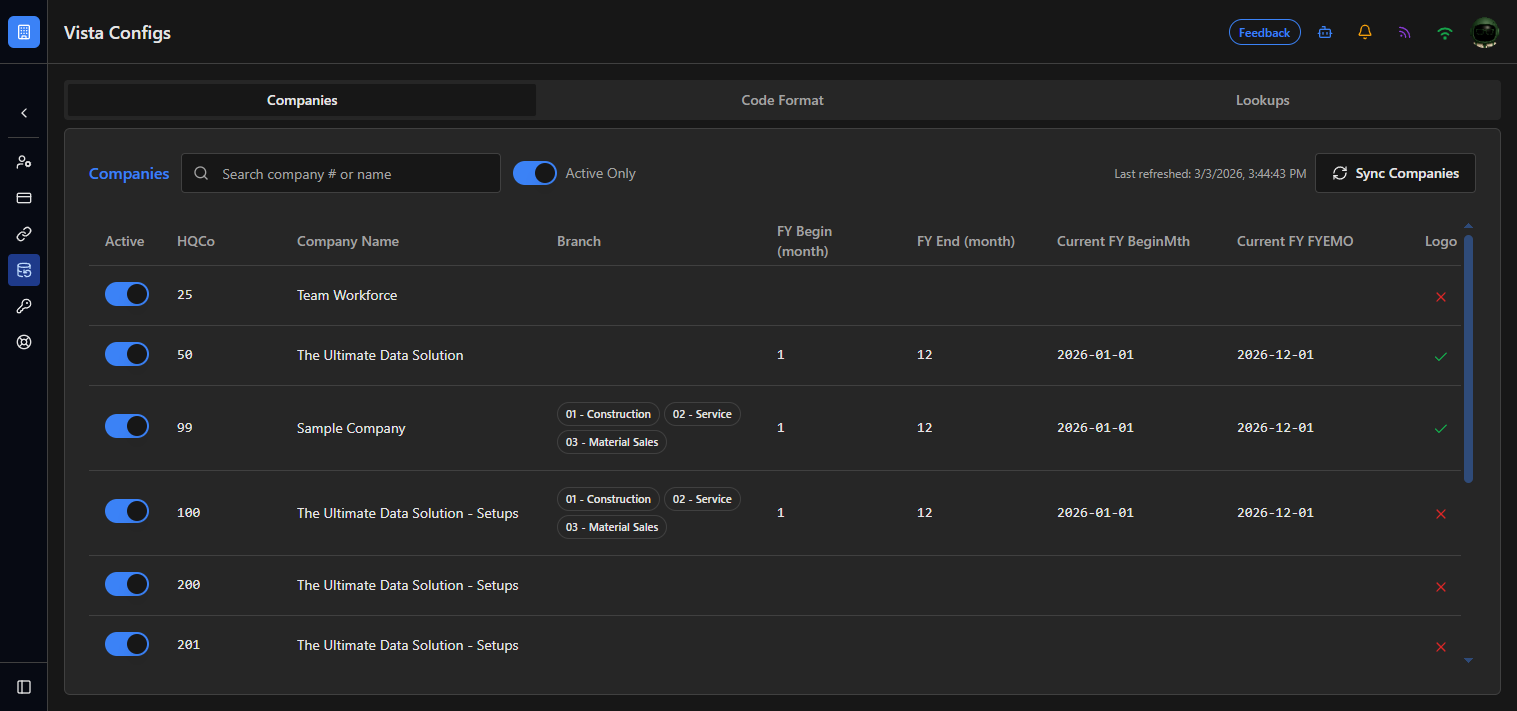
Go to Team Settings → Vista Configs. Complete both resync actions below.
4.1 Sync companies
- Open the Companies tab.
- Select Sync Companies.
- Wait for sync to complete, then confirm the expected companies appear.
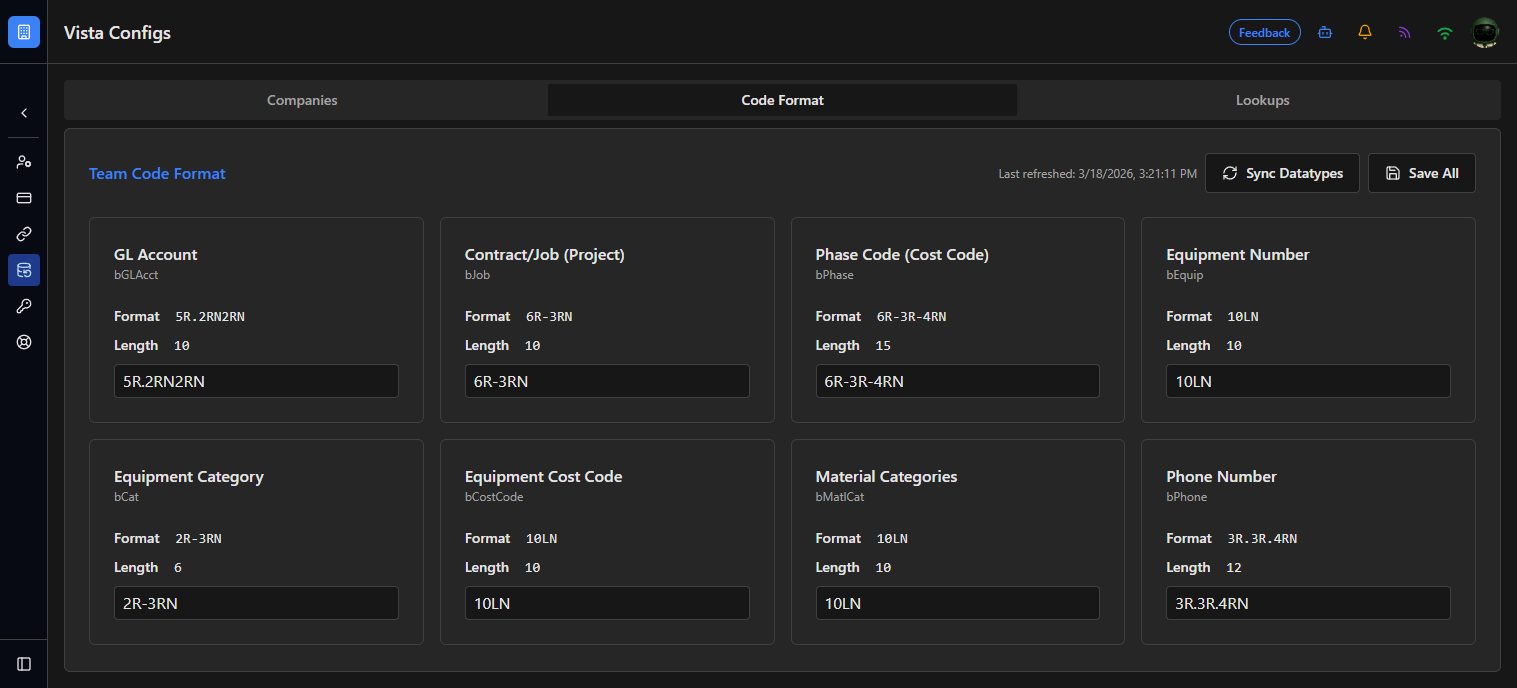
4.2 Sync datatypes
- Open the Code Format tab.
- Select Sync Datatypes.
- Wait for sync to complete, then confirm datatype values are loaded.
Validation checklist
- Users are added and can sign in.
- Subscription is active.
- Azure Bridge is connected and healthy.
- Companies and Code Format are refreshed in Vista Configs.
Common mistakes and fixes
- Subscription activated before user access is finalized: set users (and read-only users) first to avoid avoidable seat charges.
- Azure Bridge connected but no companies appear: run Sync Companies in Vista Configs.