TUDS Support and Troubleshooting
This guide covers where to get help in TUDS and what to check first when something is not working.
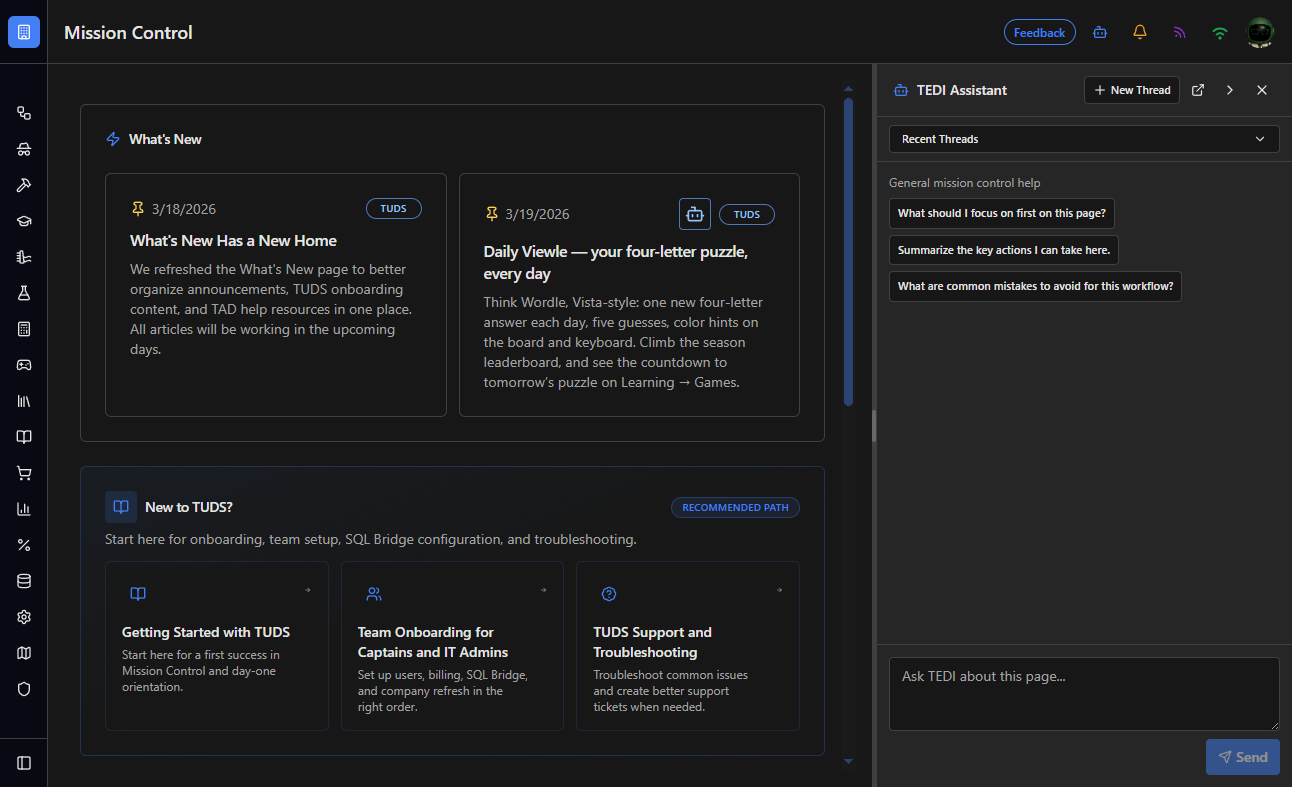
Start here: TEDI Assistant in the top toolbar
Select the TEDI Assistant robot icon in the top toolbar to open the right side panel.
TEDI is a fully conversational assistant built to answer questions about TUDS, TAD, and Vista.
For most issues and “how do I...” questions, this should be the first place users go for help.
Support tickets (access required)
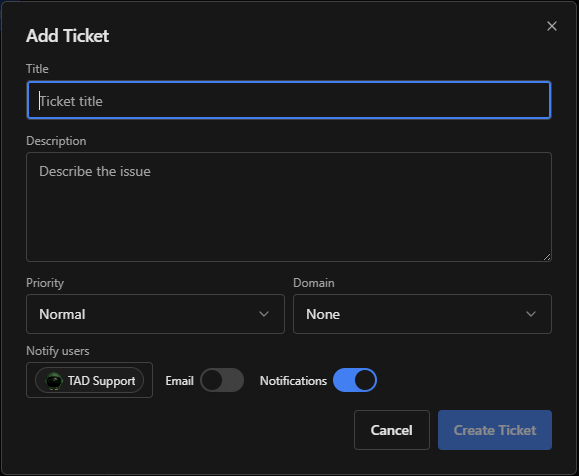
If TEDI does not resolve the issue, use the Support Portal to submit a ticket.
Important: only users who have been given Support Portal access can create support tickets.
Navigation: Team Settings → Support Portal
Click the Add Ticket button to open the menu below.
Common problems and what to check
I signed in, but I can’t see the page I need
- Team context: switch to the correct team in the header.
- Access: ask a team admin to verify access in Team Settings → Users & Access.
- Sidebar filter: set Route availability to Show All.
Azure Bridge status icon is red
- Meaning: a red Azure Bridge status icon means the connection from TUDS to the Azure Bridge is not working.
- First step: restart TUDS, then check whether the status icon returns to a healthy state.