Clearing net $0 AR invoices with unpaid retainage
AR Cash Receipts can clear invoices that have a net balance of $0 but contain offsetting retainage amounts that prevent them from dropping off the aging report.
This scenario occasionally occurs with converted invoices or when cash receipts are applied directly to retainage during initial posting without releasing the retainage first.
When this happens
You may encounter net $0 invoices with unpaid retainage in these situations:
- Converted invoices from a legacy system where retainage balances were not properly reconciled during conversion.
- Direct retainage posting when a user applies a cash receipt to the retainage column without first using AR Release Retainage.
- Offsetting entries where one invoice shows positive unpaid retainage (e.g., +1,000.00) and another shows negative unpaid retainage (e.g., -1,000.00), but both have a $0 current due amount.
These invoices remain on the AR Aging report because the system tracks the unpaid retainage amounts separately from the invoice balance, even when they net to zero.
Before you start
- Confirm the invoices have a Total Aged amount of $0.00 on the AR Aging report.
- Verify the Retainage column shows offsetting amounts (positive and negative values that net to $0).
- You have access to AR Cash Receipts with permission to post batches.
Steps
1. Create a $0 cash receipt
Open AR Cash Receipts and enter a new receipt:
- Select the Customer with the net $0 retainage invoices.
- Enter the Trans Date (typically today's date).
- Leave Check Number and Check Date blank (or enter reference values if required by your workflow).
- Enter 0.00 in the Check Amount field.
- Enter a Deposit # (commonly the current date in
MMDDYYformat, such as082826for August 28, 2026).
The invoices with unpaid retainage will appear in the grid with Current Due showing $0.00 and Unpaid Retg showing the retainage amounts that need clearing.
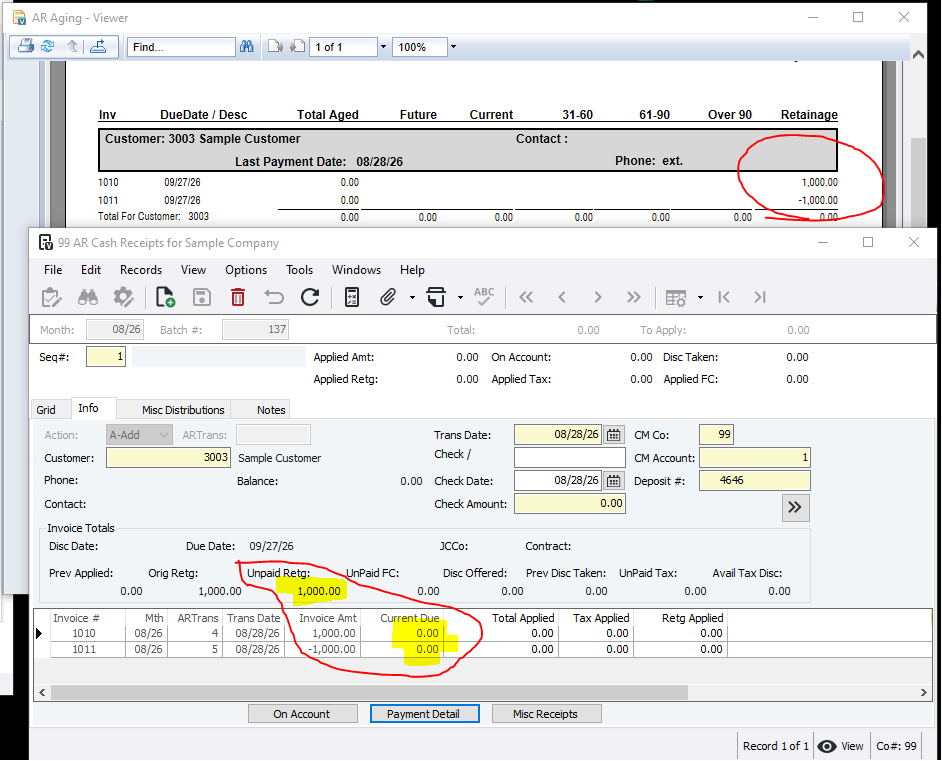
The AR Aging (top) shows Total Aged of $0.00 with offsetting Retainage amounts. The AR Cash Receipts form (bottom) displays the same invoices with $0.00 Current Due and Unpaid Retg highlighted.
2. Apply retainage for each invoice
For each invoice that has an Unpaid Retg amount:
- Select the invoice row in the grid.
- Click Payment Detail (or double-click the row).
- In the AR Payment Detail form, check the box labeled Remove Input Restrictions.
- In the grid at the bottom, locate the line with the Unpaid Retg amount displayed.
- Enter the Unpaid Retg value into the Apply Retg column for that line.
- Important: Do NOT enter anything in the Apply Amount column—the system will calculate and populate this automatically.
- Click Close to return to the AR Cash Receipts form.
Repeat this process for each invoice with unpaid retainage.
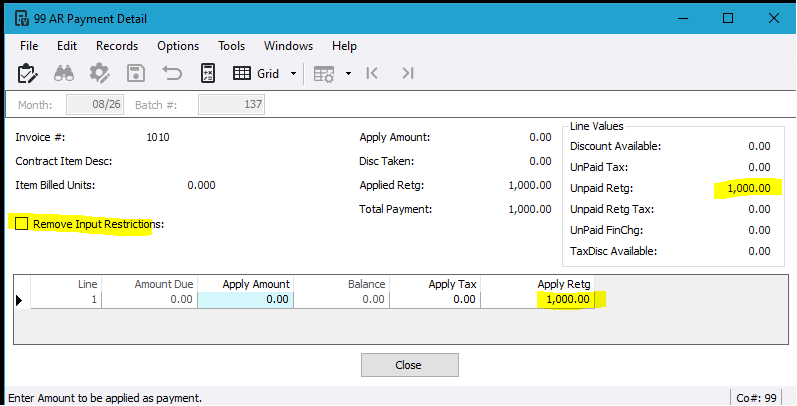
Invoice 1010 has Unpaid Retg of 1,000.00. With Remove Input Restrictions checked, enter 1,000.00 in Apply Retg (not Apply Amount).
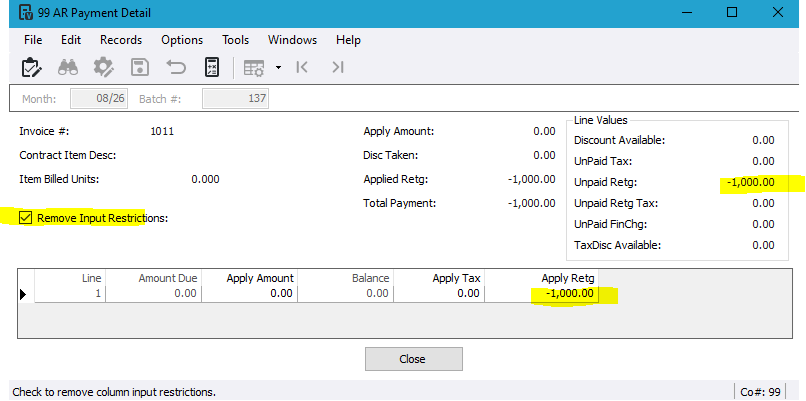
Invoice 1011 has Unpaid Retg of -1,000.00. Enter -1,000.00 in Apply Retg with Remove Input Restrictions enabled.
3. Verify and post the batch
After applying retainage to all invoices:
- Review the AR Cash Receipts grid to confirm:
- Total Applied reflects the applied amounts for each invoice.
- Retg Applied shows the retainage amounts you entered.
- The net effect is $0.00 (offsetting amounts cancel out).
- Go to File → Process Batch → Validate.
- Review the validation results and resolve any errors.
- Go to File → Process Batch → Post to finalize the batch.
Once posted, the invoices will no longer appear on the AR Aging report.
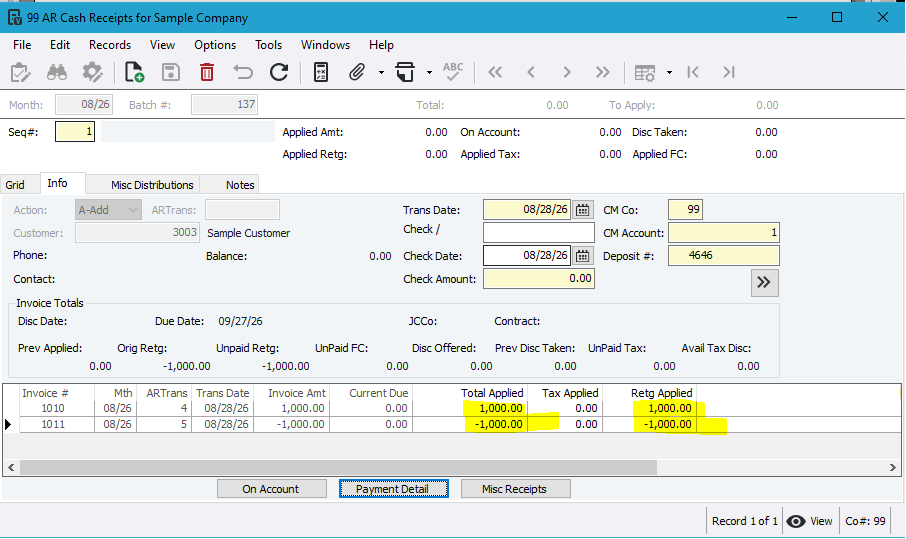
After applying retainage in Payment Detail, the main grid shows Total Applied and Retg Applied populated for both invoices, netting to $0.00.
Notes
- Do not enter Apply Amount—only populate the Apply Retg column in Payment Detail. The system automatically calculates the applied amount based on your retainage entry.
- Remove Input Restrictions is required—without checking this box, you cannot manually enter amounts in the Apply Retg column.
- $0 check amount is correct—you are not applying actual cash; you are clearing retainage accounting entries that offset.
- Validate before posting—always validate the batch to catch any errors before posting, especially when using input restriction overrides.